
Contracts
Contracts
The Contracts module is the foundation of every project. No project begins without an agreement, and here all client contracts live in one place - no spreadsheets, no scattered files. Each signed contract flows directly into the rest of the system: tasks, invoices, payments, and even time tracking stay connected automatically.
Whether it’s a simple one-off deal or a complex multi-month service agreement with included hours and grade-based pricing, contracts ensure that projects start on solid ground and that every next step - from billing to project delivery - follows smoothly.
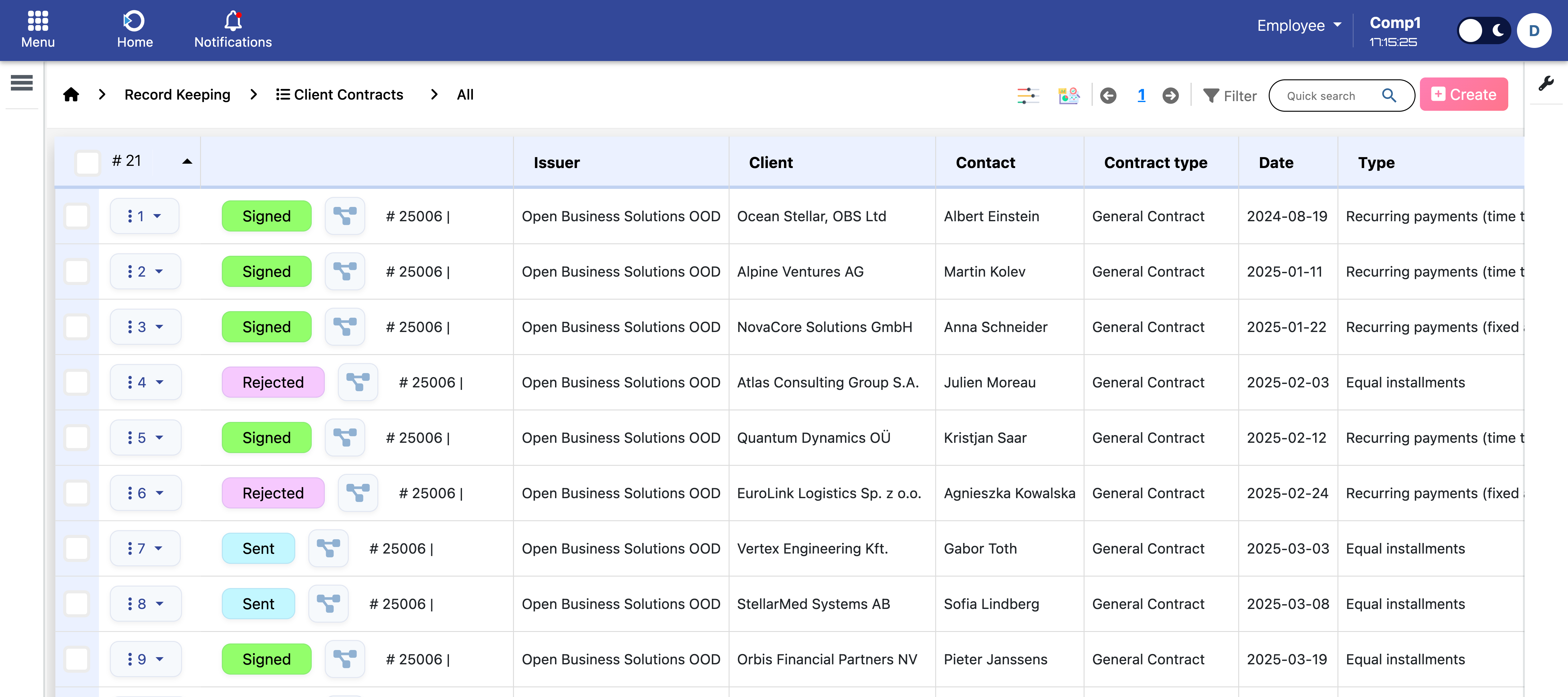
Location: Home screen > Client Contracts
Who Uses This
The Contracts module is built for service-oriented businesses with ongoing client engagements - the kind of work where a client pays regularly for access to a team, expertise, or infrastructure rather than for a single one-off deliverable.
Typical users include:
- Managed service providers - IT support, cloud infrastructure (AWS, Azure, GCP), DevOps, security operations, monitoring.
- Consulting firms - retainer-based advisory relationships with included hours and overage rules.
- Software support & maintenance teams - post-delivery support packages with on-call coverage.
- Education & finance - tuition or leasing models built on equal monthly installments.
If your billing model includes any of the following, this module is built for you: included hours, on-call premiums, hourly rates by role or seniority, monthly retainers, multi-month billing cycles, or installment plans.
Contract Lifecycle
Every contract moves through a clear workflow, so you always know its status at a glance:
- Draft - Start the contract and enter key details. Nothing is visible to the client yet.
- Data validation - Use this stage to double-check the information before sending. It's a checkpoint for your team to confirm details. (Automation tools can be added if needed, but by default, this step is manual.)
- Sent - Share the contract with the client for review.
- Signed - Once the client approves, the contract becomes active, and connected modules (like invoicing or time tracking) start working.
- Rejected - If the client declines, the contract closes with this status.
This simple flow ensures everyone - managers, finance, and project teams - sees exactly where the contract stands. Importantly, the recurring billing automation only acts on contracts in the Signed status.
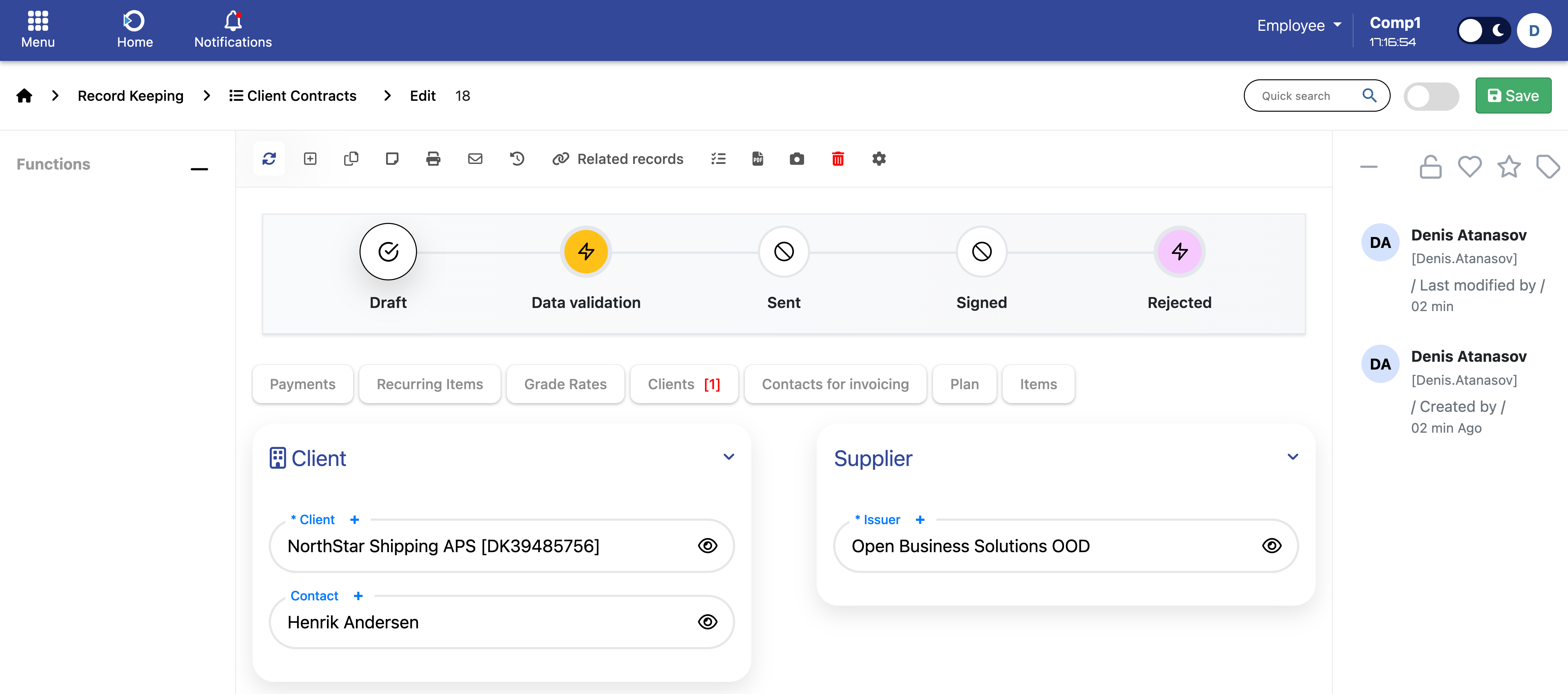
Location: Home screen > Client Contracts
Contract Types
When you create a new contract, the first choice is its type. This defines how the contract handles payments and invoicing. There are two main options:
1. Equal Installments
Use this when the client pays a total amount, split evenly across several months. The system automatically generates the full payment schedule based on:
- Total amount
- Number of payments
- First payment date
- (Optional) Advance payment
Best for: tuition fees, leasing contracts, long-term loans.
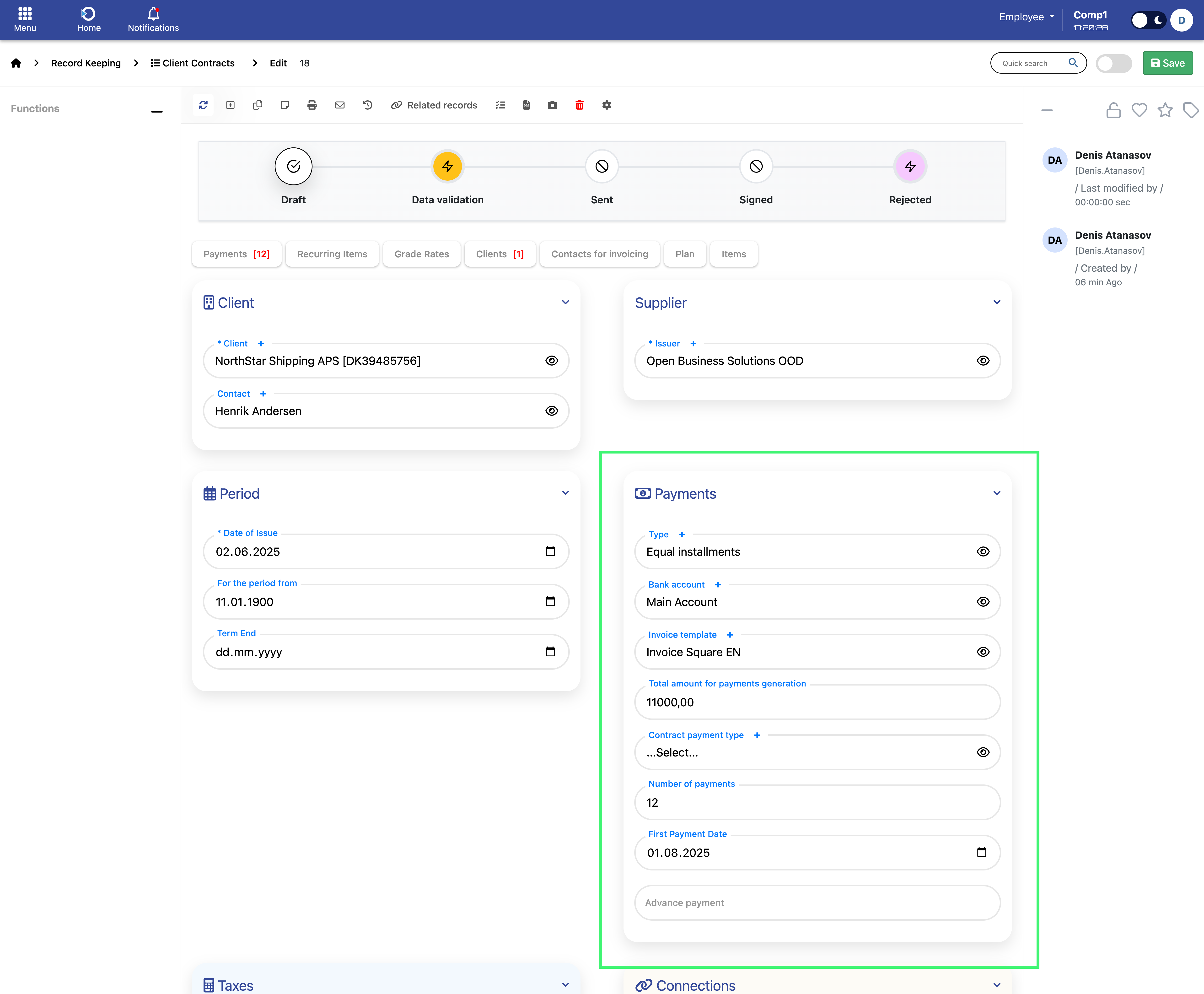
Location: Home screen > Client Contracts
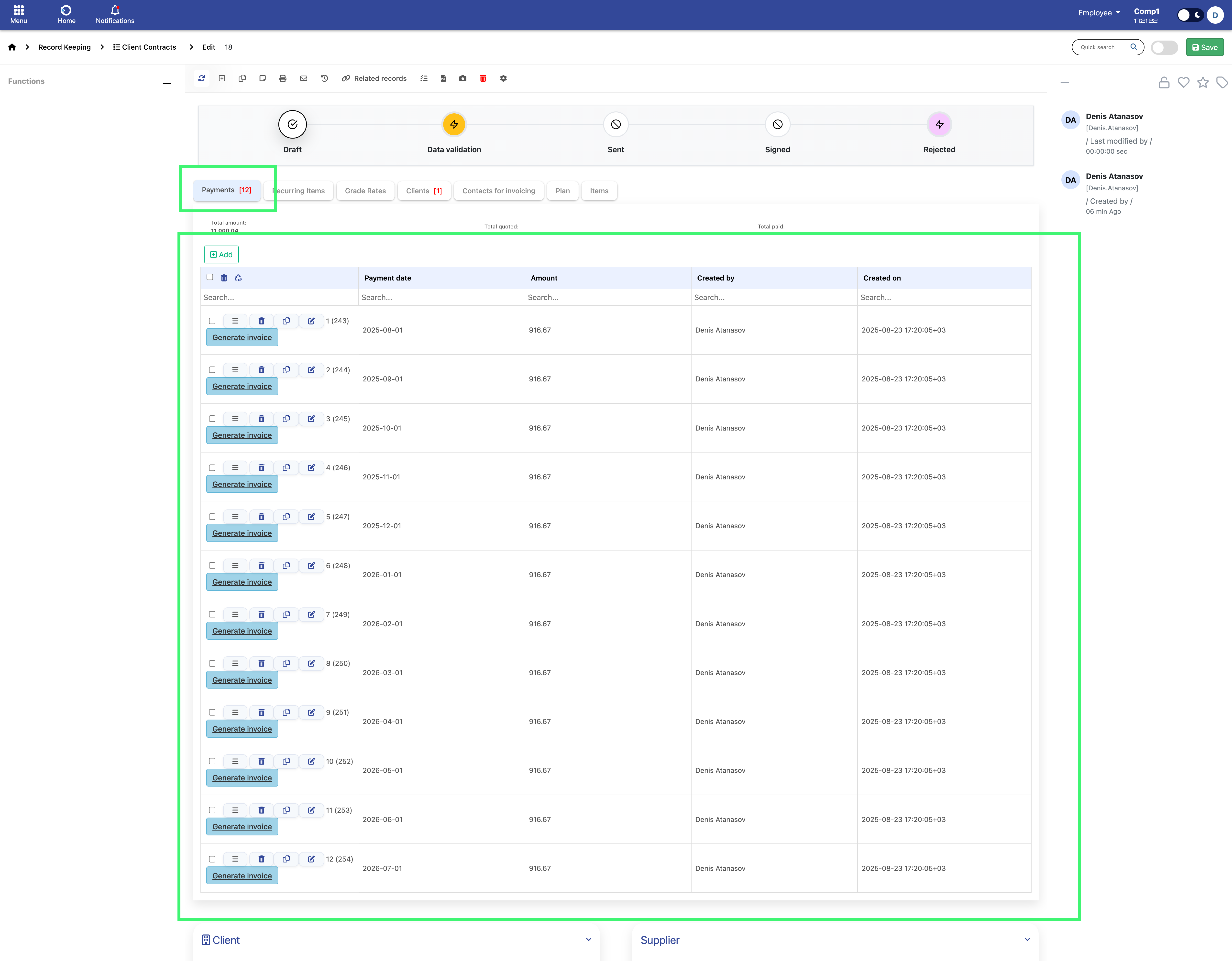
Location: Home screen > Client Contracts > Payments
2. Recurring Payments
Use this when the client pays a regular fee at fixed intervals - monthly by default, or every N months for bi-monthly, quarterly, semi-annual, or annual billing. This single contract type covers a wide range of billing models, from simple fixed retainers to complex time-tracked engagements with included hours and grade-based pricing.
What goes on the invoice each cycle is determined entirely by what you configure in the Recurring Items and Grade Rates tabs:
- If you only define fixed monthly fees - the invoice has those fixed lines.
- If you also enable a time-tracked package - tracked hours from Timesheets feed into the invoice automatically, with overage billed at grade rates.
- If you bill purely by the hour - the package can be set to zero, and every tracked hour is billed at grade rates.
Best for: service retainers, IT support contracts, hosting packages, software support subscriptions, consulting agreements with included hours, on-call infrastructure support.
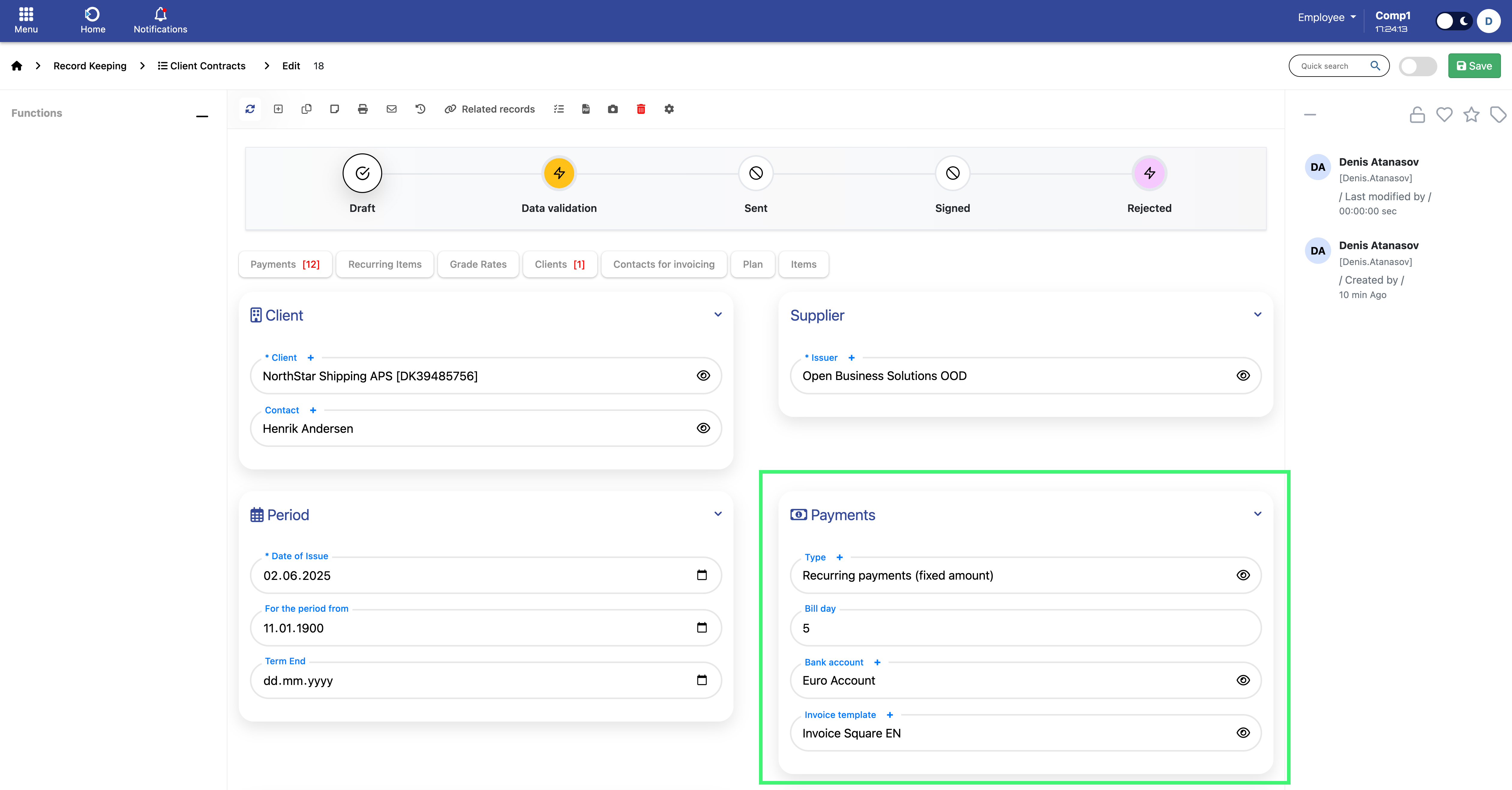
Location: Home screen > Client Contracts
The configuration details are covered in the next sections: Recurring Items for invoice lines and package rules, Grade Rates for hourly pricing above the package, and Billing Period & Invoice Generation for how the cycle works.
Recurring Items
The Recurring Items tab is where you define what appears on each invoice for a Recurring Payments contract. Every row in this tab becomes one invoice line, with its configured service, quantity, unit, and price per unit.
There are two kinds of rows:
- Fixed-fee rows (Use timesheets = OFF) - simple billable lines that appear on every invoice exactly as configured.
- The time-tracking row (Use timesheets = ON) - the special row that defines the included-hours package and on-call rules. A contract can have at most one such row.
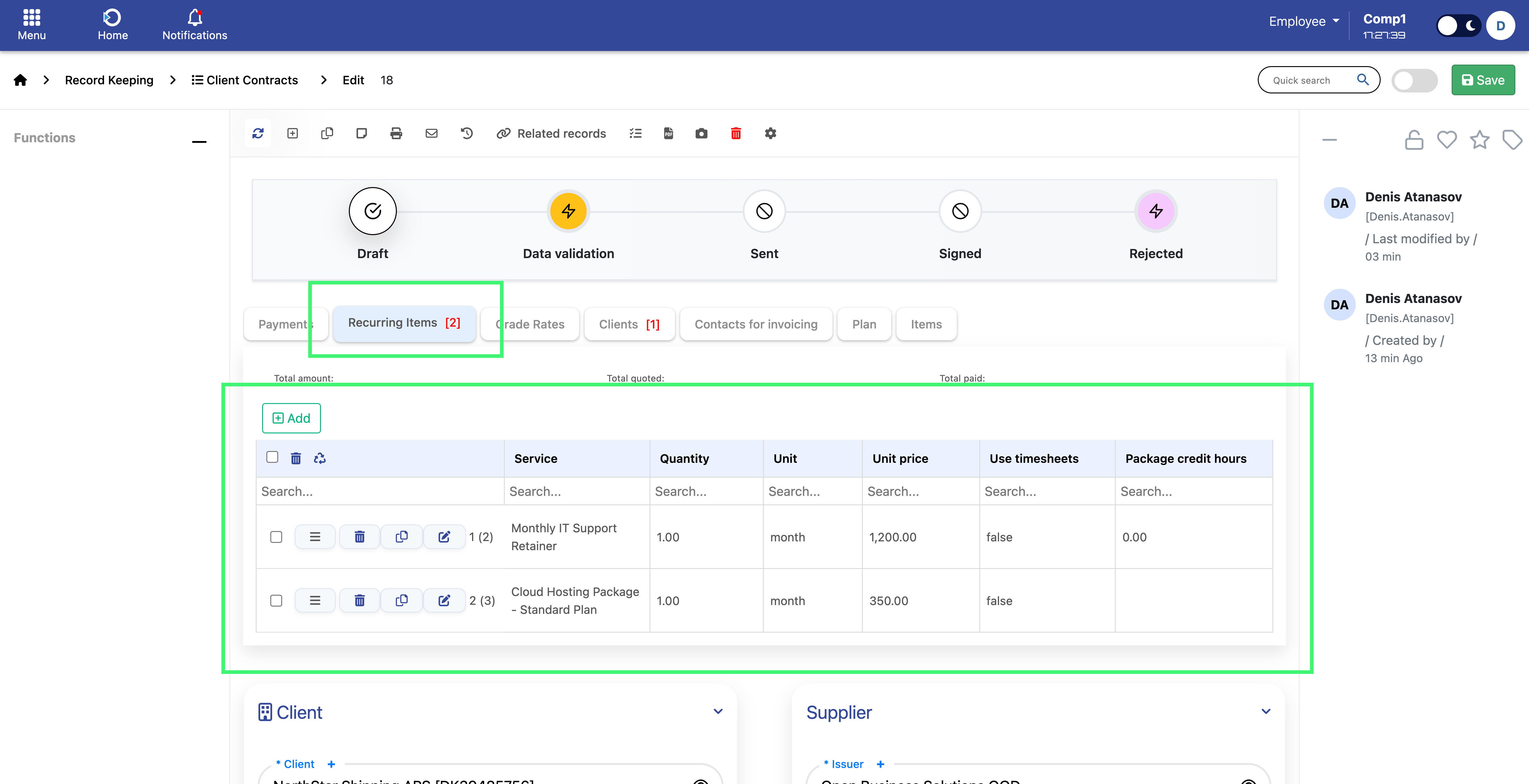
Location: Home screen > Client Contracts > Recurring Items
Fixed-fee rows (Use timesheets = OFF)
Use these for any line that should appear on every invoice with a constant qty and price - monthly retainers, infrastructure fees, named-service charges, hardware leases, anything not tied to tracked hours.
Fields:
- Service - the service to display on the invoice line.
- Qty - quantity (typically 1 for monthly fees).
- Unit - measurement unit (month, item, etc.).
- Price per unit - the price for one unit.
- Position - controls the order of lines on the invoice. Lower numbers appear first.
You can have as many fixed-fee rows as you need. They are always inserted on the invoice exactly as configured.
The time-tracking row (Use timesheets = ON)
Turn on Use timesheets when this contract includes a package of hours, an on-call rule, or any kind of time-tracked billing. When the toggle is enabled, additional fields appear that define how tracked hours are handled.
Core fields (in addition to Service, Qty, Unit, Price per unit):
- Package credit hours - the number of hours included in the package each billing cycle (for example, 50 hours per month). Tracked hours are counted against this allowance; anything above it overflows to grade rates.
- Off-hours service - the service that should appear on the invoice for billable on-call hours.
- Off-hours price per unit - the price applied to billable on-call hours.
- Off-hours consume package - controls whether on-call hours reduce the package balance. OFF by default: on-call hours are always billed separately on the off-hours line, regardless of package state. ON: on-call hours reduce the package balance first; only what overflows goes to the off-hours line.
- Off-hours coefficient - only visible when "Off-hours consume package" is ON. A multiplier applied to on-call hours when calculating package exhaustion. If left empty, the multiplier is 1.0. A value of 1.5 means each tracked on-call hour counts as 1.5 hours against the package - a way to express that on-call effort is more expensive without raising the price per hour.
How the time-tracking row produces invoice lines
The time-tracking row produces one or more lines on the invoice depending on its configuration:
- The package line itself - if any of Package credit hours, Qty, or Price per unit is non-zero, the row appears on the invoice with its configured Service / Qty / Unit / Price. This is the line the client pays just to have the package available.
- The off-hours line - if Off-hours service is configured, this line is always inserted on the invoice. Its quantity is the on-call hours that overflowed the package (in weighted hours when a coefficient is applied), and its price is the configured off-hours price. If no on-call hours overflowed, the line still appears with qty = 0, for transparency.
- Grade-rate lines - regular work hours that overflow the package are billed via the Grade Rates tab. See the Grade Rates section below.
Special case: package "hidden" from the invoice
If you set Package credit hours = 0, Qty = 0, AND Price per unit = 0 on the time-tracking row, the package line is suppressed from the invoice. This is the configuration to use when you want a contract that bills purely by tracked hours through Grade Rates, with no package line at all on the invoice. See Common Setups for the full configuration recipe.
Grade Rates
The Grade Rates tab defines the hourly prices applied to regular work hours that overflow the package. There are two pricing models, and you choose one per contract:
- Per-grade pricing - different hourly prices for different staff seniority levels (e.g., L1 / L2 / L3 / Architect). Use this when the client pays differently depending on who performed the work.
- Blended pricing - one price for everyone, regardless of grade. Simpler invoices, used when the contract specifies a single overage rate.
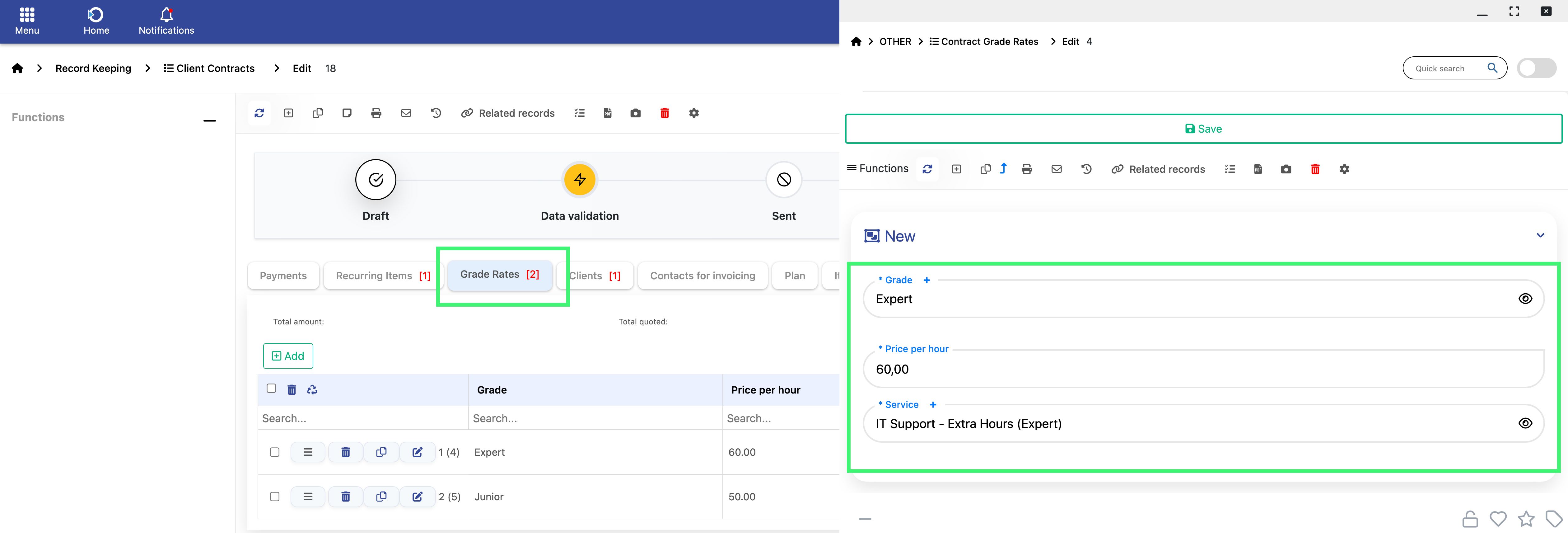
Location: Home screen > Client Contracts > Grade Rates
Per-grade pricing
Add one row per staff grade you expect to bill, with the service name, price per unit, and position. Each row produces one line on the invoice with the qty equal to the hours tracked at that grade above the package.
Fields:
- Grade - the staff grade (L1, L2, Architect, etc.).
- Service - the service name to display on the invoice line.
- Price per unit - the hourly rate for this grade.
- Position - controls the order of lines on the invoice.
- Is blended - leave OFF for per-grade pricing.
Blended pricing
Add one row with Is blended = ON and the single price that applies to all overage hours, regardless of grade. The invoice will show one combined overflow line with the total overage qty.
How Grade Rate lines appear on the invoice
For per-grade pricing, every configured grade row produces a line on the invoice - even if no hours were tracked at that grade. Lines with no overage show qty = 0, with the configured price visible. This gives the client full transparency on the rate card for the period.
If two or more grade rows have the same Service AND same Price per unit, they are merged into a single invoice line with the combined qty. This avoids cluttering the invoice with duplicate-looking rows. The merged line takes the lowest position among the merged rows.
Billing Period & Invoice Generation
For Recurring Payments contracts, the system automatically generates one invoice at the end of each billing cycle. Two contract fields control the cycle:
- First payment date - the day each invoice is issued. The day-of-month also determines the issue day for every future invoice (e.g., the 4th of every month).
- Billing interval months - how many months pass between invoices. Set to 1 for monthly billing (default), 2 for bi-monthly, 3 for quarterly, 6 for semi-annual, 12 for annual.
What period the invoice covers
Every invoice covers the N full calendar months immediately preceding the issue date, where N is the billing interval. Periods always align to calendar-month boundaries (1st to last day of the month).
Monthly billing (interval = 1):
- First payment date = 4 May 2026 -> invoice issued 4 May 2026 covers 1 Apr - 30 Apr 2026.
- Next invoice issued 4 Jun 2026 covers 1 May - 31 May 2026.
- And so on - one invoice per month, always for the previous full month.
Quarterly billing (interval = 3):
- First payment date = 4 Apr 2026 -> invoice issued 4 Apr 2026 covers 1 Jan - 31 Mar 2026 (the three full months preceding April).
- Next invoice issued 4 Jul 2026 covers 1 Apr - 30 Jun 2026.
- And so on - one invoice every three months, always for the three preceding full months.
What appears on the invoice
The invoice is built in this order:
- Fixed-fee lines from Recurring Items (one per row where Use timesheets = OFF), each with its configured Service / Qty / Unit / Price.
- The package line from the time-tracking row (if Use timesheets is ON and not all of pkg/qty/price are zero).
- The off-hours line if an off-hours service is configured on the time-tracking row, with the on-call overflow qty (or 0 if none).
- Grade-rate lines for regular work hours above the package - one line per configured grade (per-grade pricing), or one combined line (blended pricing). Lines appear even when qty = 0.
How tracked hours fill the package
For time-tracked contracts, the package is consumed in chronological order across all tracked entries in the period:
- Regular work hours always reduce the package 1:1.
- On-call hours reduce the package only if Off-hours consume package is ON, and they are weighted by the off-hours coefficient (e.g., 1.5x means 1 actual hour eats 1.5 package hours).
- Whatever overflows the package is billed: regular hours via Grade Rates, on-call hours on the off-hours line.
Common Setups
This section walks through six concrete configurations that cover most real-world billing models. Pick the one that matches your client engagement, follow the steps, and you'll have a working contract.
Setup 1 - Pure Fixed Recurring (no time tracking)
Use this when: the client pays a fixed amount each cycle for one or more services, with no link to tracked hours. The invoice is identical every period.
Configuration:
- Contract Type: Recurring Payments
- Billing Interval Months: 1 (or 2, 3, etc.)
- First Payment Date: the day each invoice should be issued
- Recurring Items tab - add one or more rows, all with Use timesheets = OFF:
- e.g., "Monthly Hosting" qty 1, unit month, price 500
- e.g., "Support Subscription" qty 1, unit month, price 1,500
- Grade Rates tab: leave empty.
Result: Each invoice contains exactly the configured fixed lines, with their qty and price. Time tracking is not consulted.
Setup 2 - Retainer + Included Hours + Overage
Use this when: the client pays a fixed monthly fee that includes a bundle of hours, and pays extra for hours above the bundle.
Configuration:
- Contract Type: Recurring Payments
- Billing Interval Months: 1
- First Payment Date: the day of the month invoices should be issued
- Recurring Items tab - add ONE row with Use timesheets = ON:
- Service: e.g., "Monthly Support Package"
- Qty: 1, Unit: month, Price per unit: e.g., 5,000
- Package credit hours: e.g., 50
- Off-hours service / price: leave empty if no on-call rule
- Off-hours consume package: OFF
- Grade Rates tab - add one row per staff grade with the hourly rate to charge for hours above the package.
Result: Each invoice shows the package line (qty 1, 5,000), plus one line per grade rate with qty equal to hours tracked at that grade above 50.
Variation - blended overflow: if the contract specifies a single overage rate for all staff regardless of grade, configure a single Grade Rates row with Is blended = ON. The invoice will show one combined overflow line.
Setup 3 - Pure Hourly (no package, time-billed)
Use this when: the client pays only for hours actually worked, with no fixed package, no included hours, and no monthly fee.
Configuration:
- Contract Type: Recurring Payments
- Billing Interval Months: 1
- First Payment Date: the day each invoice should be issued
- Recurring Items tab - add ONE row with Use timesheets = ON:
- Service: any (will not appear on the invoice)
- Qty: 0, Price per unit: 0
- Package credit hours: 0
- Grade Rates tab - add one row per staff grade with the applicable hourly rate.
Result: The package line is suppressed entirely (because pkg / qty / price are all zero). The invoice contains only Grade Rate lines, billed for every tracked hour at the relevant grade rate.
Setup 4 - Free Package + Grade Rates
Use this when: the client gets a free allowance of N hours each cycle (no charge for the allowance itself), and pays grade rates only for hours above N.
Configuration:
- Contract Type: Recurring Payments
- Billing Interval Months: 1
- First Payment Date: the day each invoice should be issued
- Recurring Items tab - add ONE row with Use timesheets = ON:
- Service: e.g., "Free Support Allowance"
- Qty: 1, Unit: month, Price per unit: 0
- Package credit hours: e.g., 50
- Grade Rates tab - add one row per grade.
Result: The invoice shows the "Free Support Allowance" line at price 0 (visible to the client as a courtesy line, communicating the allowance), then one Grade Rate line per grade for any hours above 50.
Setup 5 - Retainer + On-Call Premium
Use this when: the client pays a retainer with included hours, and on-call work (nights / weekends / holidays) is charged as a premium - typically by causing on-call hours to consume the package faster, with leftover on-call billed on a separate line.
Configuration:
- Contract Type: Recurring Payments
- Billing Interval Months: 1
- First Payment Date: the day each invoice should be issued
- Recurring Items tab - add ONE row with Use timesheets = ON:
- Service: e.g., "Monthly Support Package", qty 1, price 5,000
- Package credit hours: e.g., 50
- Off-hours service: e.g., "On-Call Hours" (REQUIRED - any on-call overflow goes to this line)
- Off-hours price per unit: typically the same as the regular grade rate
- Off-hours consume package: ON
- Off-hours coefficient: 1.5 (or whatever multiplier expresses the premium)
- Grade Rates tab - add per-grade or blended rates for regular-hour overflow.
Result: Each on-call hour eats 1.5 hours of package balance. When the package is exhausted, regular work overflow goes to Grade Rates and on-call overflow goes to the On-Call Hours line, with the qty inflated by the coefficient (this is how the premium expresses itself on the invoice).
Variations:
- On-call billed separately, never consumes the package: turn Off-hours consume package OFF. The Off-hours coefficient field disappears. On-call hours are always billed on the off-hours line at qty = actual hours, regardless of package state.
- On-call consumes package 1:1, no premium: turn Off-hours consume package ON, leave the coefficient empty (or set to 1.0). On-call eats the package at the same rate as regular work, overflow billed on the off-hours line at actual hours.
- Same off-hours price as grade rate: most common in practice - the premium is expressed via faster package depletion, not via a higher hourly price.
Setup 6 - Quarterly / Multi-Month Billing
Use this when: any of the above setups, but billed every N months instead of every month.
Configuration: Same as the matching setup above, but change Billing Interval Months:
- 1 = monthly
- 2 = bi-monthly
- 3 = quarterly
- 6 = semi-annual
- 12 = annual
Result: One invoice every N months. Each invoice covers the N full calendar months preceding the issue date. The package, on-call rules, and grade rates apply over the entire N-month period (e.g., a 50-hour package on a quarterly contract gives 50 hours total for the quarter, not 50 per month).
Example: First Payment Date = 4 Apr 2026, Billing Interval Months = 3. Invoices are issued 4 Apr 2026 (covering Jan-Mar), 4 Jul 2026 (covering Apr-Jun), 4 Oct 2026 (covering Jul-Sep), and so on.
Billing Tools
The Contracts module comes with a set of built-in tools that handle the full billing cycle - from automatic invoice generation and package monitoring, to system-wide visibility panels that let you plan ahead, track what was issued, and catch anything that needs attention.
Automatic invoice generation
For every Signed Recurring Payments contract, the system checks each day whether today is an issue date for that contract (based on First Payment Date and Billing Interval Months) and, if so, generates the invoice automatically. The invoice contains the configured fixed lines, the package line, the off-hours line, and the grade-rate lines as described in Billing Period & Invoice Generation. No manual entry is needed.
For Equal Installments contracts, the system can generate the full payment plan automatically based on the configured total amount, number of payments, first payment date, and (optional) advance payment.
Billing schedule & invoice history (per contract)
Every Recurring Payments contract has a built-in billing panel that shows its full invoice history and the next upcoming invoice in one place. Open it from the contract record using the Billing Schedule button.
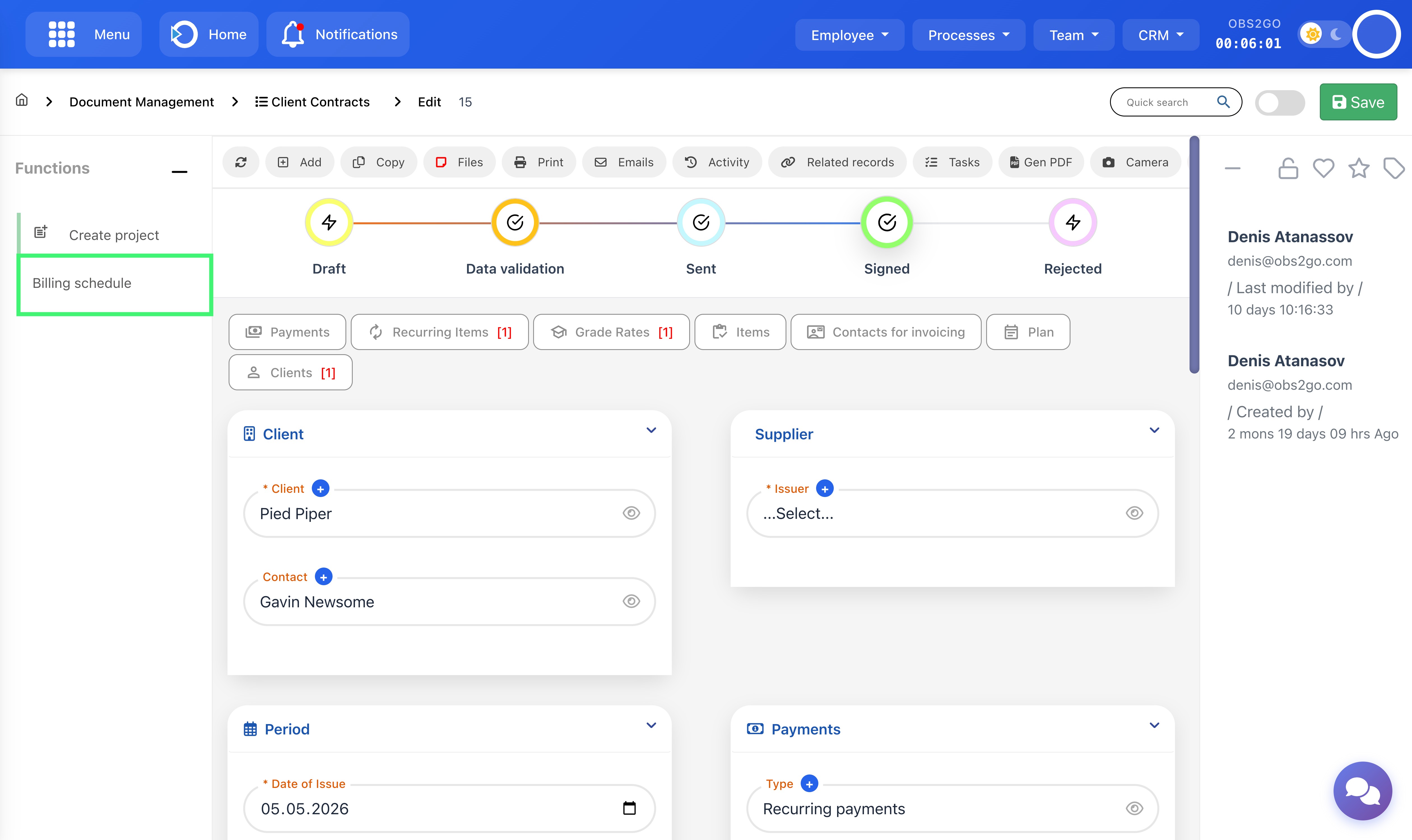
Location: Home screen > Client Contracts > [open a contract]
The panel has two sections:
- Upcoming - shows the next invoice that will be generated automatically: the period it covers, the scheduled issue date, and an estimated total calculated from the current contract configuration. Click Show estimated items to see the full line-by-line breakdown of what the invoice would contain if generated today.
- Issued - the complete history of invoices generated for this contract, newest first. Each row shows the billing period, invoice number, total, and status.
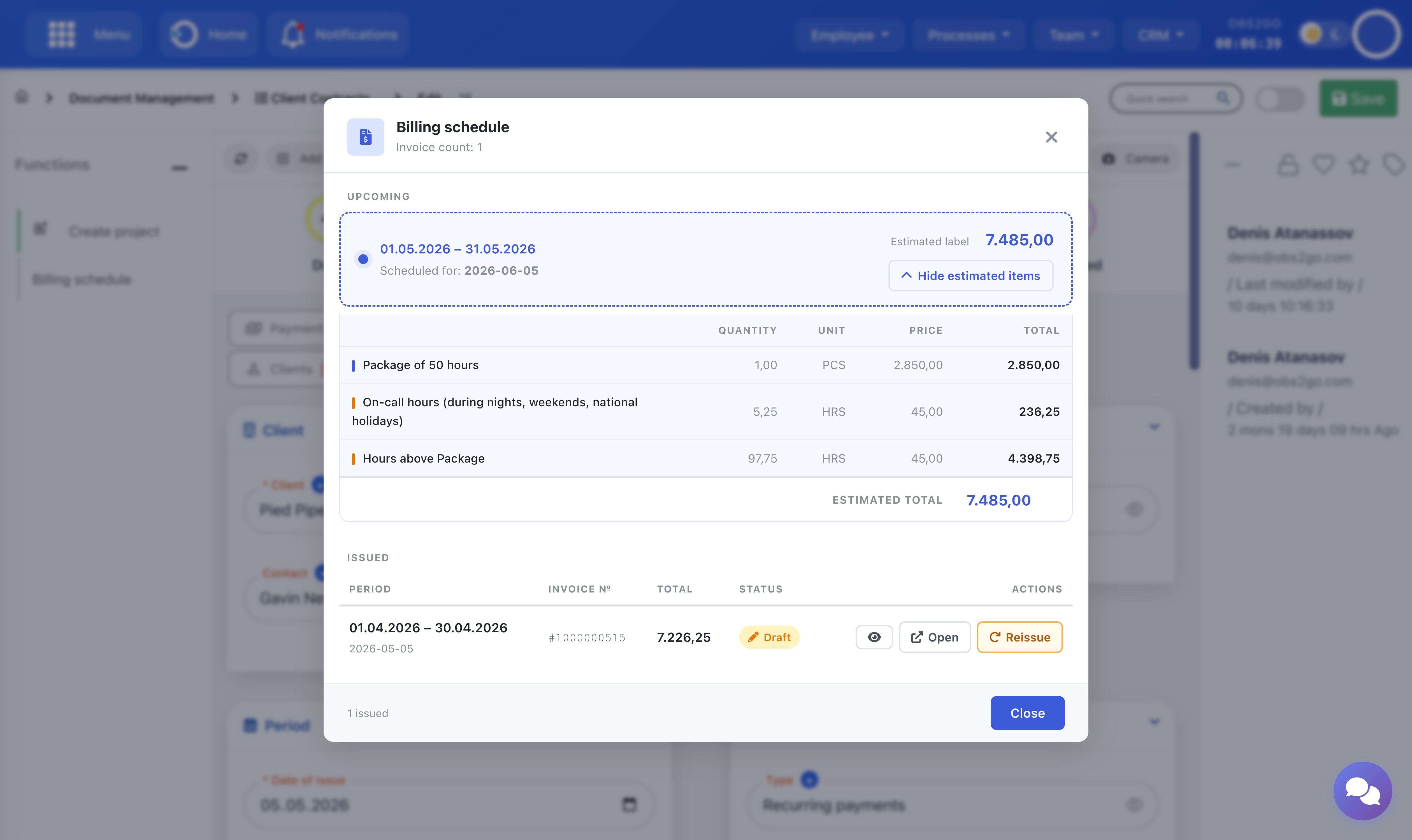
Location: Home screen > Client Contracts > [open a contract] > Billing Schedule
Available actions per issued invoice:
- Preview - opens a print preview of the invoice without navigating away.
- Open - opens the invoice record in the right pane for full editing.
- Reissue - available on invoices in Draft or Posted status. Before reissuing, the system automatically compares the current invoice line items against what would be generated today based on current contract parameters. If there is no difference, you are informed and no action is taken. If differences exist, a side-by-side comparison is shown - current vs. what it would become - with each changed, added, or removed line clearly highlighted. You then choose to confirm or cancel. On confirmation, the invoice items are deleted and regenerated from the current contract configuration; the invoice number and ID remain unchanged.
Upcoming invoices calendar (all contracts)
The Upcoming Invoices Calendar gives a system-wide view of all invoices that are scheduled to be generated next across every active Recurring Payments contract. It is accessible from the Contracts module drawer - open the drawer from the contracts list view and click Upcoming invoices.
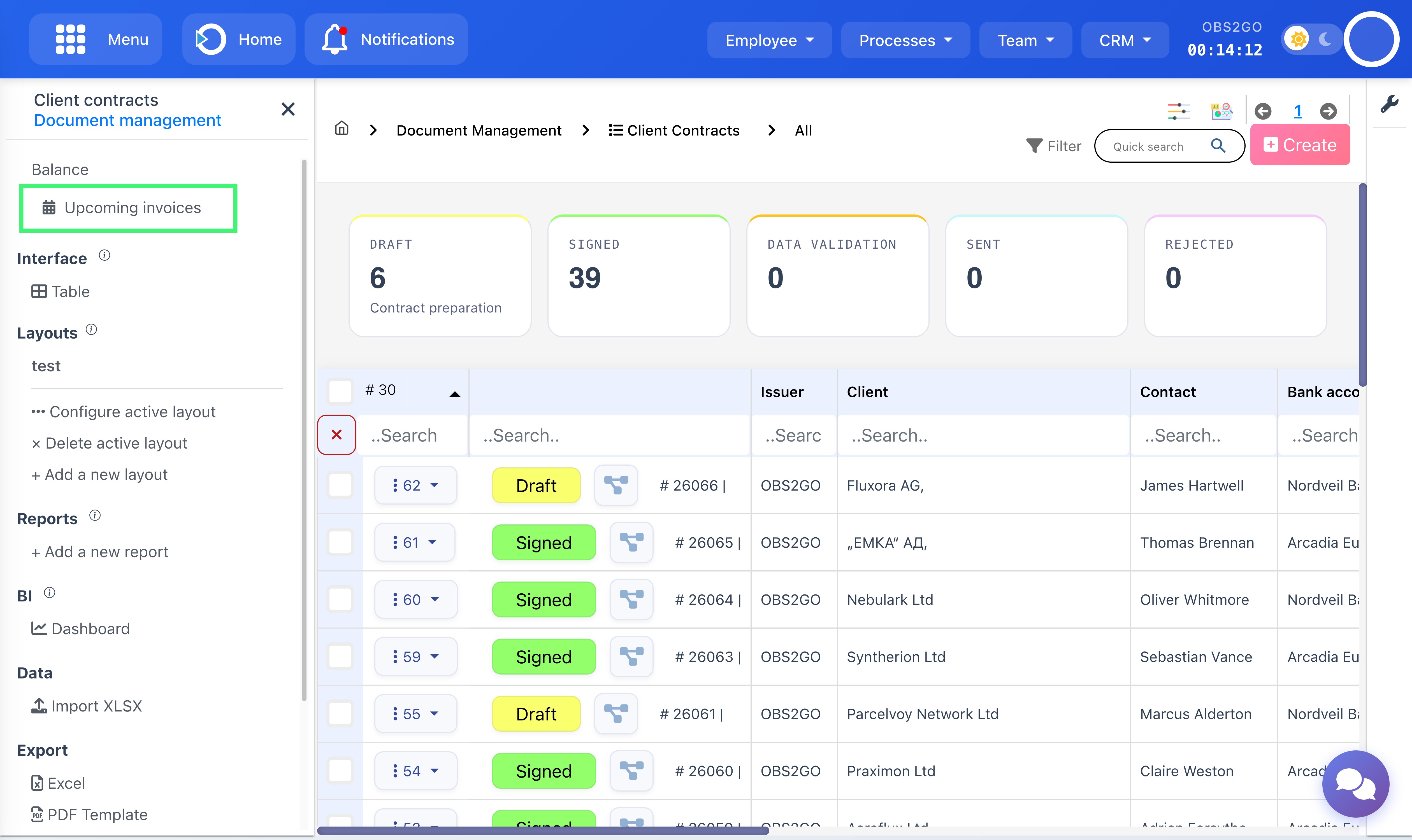
Location: Home screen > Client Contracts > drawer menu
Contracts are grouped by their next issue date, in chronological order. For each contract you see:
- Client name and project
- The billing period the upcoming invoice will cover
- Estimated total, calculated automatically from the current contract parameters
Click Show items on any row to expand the estimated line-by-line breakdown for that contract - the same items that would appear on the invoice if generated today.
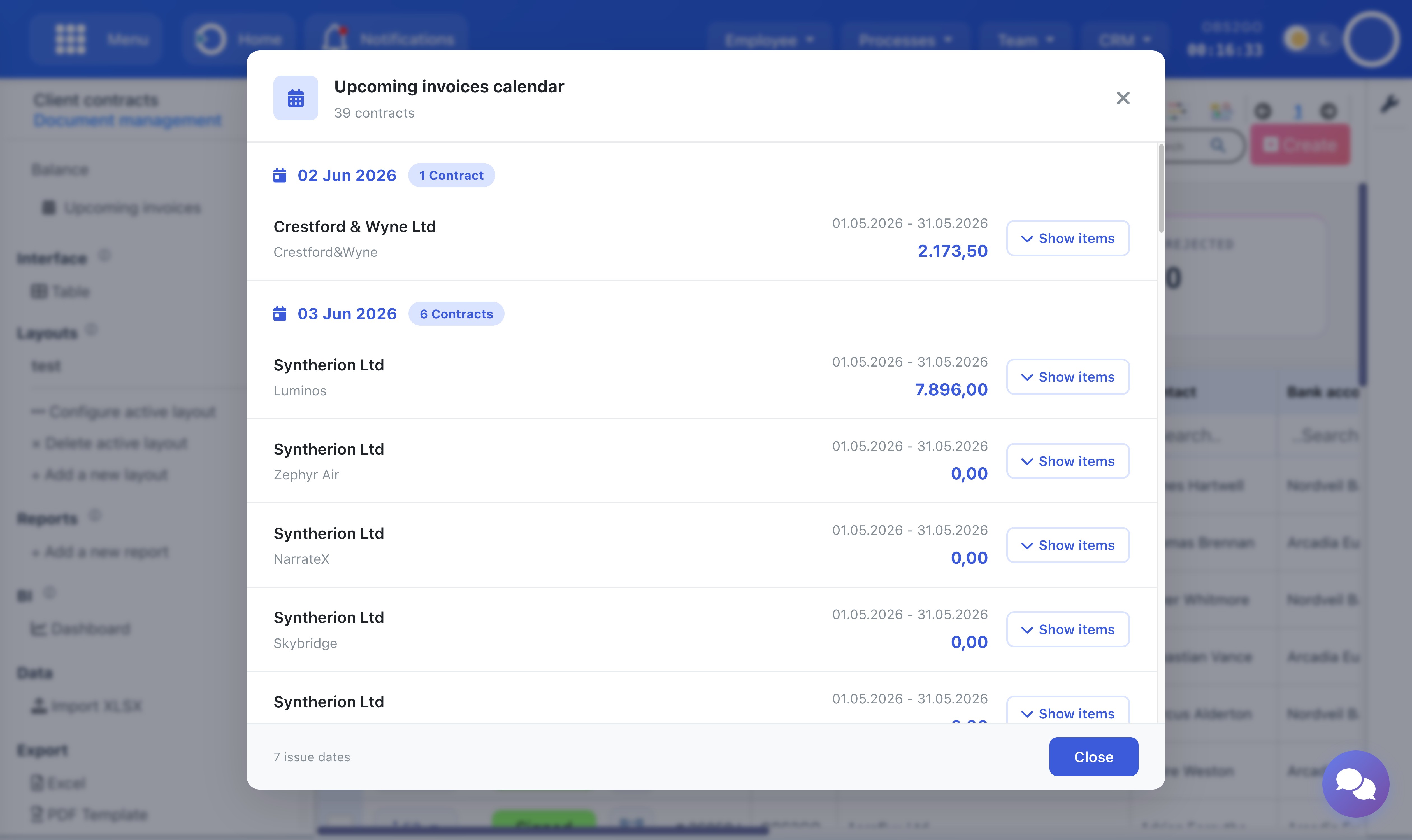
Location: Home screen > Client Contracts > drawer menu > Upcoming invoices
Invoice Monitor
The Invoice Monitor gives a system-wide view of billing status across all active Recurring Payments contracts for any selected month. Where the Upcoming Invoices Calendar looks forward - showing what is about to be generated - the Invoice Monitor looks at a completed month and tells you, for every contract, whether the invoice was issued, is still pending, or is missing entirely.
It is accessible from the Contracts module drawer - open the drawer from the contracts list view and click Invoice Monitor.
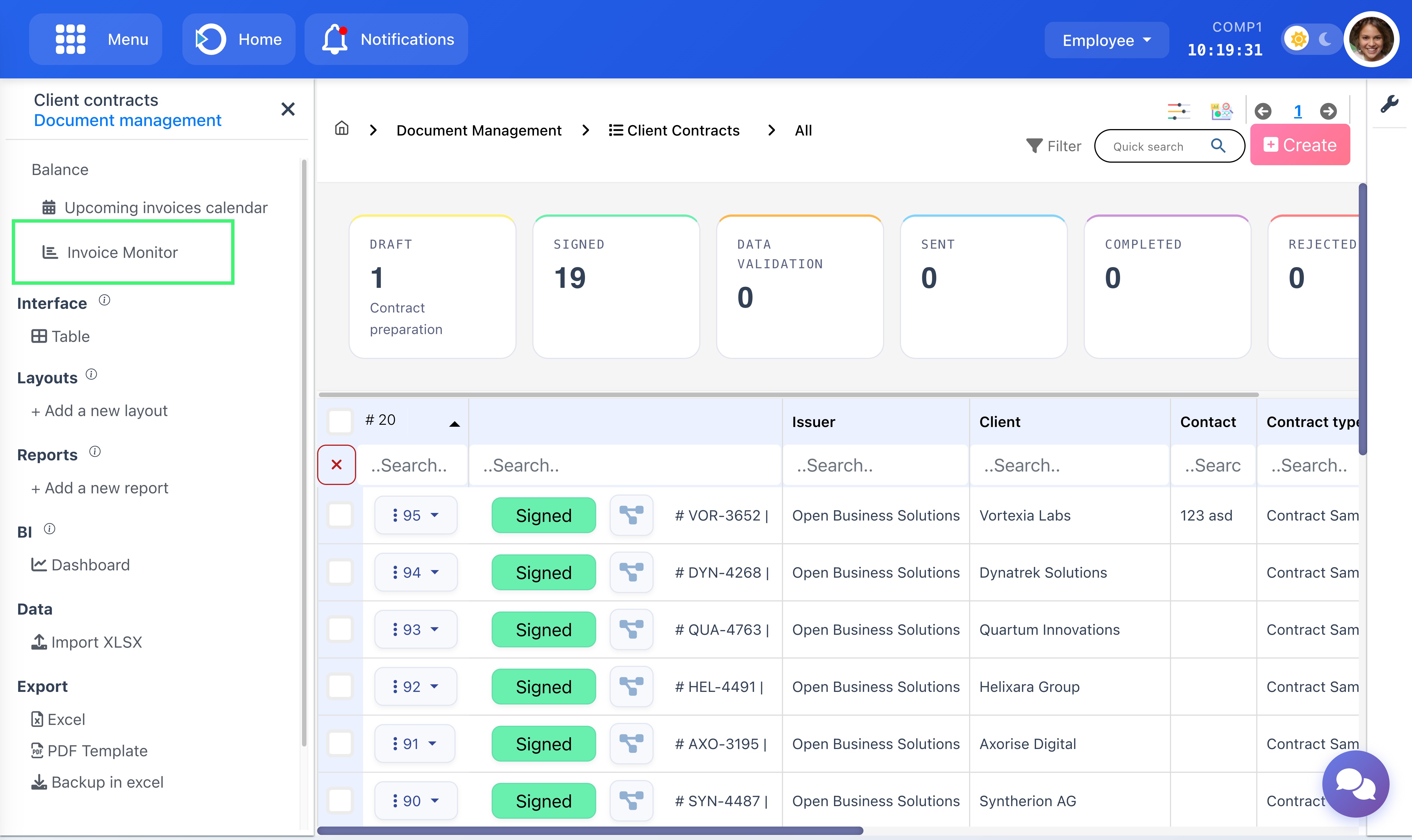
Location: Home screen > Client Contracts > drawer menu
The panel opens on the previous calendar month by default. Use the arrow buttons to navigate to any month, or click the month label to jump directly with the month picker.
For each contract, the panel shows:
- Client name and project
- The billing period the invoice covers for that month (including any start-date clamping if the contract started mid-month)
- Expected issue date - the day the invoice is or was due to be generated
- Status - one of six states described below
- Invoice total (for contracts with an active invoice)
- A document expand button to view all invoices linked to that period
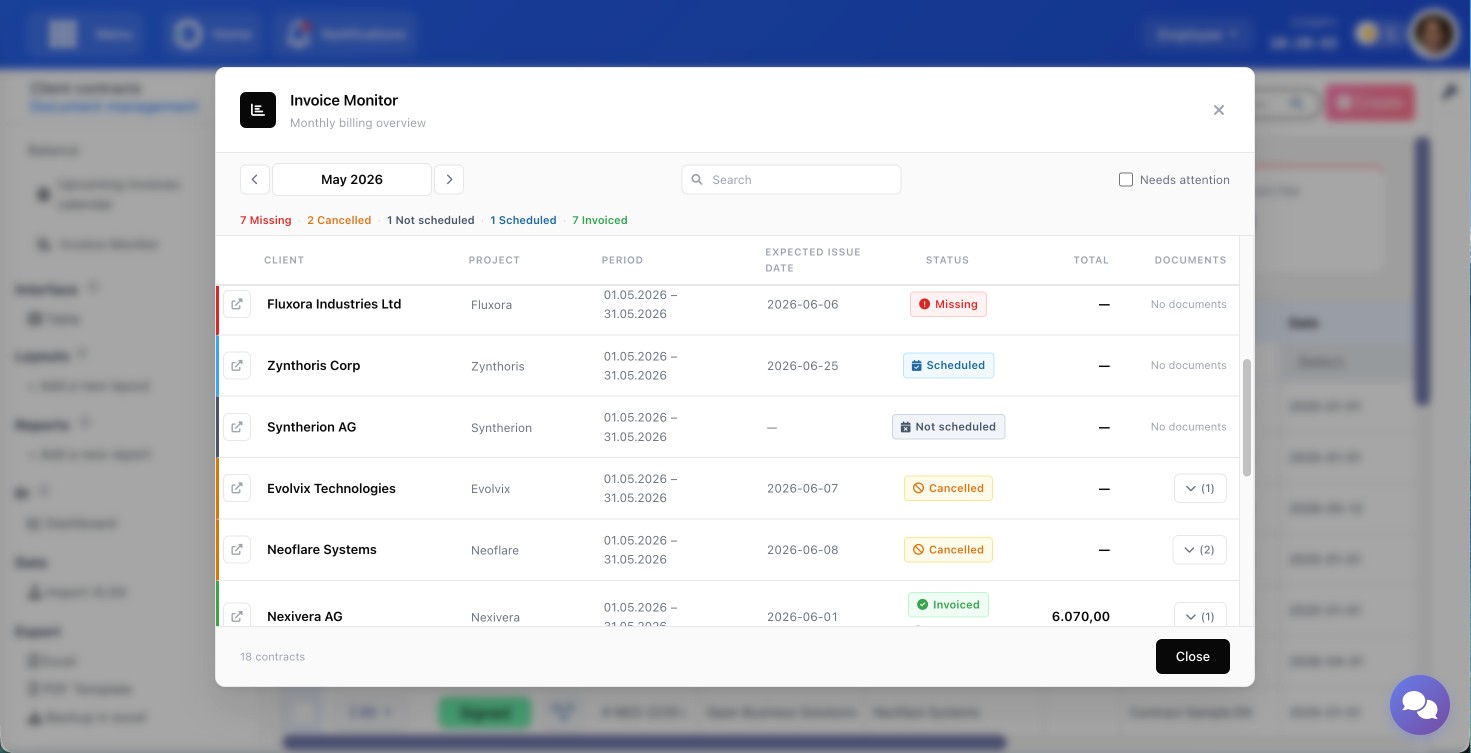
Location: Home screen > Client Contracts > drawer menu > Invoice Monitor
Row statuses
Every row carries a color-coded status that reflects the billing situation for that contract in the selected month. Rows are sorted by priority - the ones that need attention appear first.
- Missing - the billing period has ended, the expected issue date has passed, and no invoice exists. This is the only status that signals a problem requiring immediate action.
- Cancelled - one or more invoices exist for the period, but all of them are cancelled, credit notes, or debit notes. No active invoice is present. Requires attention.
- Not scheduled - the contract is active and the period is covered, but the first invoice date is more than one month away (the contract’s anchor date has not yet been reached). No action is needed - the invoice will be generated automatically in a future cycle.
- Scheduled - the period has ended and the expected issue date falls within the current calendar month but has not yet passed. The invoice will be generated automatically on that date. No action needed.
- Invoiced - at least one active (non-cancelled) invoice exists for the period. A paid/unpaid icon indicates payment status.
- Upcoming - the billing period itself has not yet ended. The invoice is not yet due.
The summary strip below the toolbar shows a count per status at a glance - for example, 7 Missing · 2 Cancelled · 1 Scheduled · 7 Invoiced - so you can assess the overall state of the month in seconds without scrolling.
Needs attention filter
Check the Needs attention checkbox in the toolbar to filter the list to only the rows that require action: Missing, Cancelled, and Not scheduled. All other statuses are hidden. This is the fastest way to start the day - open the monitor for the current month, tick the checkbox, and work through the short list.
Viewing and opening invoices
Click the expand button on any row to reveal all invoice documents linked to that period - including cancelled ones. Each document shows its ID, invoice number, issue date, status, total, payment status, and an Open button that opens the invoice record directly in the right pane without leaving the monitor. The link icon on the left of each row opens the contract record directly.
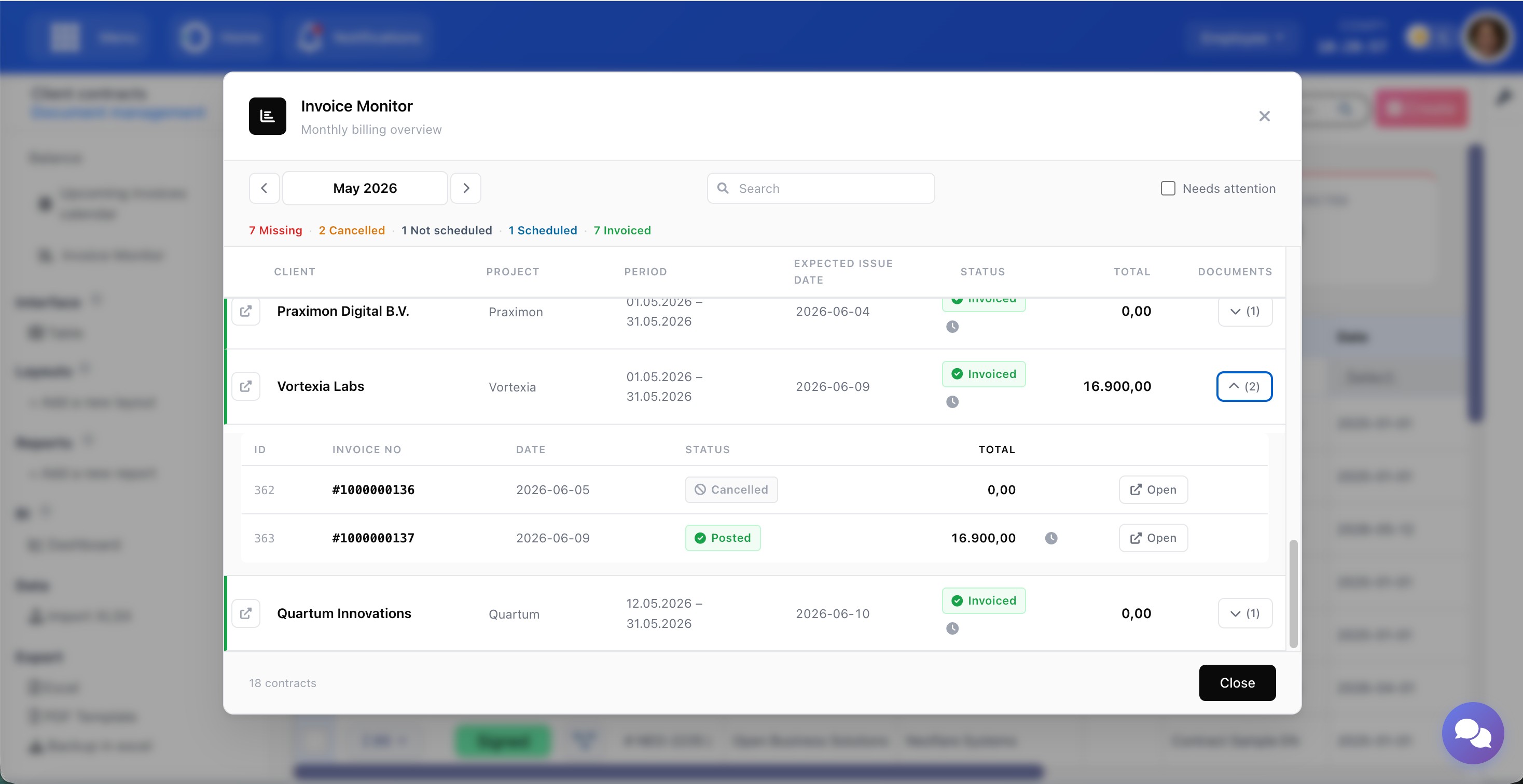
Location: Home screen > Client Contracts > drawer menu > Invoice Monitor > expand row
Package hours notification (80% threshold)
For time-tracked contracts with a package, the system monitors consumption in real time. When tracked hours in the current billing period reach 80% or more of the package allowance, an email notification is generated automatically.
What's in the notification:
- Project name and current billing period dates
- Used hours, package total, remaining hours, and percentage consumed
- A breakdown of hours by team member (regular and on-call separately)
- A breakdown of hours by task
- An "Action Required" section asking whether to continue beyond the package or pause work
Who receives it:
- The project's internal Project Lead (PM)
- The project's Reviewer
- All assignees of in-progress tasks on the project
- All invited staff on in-progress tasks (via task invites)
When it fires: Once per billing period, the first time consumption crosses 80%. If consumption later exceeds 100%, the notification escalates to "Package Hours Exceeded" and continues to be re-sent for that period only on threshold crossings, not on every tracked hour. The notification is content-formatted for easy forwarding by the recipient to their end client.
Related reports
Billing Activity Report - a detailed timesheet report showing every billable entry on a project (regular and on-call hours, by date, by employee, by task, with grade and weighted hours). Use this when the client asks "what exactly did your team do this period?" or when you need to attach a detailed breakdown to the invoice. Access control is built in: administrators see all projects; everyone else sees only projects where they are PM or Reviewer.
Package Hours Progress - a real-time overview of all active time-tracked contracts showing current period dates, package allowance, hours consumed, hours remaining, percentage used, and a status indicator (on track / approaching / exceeded). Use this as a dashboard to spot contracts that need a client conversation before the period ends.
Generate PDF from Contract
Contracts can be turned into clean, client‑ready PDFs in a few clicks. To keep documents consistent, use predefined templates and let the system fill in the data from the record.
1. Prepare your templates (one‑time)
Create and maintain your document templates centrally. You can include merge fields (placeholders) for client, issuer, prices, items, dates, etc. Full guide here: Document Templates.
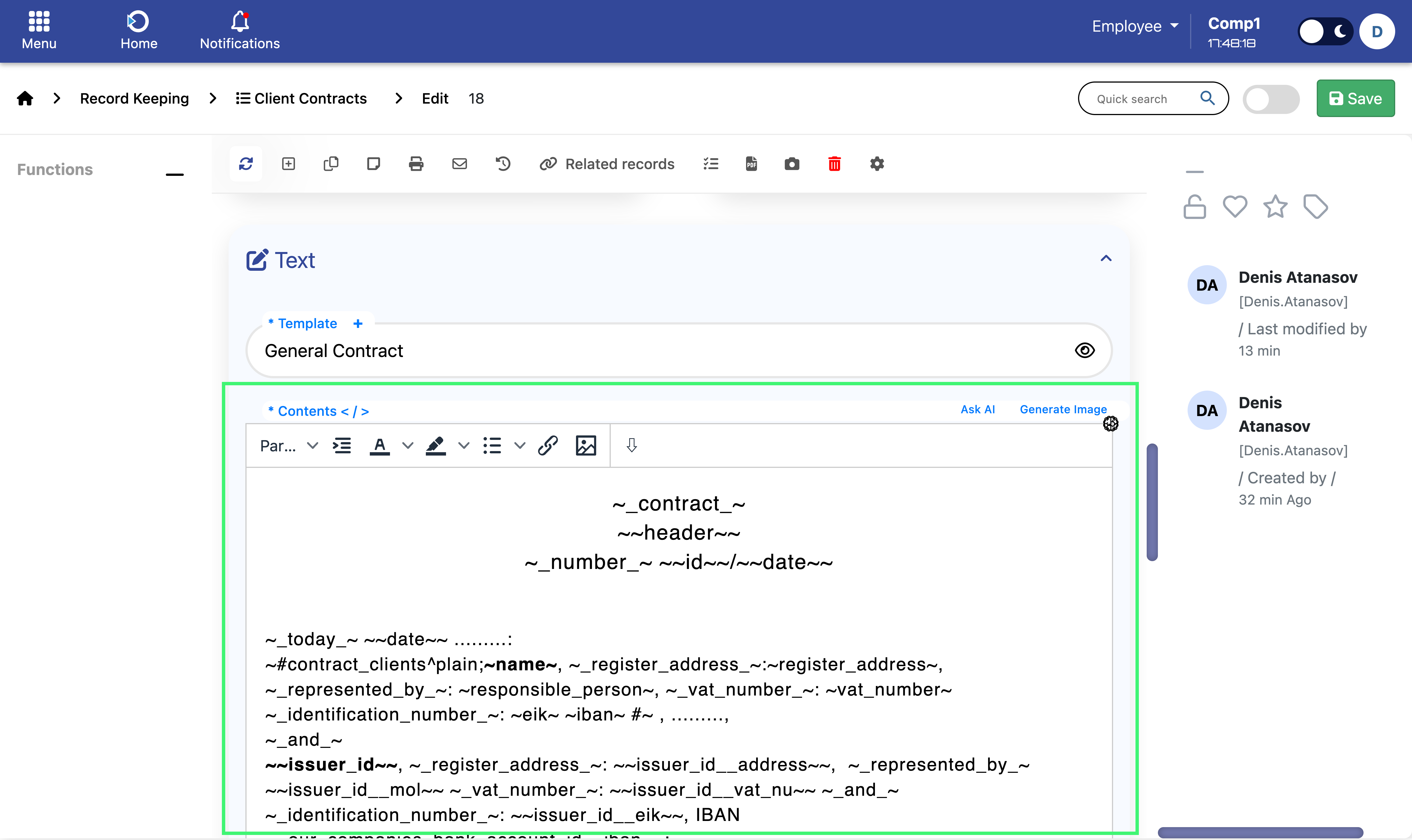
Location: Home screen > Client Contracts
2. Select a template in the contract
In the Text section of the contract, choose your template from the Template dropdown. The content loads automatically with the correct values from this contract (client details, items, totals, dates, etc.).
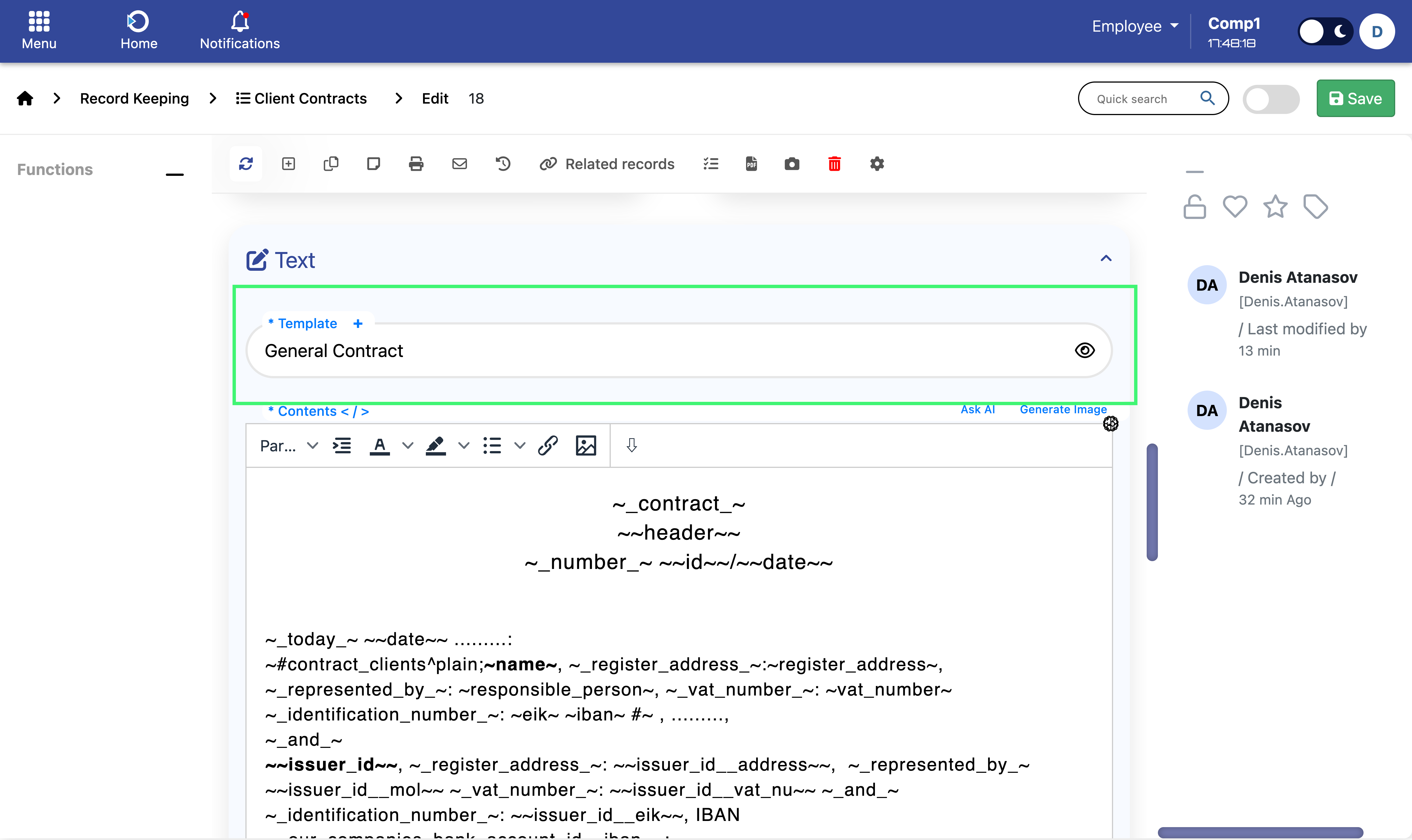
Good to know: You can safely adjust the text for this specific contract. These edits do not change the master template; they apply only to the current record.
3. Generate the document
Use the Print menu in the top toolbar. You’ll see three options:
- Preview – Quick on‑screen preview of the generated document.
- Generate PDF file – Creates a PDF you can download or send to the client.
- Generate and attach PDF file – Creates the PDF and attaches it to the contract record. This is ideal when you plan to send the contract for e‑signature (e.g., Evrotrust or another provider).
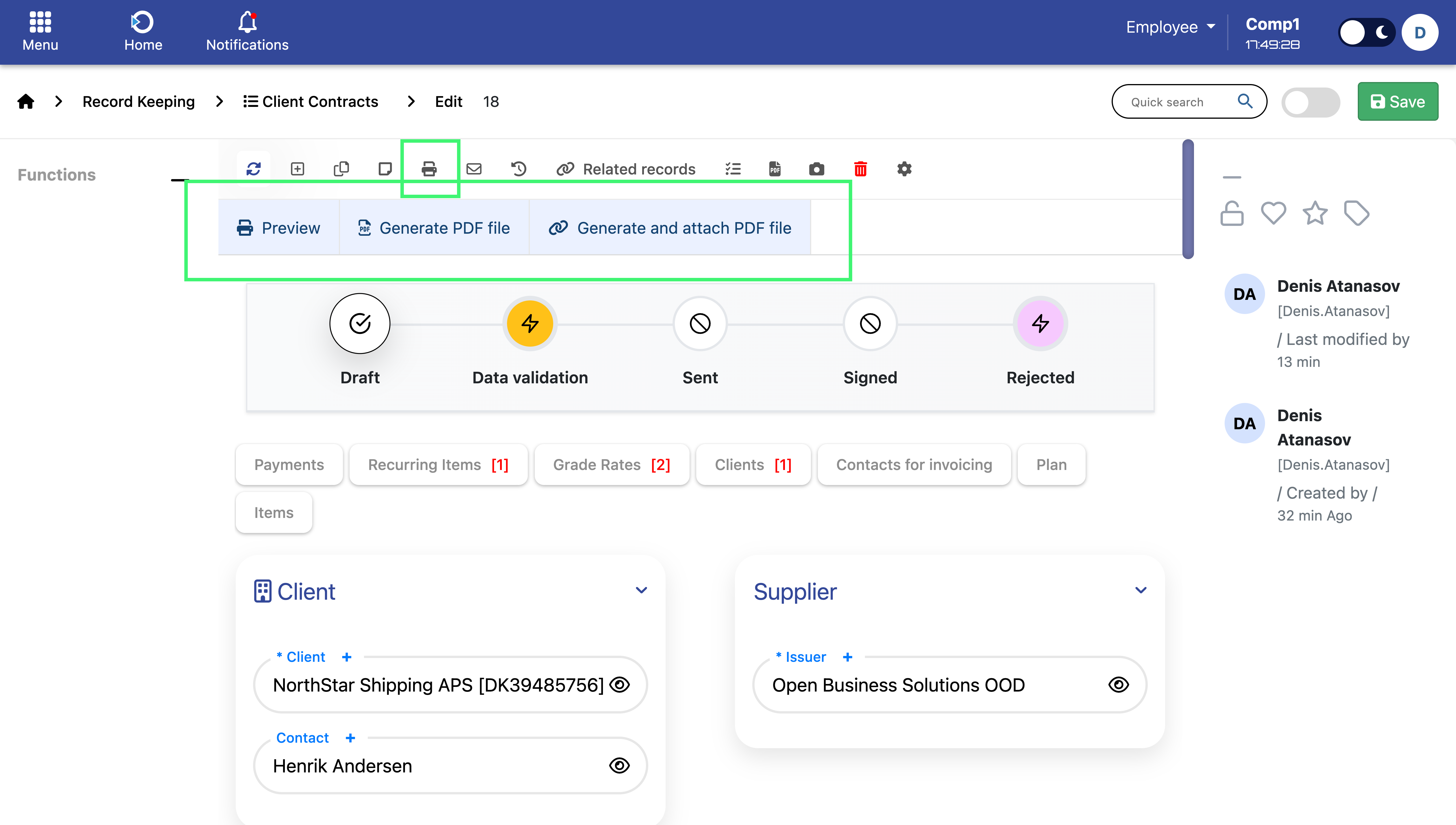
Location: Home screen > Client Contracts > Print
Tips:
- Keep templates versioned and owned by a small admin group for consistency.
- Use language‑specific templates if you work in multiple languages.
- If your contract is based on a quotation, items/wording will match automatically - no re‑typing needed.
Quotations Integration
Many contracts start as quotations. To save time and avoid mistakes, the system lets you convert a quotation directly into a contract.
When you create a contract from a quotation:
- Items & services are copied automatically into the contract.
- Milestones & schedules (if defined) are transferred to the contract plan.
- Consistency is guaranteed - what the client approved in the quotation is exactly what appears in the signed contract.
This ensures a smooth transition from sales → contract → invoicing, without duplicate data entry.
Why Use Contracts
The Contracts module gives you a reliable framework to manage agreements from start to finish. Instead of scattered spreadsheets or manual follow-ups, everything lives in one place and works together.
With Contracts, you benefit from:
- Centralized management - all client agreements organized in one module.
- Automation - payment plans, invoices, and recurring charges generated without manual effort.
- Flexibility - one Recurring Payments type covers fixed retainers, hourly billing, package-with-overage, on-call premiums, and any combination, configured purely through Recurring Items and Grade Rates.
- Integration - works seamlessly with Quotations and Timesheets, keeping sales and delivery aligned.
- Transparency - both your team and clients always see the current status, terms, package consumption, and upcoming payments.
- Accuracy - no missed deadlines, no forgotten invoices, no manual calculation errors.