
My Presence
My Presence
What This Screen Is For
My Presence is your personal attendance dashboard. It shows what the system has recorded from your badge/access movements, then summarizes your worked hours vs expected hours.
Use it to confirm your day is correctly captured and to spot missing badges early.
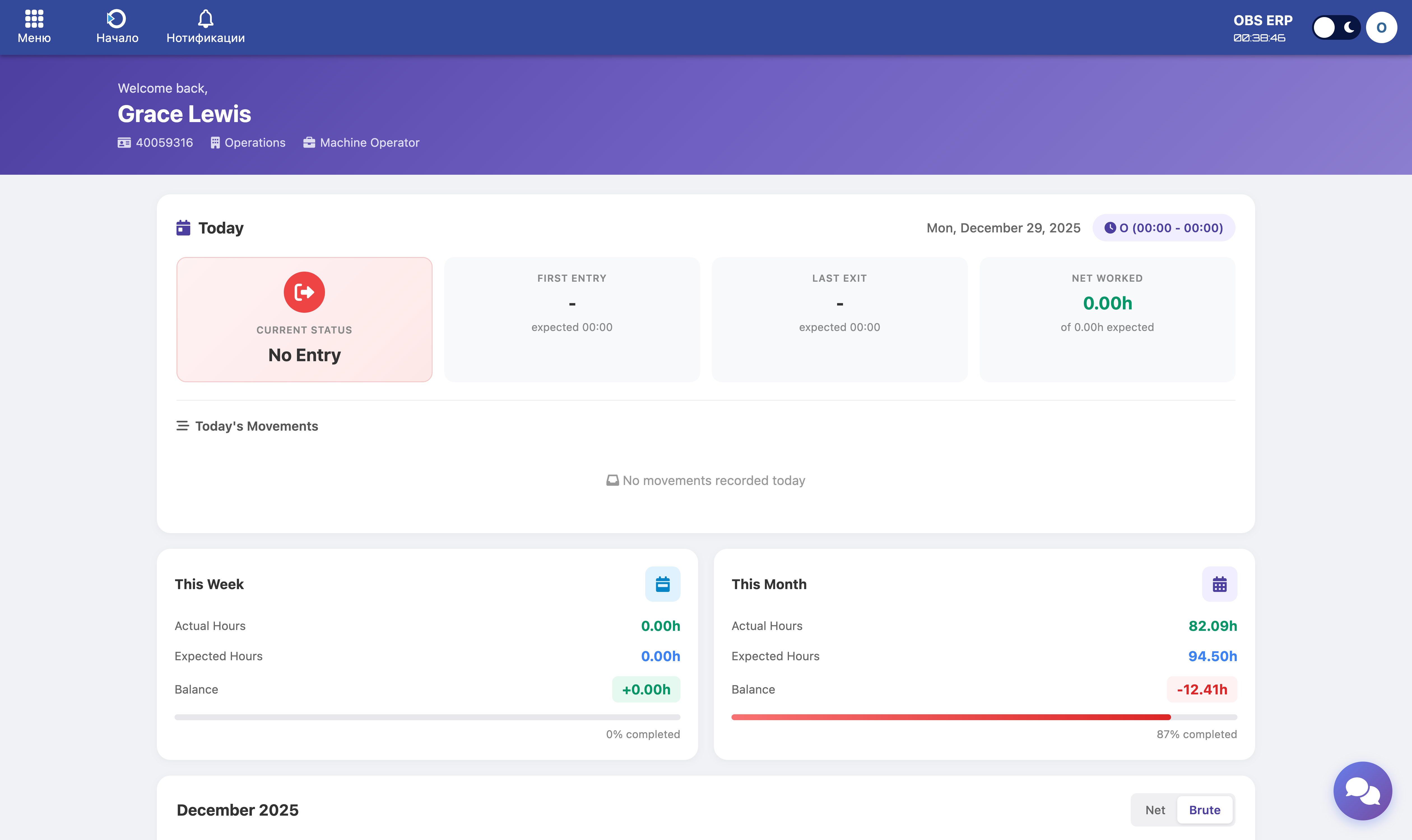
My Presence dashboard showing today's status, weekly summary, and calendar view
When to Use It
Open My Presence when you want to:
- Check if you are currently considered IN or OUT
- See your first entry and last exit for today
- Track net worked time against your expected hours
- Review your weekly and monthly balance
- Identify days with under-hours or anomalies
- Understand alerts like missing entry or missing exit
What You See
Header
- Your name
- Corporate ID
- Department
- Position
Today Panel
Four cards showing:
- Current Status - IN, OUT, or No Entry, with "since" time
- First Entry - And expected shift start if available
- Last Exit - And expected shift end if available
- Net Worked - Compared against expected net hours
Below that:
- Today's Movements - Timeline showing ENTER/EXIT with time and controller
Week and Month Summary
For This Week and This Month:
- Actual Hours - Total hours worked
- Expected Hours - Total planned hours
- Balance - Positive or negative difference
- Progress bar with completion percentage
Monthly Calendar
A month view of each day showing:
- Shift code (if any)
- Actual vs expected hours displayed as
actual/expected - Color status:
- Achieved - Meets or exceeds expected
- Partial (80%+) - Close but below expected
- Under Hours - Significantly below expected
- No Shift - No planned shift
- An anomaly marker (!) when issues are detected
You can switch between Net or Brute view.
Click a day to open the detail popup showing:
- Expected vs actual (Brute + Net)
- Differences (positive or negative)
- "Has Anomaly" flag if applicable
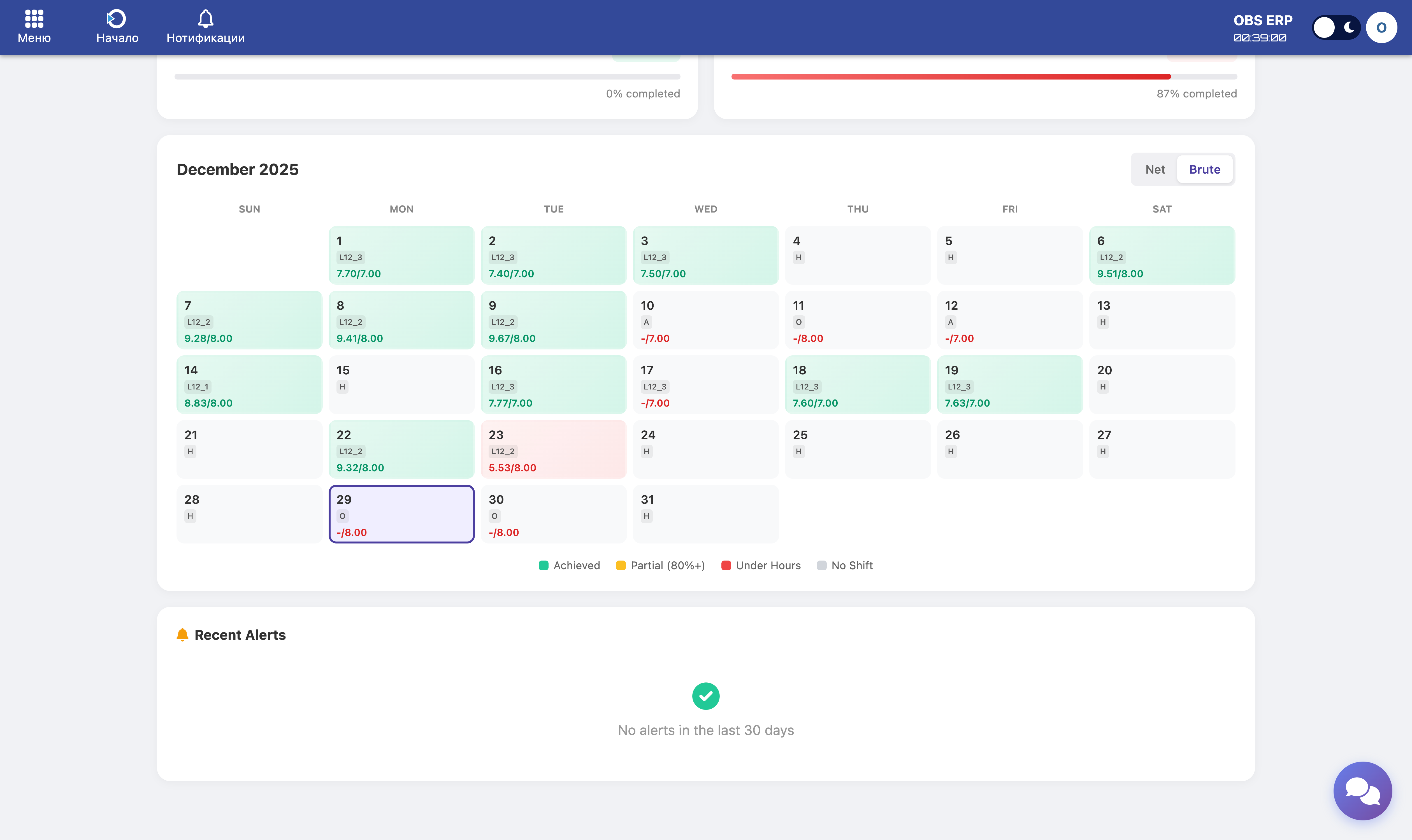
Monthly calendar showing daily status with color indicators and shift codes
Recent Alerts
Shows up to the last 5 alerts such as:
- Missing Exit Badge
- Missing Entry Badge
- No Site Gate Entry
- Net Exceeds Brute Time
- Unusually Long Shift
If none exist, you'll see: "No alerts in the last 30 days".
How Current Status (IN or OUT) Is Determined
Status is calculated from your latest movements.
Primary Rule
The system looks for your last SITE_GATE event:
- If the last SITE_GATE direction is ENTER → you are IN
- If the last SITE_GATE direction is EXIT → you are OUT
Fallback Rule
If no SITE_GATE event exists for today, it falls back to the last event direction.
No Entry
If there are no movements recorded today, status shows No Entry.
What this means: "IN/OUT" is not a shift plan. It reflects the last recorded access checkpoint.
Net vs Brute: What It Means
The dashboard can show two hour types:
- Brute - Total time between first entry and last exit (raw presence window)
- Net - Worked time after rules are applied (breaks and configured work-time logic)
When to use each:
- Net - To understand what counts as working time
- Brute - To understand raw presence on site
The calendar, day popup, and weekly/monthly summaries can show both.
How to Interpret the Calendar Colors
The calendar compares actual vs expected hours for each day:
- Achieved - Actual ≥ Expected
- Partial (80%+) - Actual is close but below expected
- Under Hours - Actual is significantly below expected
- No Shift - Expected is 0 or no planned shift exists
Tip: If a day shows (!), click it to open the day popup. This indicates the system detected an anomaly condition.
What to Do When Something Looks Wrong
Case A: "No Entry" but you were at work
- Check Today's Movements
- If empty, you likely did not badge or the badge event did not reach the system
- Action: Contact your supervisor or HR with the date and approximate time
Case B: Missing exit or missing entry alert
- Look at Recent Alerts
- If you see "Missing Exit Badge" or "Missing Entry Badge", your time may be incomplete
- Action: Follow your internal correction process (HR / supervisor). This screen is view-only
Case C: You are shown OUT but you are still inside
- Check the last movement in Today's Movements
- If the last SITE_GATE event is EXIT, the system must treat you as OUT
- Action: Badge correctly at the next checkpoint. If it persists, report to support
Case D: Net exceeds brute
- This indicates inconsistent input data or rule interaction
- Action: Raise it to HR/support. Include the day popup screenshot
Case E: Under-hours on a day you worked fully
- Click the day to open details
- Compare expected vs actual and check the anomaly flag
- Action: If the movement list for that day is incomplete, request correction
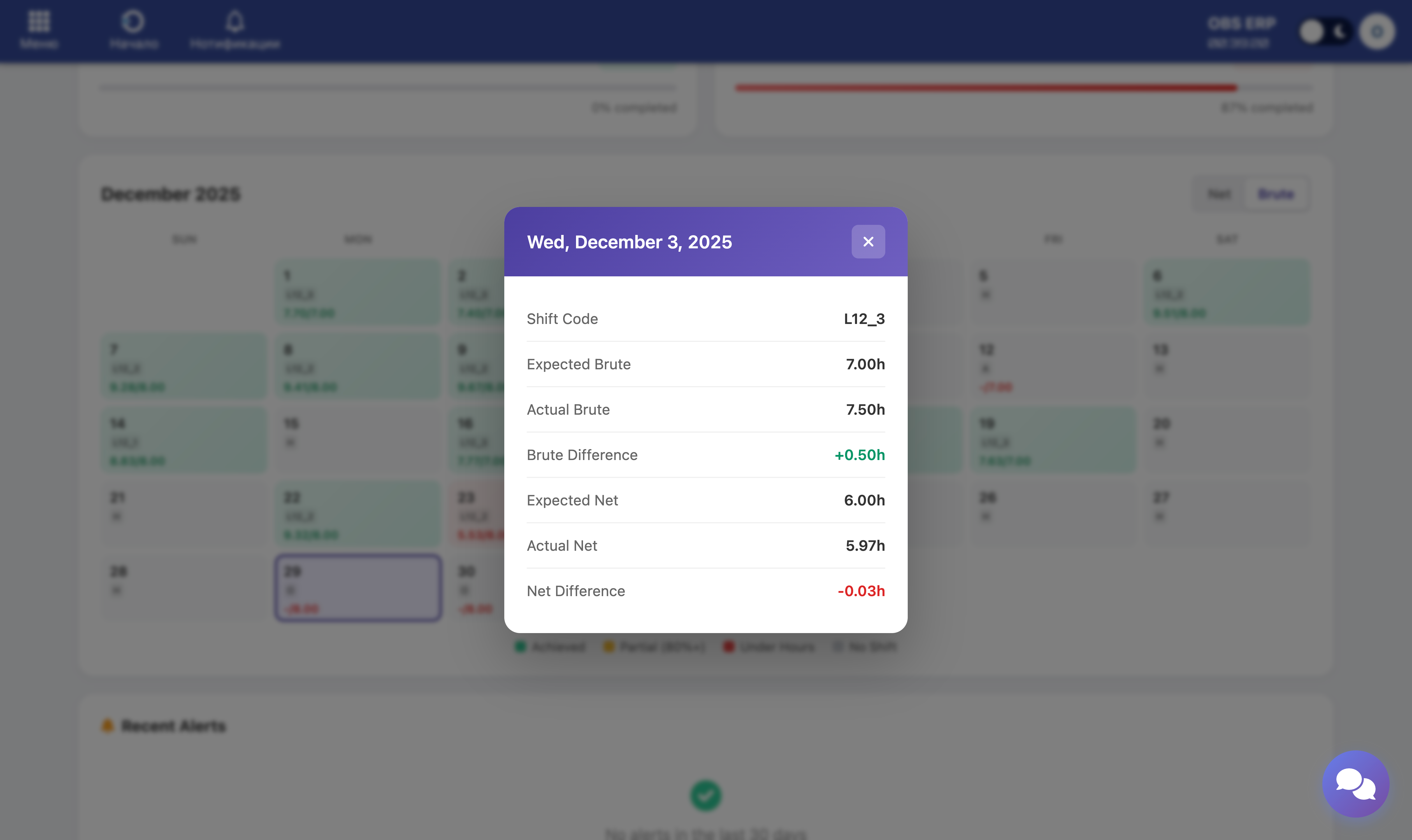
Day detail popup showing expected vs actual hours and movement list
Need Help? My Presence is a view-only screen. If you notice missing or incorrect data, contact your supervisor or HR department with the specific date and details. They can investigate using the administrative reports.