
Net Work Time Calendar
Net Work Time Calendar
The Net Work Time Calendar is a period report that compares net worked hours vs planned hours for many employees in one view. It is optimized for HR and administrators who need fast monthly or period checks and quick drilldown when something looks wrong.
This report is based on validated daily attendance shifts. It does not use raw device logs directly. Device logs are shown only in the drilldown modal.
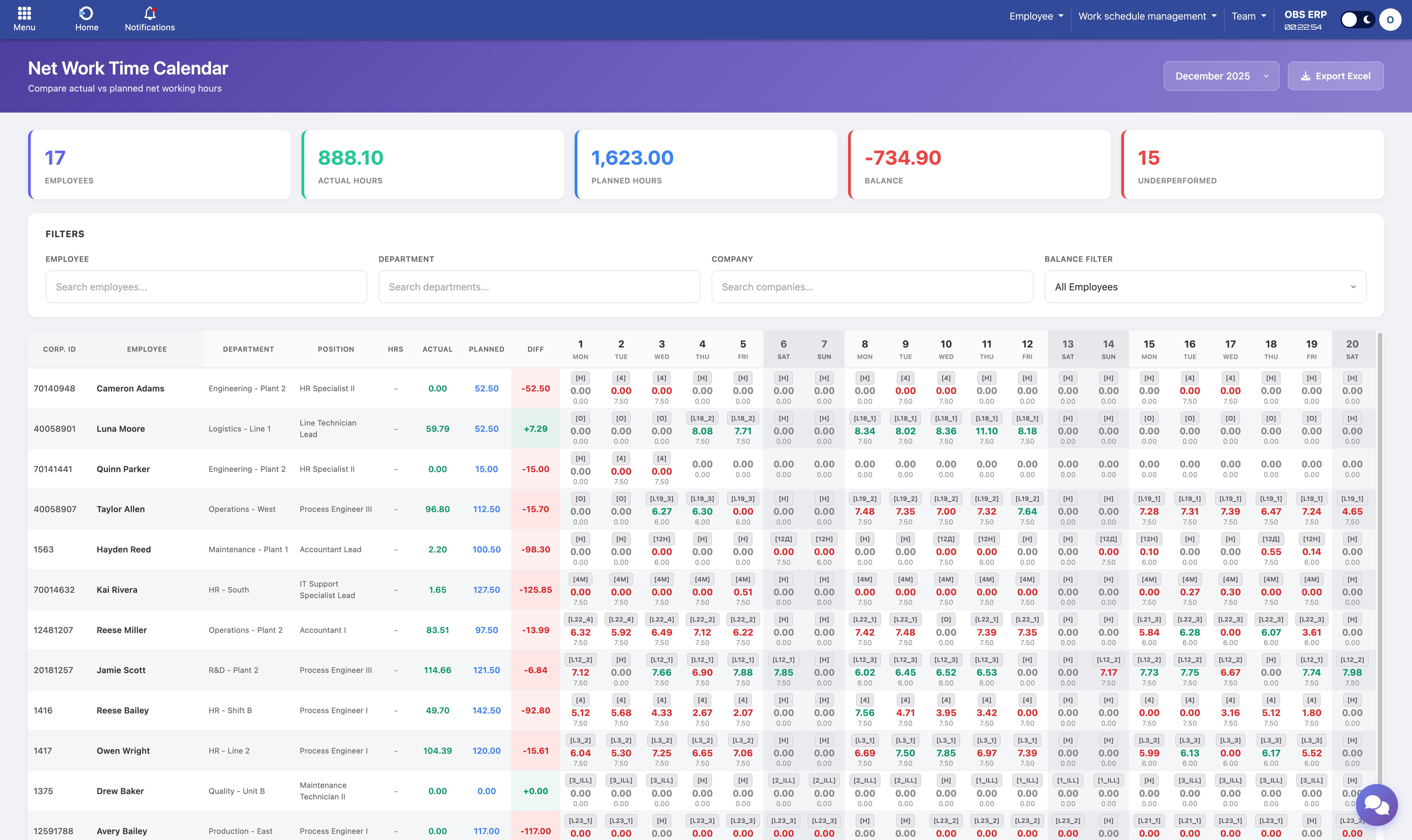
Net Work Time Calendar showing employees, period totals, and daily cells
What You See on Screen
1) Summary Cards (Top)
The cards summarize the currently visible employees after filters are applied:
- Employees - Count of employees in the table
- Actual Hours - Sum of net worked hours for the period
- Planned Hours - Sum of planned hours for the period
- Balance - Actual minus Planned (can be negative)
- Underperformed - Employees with negative total balance for the period
2) Filters
Filters are multi-select with search capability:
- Employee
- Department
- Company
- Balance filter: All, Positive, Negative, Zero
Each multi-select shows:
- A badge with the number of selected items
- A clear button to reset the filter
3) Main Grid (Employees × Dates)
Each row is one employee. The left columns show employee identity and period totals:
- Corp. ID - Corporate identifier
- Employee - Full name
- Department
- Position
- Hrs - Working hours definition from setup
- Actual - Period total of net worked hours
- Planned - Period total of planned hours
- Diff - Actual minus Planned
Each date column represents one day in the selected period.
Day Cell Content
Each day cell shows a stacked mini-summary for one employee on one day:
- Shift code in brackets, for example
[L21_4](shown when available) - Actual - Net worked hours for that day
- Planned - Planned hours for that day
Color Meaning for the Actual Value
- Green - Actual ≥ Planned (when planned > 0)
- Red - Actual < Planned (when planned > 0)
- Neutral gray - Planned is 0 or not defined
Background Meaning
- Weekend shading - Visual distinction for Saturday/Sunday
- Holiday shading - Highlights public holidays
- Combined styling - When a holiday falls on a weekend
Drilldown: Day Cell Details
If a day has a recorded shift, the day cell is clickable. Click it to open a modal showing detailed information.
The Modal Shows:
- Employee name
- Date
- Shift summary:
- First Enter
- Last Exit
- Brute Time
- Net Time
- Full movement list (chronological):
- Event time
- Controller name (gate/zone)
- Direction (ENTER or EXIT)
- Optional highlight for shift boundary events
Export from the Modal
The modal has an Export button which downloads a file with:
- Employee and date header
- Shift summary (first enter, last exit, brute, net)
- Movement list (time, controller, direction, shift boundary flag)
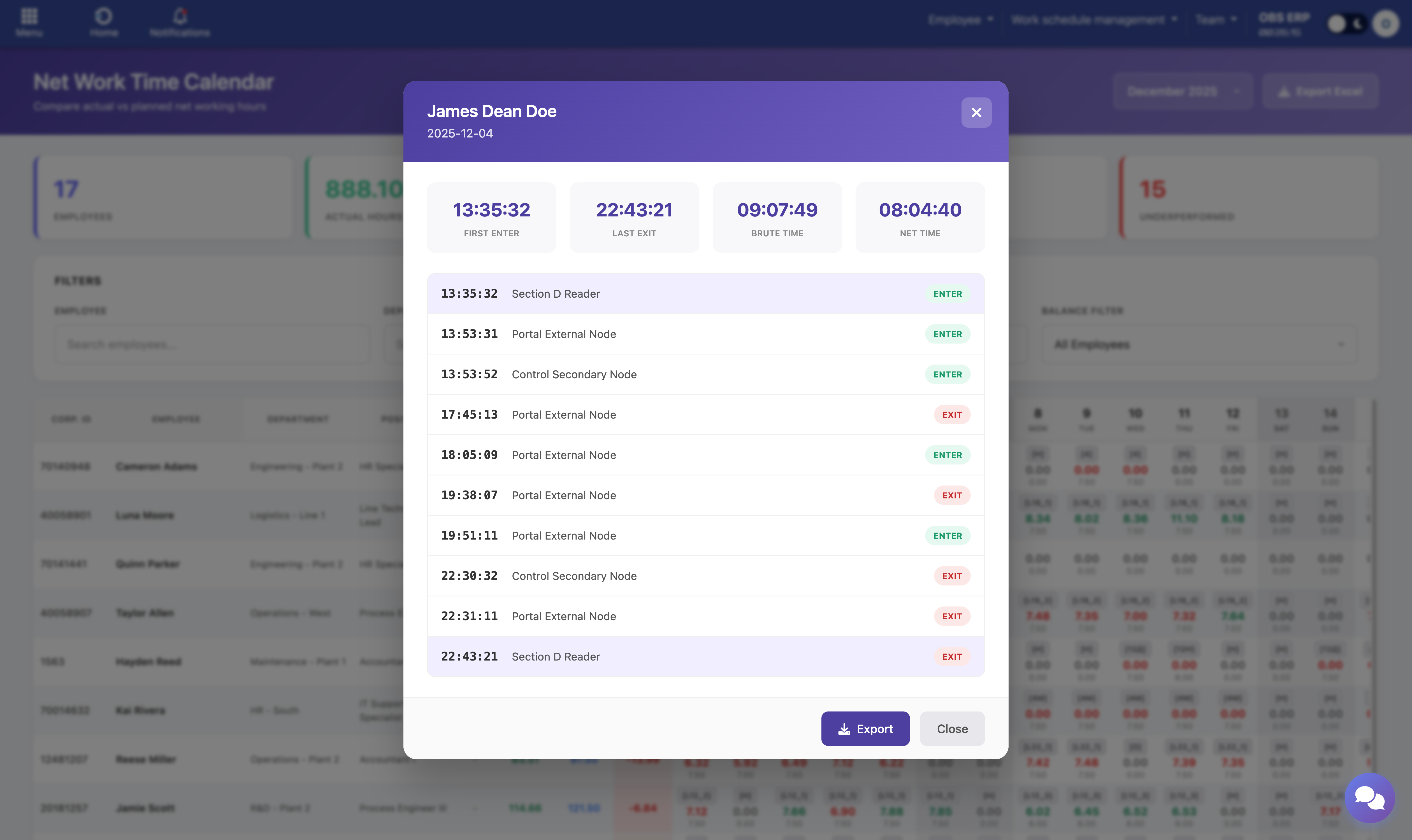
Day detail modal showing shift summary and chronological movement list
Sorting
The grid supports sorting by:
- Static columns - Corp ID, Employee, Department, Position, Hrs, Actual total, Planned total, Diff total
- Any date column - Date sorting uses the day's Actual value
Sort toggles through: ascending → descending → none.
Period Selection
The month selector switches the period. The report reloads data for:
- Holidays within the period
- Net work time calendar data for the period
Data Logic in Plain Terms
What "Actual" Means
"Actual" is net working time for the day, calculated from validated attendance shifts and zone rules:
- Only time inside configured work zones counts toward net time
- Movements outside work zones are not counted as net work time
- Shift rules and definitions are applied (shift boundaries, configured zones)
What "Planned" Means
"Planned" comes from planning data or shift planning rules for the same employee and date.
What "Diff" Means
Diff = Actual minus Planned.
Note: A negative diff indicates underperformance for that day or for the period totals.
Export Options
The report provides two different export options:
1. Export Excel (Main Screen)
Exports the current filtered grid for the selected period, including totals and day cells.
2. Export (Day Modal)
Exports movement-level details for the selected employee and date.
Tip: Use the main export for period summaries and the modal export for detailed audit trails of specific days.
Need Help? If you see unexpected values, click on the day cell to review the underlying movements. For configuration questions, refer to the Configuration and Rules section or contact your system administrator.