
Lone Workers Monitor
Lone Workers Monitor
What This Screen Is For
The Lone Workers Monitor is a live safety dashboard.
Its purpose is simple: To show where each configured lone worker was last detected and whether they are currently on site.
This screen is used when people work alone, outside normal team proximity, and immediate visibility is required in case of incidents, delays, or emergencies.
It is not an attendance report.
It is not a planning tool.
It is a situational awareness screen.
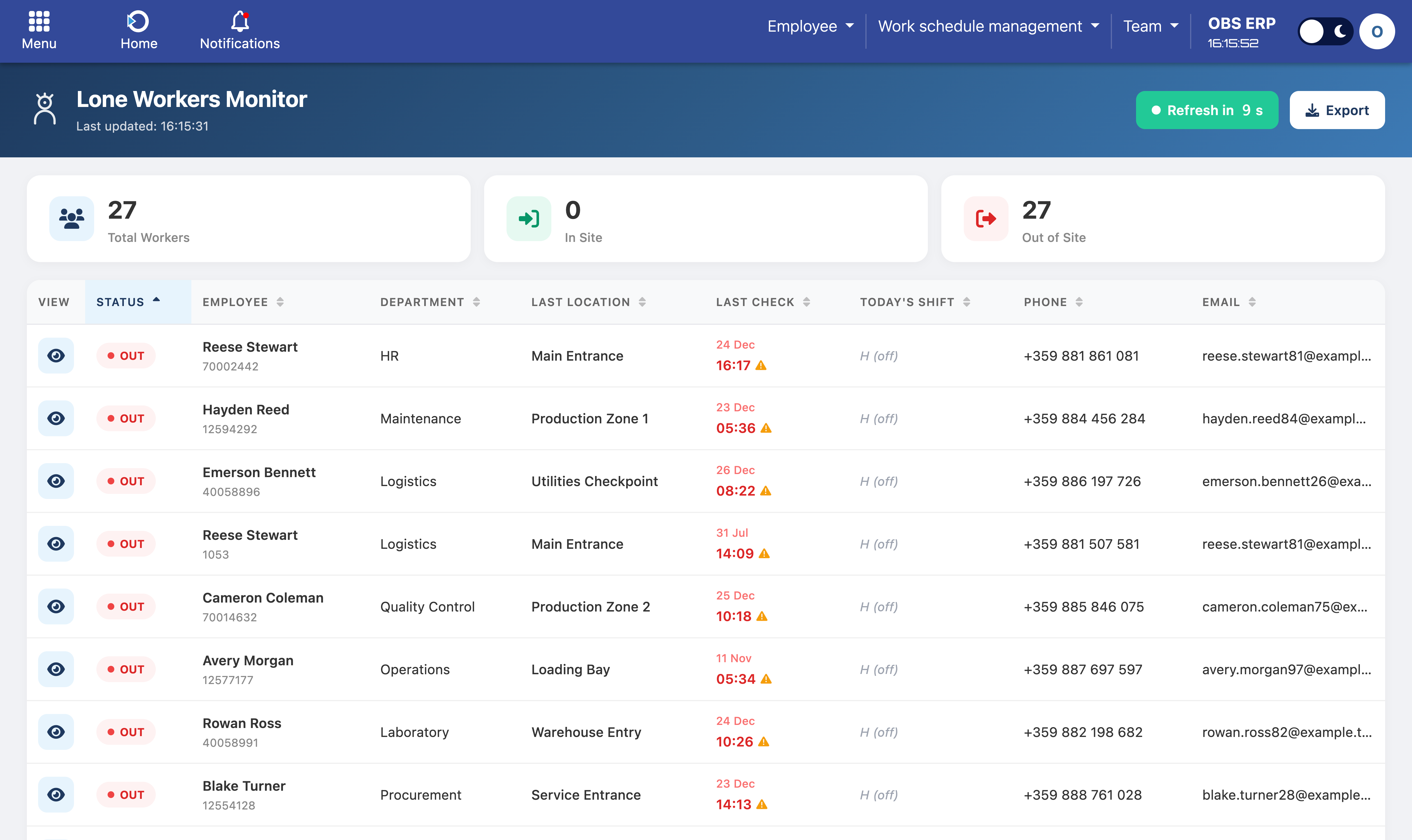
Lone Workers Monitor dashboard showing real-time status overview
When You Use This Screen
Use the Lone Workers Monitor when you need to:
- Confirm that lone workers have entered or exited the site
- Check who is currently inside during off-hours
- Locate the last known position of a specific worker
- Respond to a safety incident or missed check
- Perform routine safety checks during shifts with isolated staff
This screen is designed to be checked frequently and quickly.
Who Uses This Screen
Typical operators include:
- Security staff
- Health and safety officers
- Supervisors during night or isolated shifts
- Authorized HR administrators
Note: Access is typically restricted due to the sensitivity of the information.
What You See at First Glance
At the top of the screen, summary indicators provide an immediate overview:
- Total Workers - All employees configured as lone workers
- In Site - Lone workers currently detected inside the site
- Out of Site - Lone workers last detected outside the site
This allows you to assess the overall situation within seconds.
Understanding the Main Table
Each row represents one lone worker.
For each worker, you see:
- Status - IN, OUT, or UNKNOWN based on the latest processed access event
- Employee Identity - Name and internal identifier
- Department - Organizational context
- Last Location - The access controller where the worker was last detected
- Last Check - Date and time of the most recent access event
- Today's Shift - Scheduled shift for context only
- Contact Details - Phone and email for immediate action
This table is designed for rapid scanning, not deep analysis.
How Status Works
The status reflects last known state, not real-time tracking.
- IN - The last processed event indicates the worker entered the site
- OUT - The last processed event indicates the worker exited the site
- UNKNOWN - No reliable event is available yet
Status changes automatically as new access events are processed.
How Location Is Determined
Location is based on the most recent access controller used.
This means:
- The system shows where the worker was last detected
- It does not track movement continuously
- It does not predict current position
This is intentional. The monitor provides traceability, not surveillance.
Viewing Detailed Movements
To investigate a specific worker:
- Click the view (eye) icon in the row
- A detailed panel opens with:
- Worker identity and contact details
- Current IN / OUT status
- Assigned shift (for context)
- Last recorded movements, grouped by day
This view is used when:
- A worker is overdue
- A location needs verification
- An incident requires reconstruction
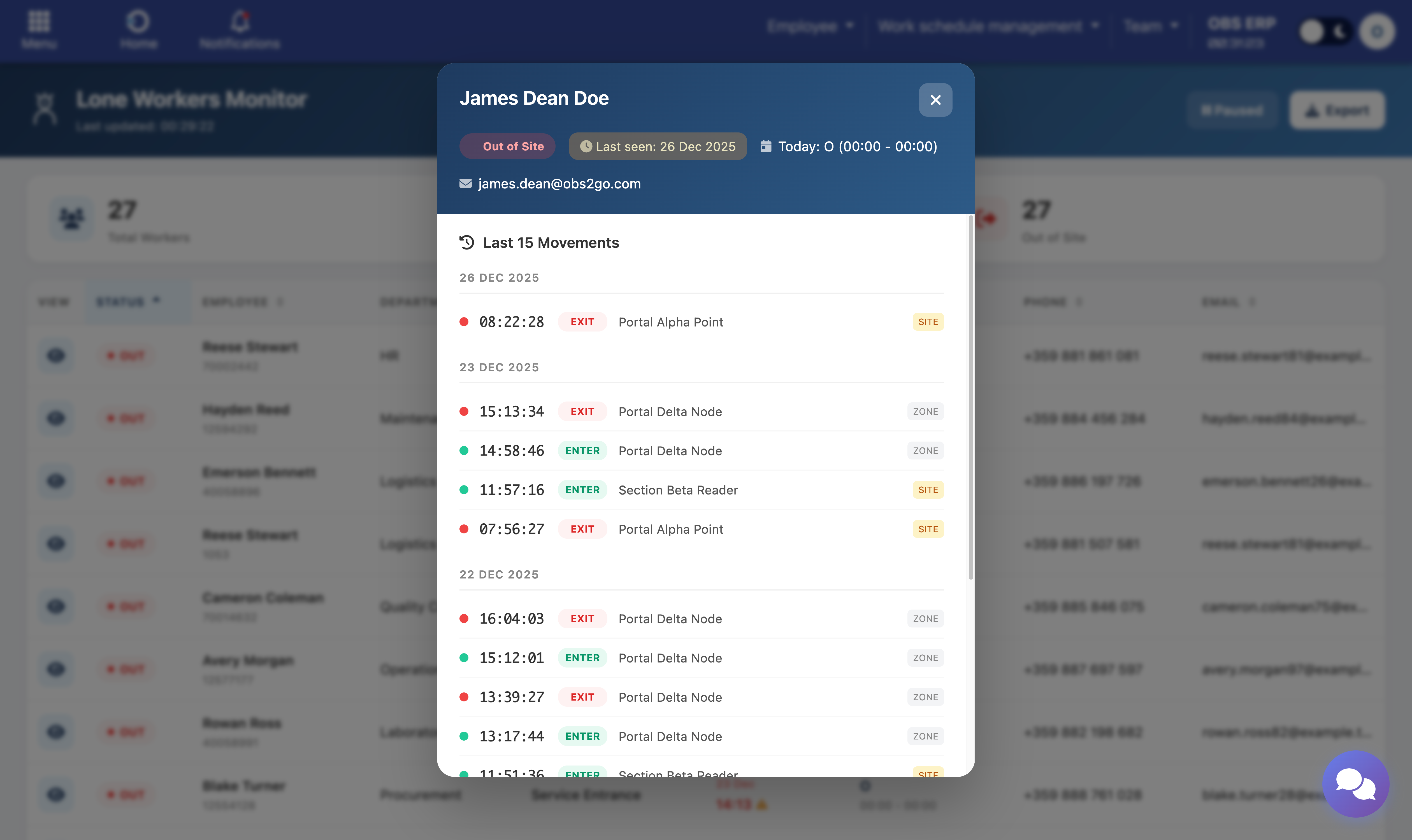
Movement detail panel showing worker info and chronological event history
Understanding the Movement View
Each movement entry shows:
- Exact time of the event
- Direction (ENTER or EXIT)
- Access controller name
- Controller type (Site Gate or Work Zone)
Events are shown in order, exactly as recorded.
This allows you to reconstruct:
- Entry and exit sequences
- Zone transitions
- Last confirmed activity
Exporting Data
The monitor supports export for:
- Incident reports
- Safety audits
- Compliance documentation
Exports reflect the current state of the monitor at the time of export.
Refresh and Data Timing
The screen updates automatically at regular intervals (every 30 seconds by default).
Key principle: What you see is always accurate up to the last completed processing cycle.
This provides near real-time visibility without manual recalculation or user intervention. A countdown timer shows when the next refresh will occur, and auto-refresh can be paused if needed.
Need Help? If a worker's status seems incorrect or stale, check the Last Check timestamp. For configuration of lone workers, refer to the Configuration and Rules section or contact your system administrator.