
Daily Attendance Report
Daily Attendance Report
The Daily Attendance Report provides a complete, structured, and auditable view of employee attendance on a day-by-day basis. It is the primary operational report used by HR, administrators, and authorized managers to review presence, working time, deviations, and compliance with planned schedules.
All data in this report is derived from processed access logs and system-calculated shifts. No manual data entry is involved.
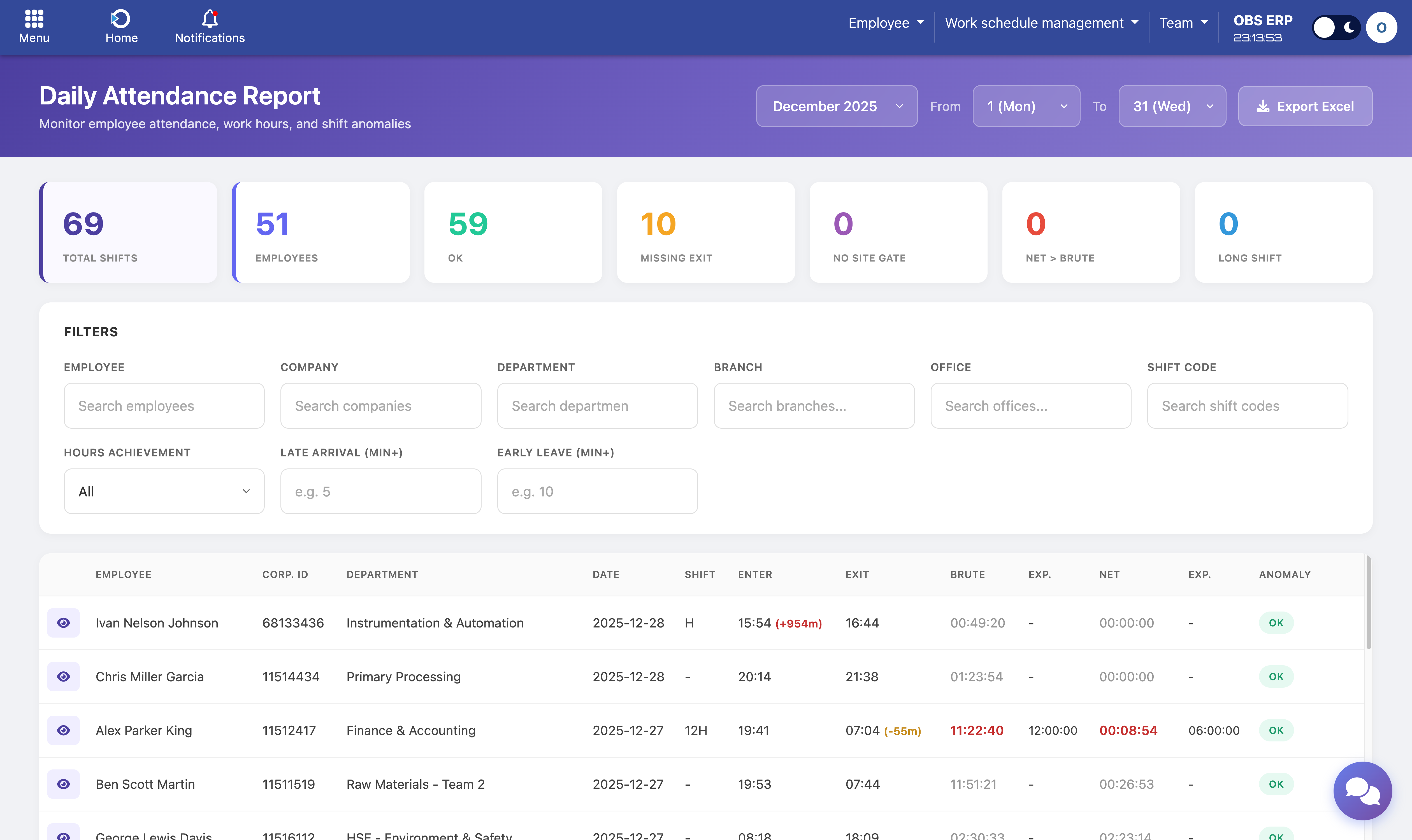
Daily Attendance Report main view with summary counters and data table
Purpose of the Report
The Daily Attendance Report answers one central operational question:
"Who was present, when, for how long, and how does this compare to what was planned?"
It consolidates in one place:
- Actual presence data from access control systems
- Planned working time from shift definitions
- Calculated brute and net work time
- Automatically detected anomalies and deviations
The report is designed for review, validation, investigation, and compliance, not for manual editing.
Report Structure
Each row in the report represents one employee on one calendar day.
For each row, the report displays:
- Employee name and corporate identifier
- Organizational context - Company, department, branch, office
- Date
- Assigned shift code (if any)
- First site entry time
- Last site exit time
- Brute work time - Time on site
- Expected brute time - From shift definition
- Net work time - Time in work zones
- Expected net time - From shift definition
- Attendance status / anomaly indicator
All values are calculated automatically and consistently for all employees.
Planned vs Actual Time
The report compares planned and actual time on two levels.
Planned data comes from:
- Assigned shift code
- Shift start and end times
- Expected brute and net working hours
- Leave or non-working shift types when applicable
Actual data comes from:
- Site gate access events (for presence and brute time)
- Work zone access events (for net time)
This comparison allows immediate identification of:
- Late arrivals - Employee entered after scheduled start
- Early departures - Employee left before scheduled end
- Underworked or overworked days - Actual hours differ from planned
- Missing or inconsistent access events - Data gaps
- Mismatches between presence and productive time - On site but not in work zones
Status Indicators and Anomalies
Each row is automatically evaluated and assigned a status.
Common statuses include:
- OK – No issues detected
- Missing Exit – No valid site exit found
- No Site Gate – Presence detected without proper site entry
- Net > Brute – Net work time exceeds site presence time
- Long Shift – Unusually long continuous presence
Note: Statuses are visual indicators only. They do not modify data, but guide attention to records that may require review.
Summary Counters
At the top of the report, summary counters provide an overview for the selected period:
- Total shifts - Number of employee-day records
- Number of employees - Unique employees in the selection
- Count of OK days - Records with no anomalies
- Count of each anomaly type - Grouped by status
Tip: These counters are interactive. Click on any counter to quickly filter the table to that specific anomaly category.
Filters and Period Selection
The report supports flexible filtering and period selection.
Users can filter by:
- Date range - Month and day range selection
- Employee - Search by name or ID
- Company
- Department
- Branch
- Office
- Shift code
- Hours achievement - Filter by brute and/or net hours
- Late arrival threshold - Minutes late
- Early leave threshold - Minutes early
- Anomaly type - Filter by specific status
Filters can be combined to narrow down results for targeted analysis.
Drill-Down: Employee Day Details
Each row includes an eye icon. Clicking it opens a detailed popup for the selected employee and day.
Day Summary
The popup header shows:
- First Enter - First site gate entry time
- Last Exit - Last site gate exit time
- Brute Time - Total presence on site
- Net Time - Time spent in work zones
Movements List
A chronological list of all access events used in the calculation:
- Event time
- Controller name
- Direction (ENTER or EXIT)
- Controller type (Site Gate or Work Zone)
- Visual indication of shift boundaries
Audit Trail: This view represents the full audit trail for that day. It allows HR, administrators, or auditors to validate exactly how the daily result was calculated.

Employee day popup showing summary values and chronological movements list
Export Capabilities
The Daily Attendance Report supports export to Excel for the currently filtered dataset.
Main Report Export
Click the Export button to download all visible rows with their calculated values.
Employee Day Export
The employee day popup also includes an Export option, which downloads:
- The day summary
- The full list of movements for that employee and date
Exports preserve timestamps, controller names, and directions for offline review, sharing, or audit purposes.
Typical Users
The Daily Attendance Report is intended for:
- HR teams - Daily attendance review and validation
- Payroll preparation - As a reference source for hours worked
- Department managers - Team attendance monitoring
- Security and compliance teams - Presence verification
- Internal and external auditors - Compliance checks
Note: Employees typically do not modify or manage this report. It represents a controlled, authoritative view of attendance data.
Need Help? If you notice unexpected attendance results, use the eye icon to review the underlying access events. For persistent issues, contact your system administrator.