See who works where and who reports to whom — in a few clicks, without asking anyone.
Start here — 4 steps, 30 seconds
1
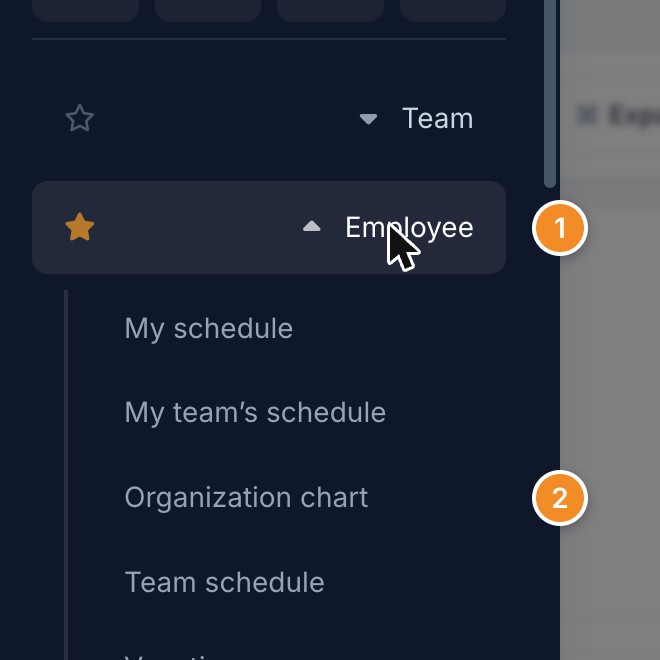
Open the main Menu (top left), click Employee and then Organization chart.
2
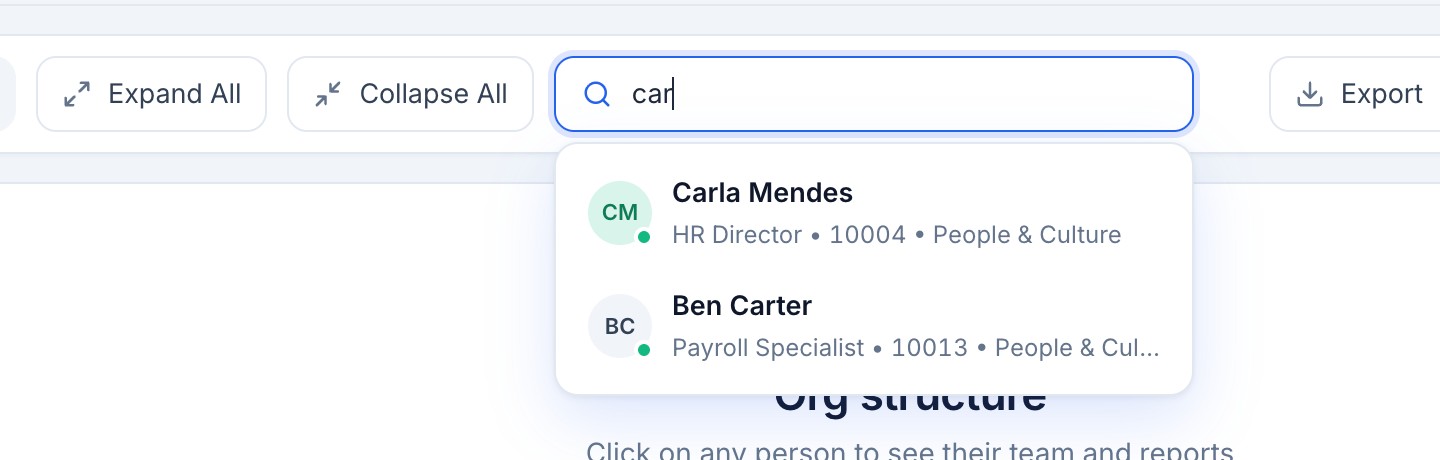
Click the search box and type 2 letters of a colleague’s name. Click the name in the list.
3
You now see that person and everyone who reports to them. Click any card to go one level deeper.
4
Want the whole picture? Click Tree, then Expand All. Want it in Excel? Click Export.
Good to know: You only look at things here. Nothing you click on the chart itself changes anyone’s data, so you cannot break anything by trying. The chart is built automatically from the staff records.
The Org Chart is a picture of your company: people, who they report to, and the departments they belong to. It is always up to date, because it is drawn from the staff records every time you open it.
How to open it
Your company decides who sees the Org Chart in the main menu: for everyone, or only for some people. When it is in the menu, you find it under Employee:
1
Click Menu in the top left corner.
2
Click Employee to open the group.
3
Click Organization chart.
1 Employee group · 2 Organization chart · click the picture to enlarge
Tip: You do not see Organization chart in the menu? Your company may show it only to some people, or your user has no access. HR can always open it from the staff list (see below). Still missing? See Something is wrong?.
For HR: from the staff list
HR can always open the Org Chart from the staff list, even when it is not in the main menu.
1
Open the staff list: Team.
2
Open the panel on the left of the list (if it is closed, click the small arrow on its left edge).
3
Click Organization chart.
The screen in one pictureFor everyone
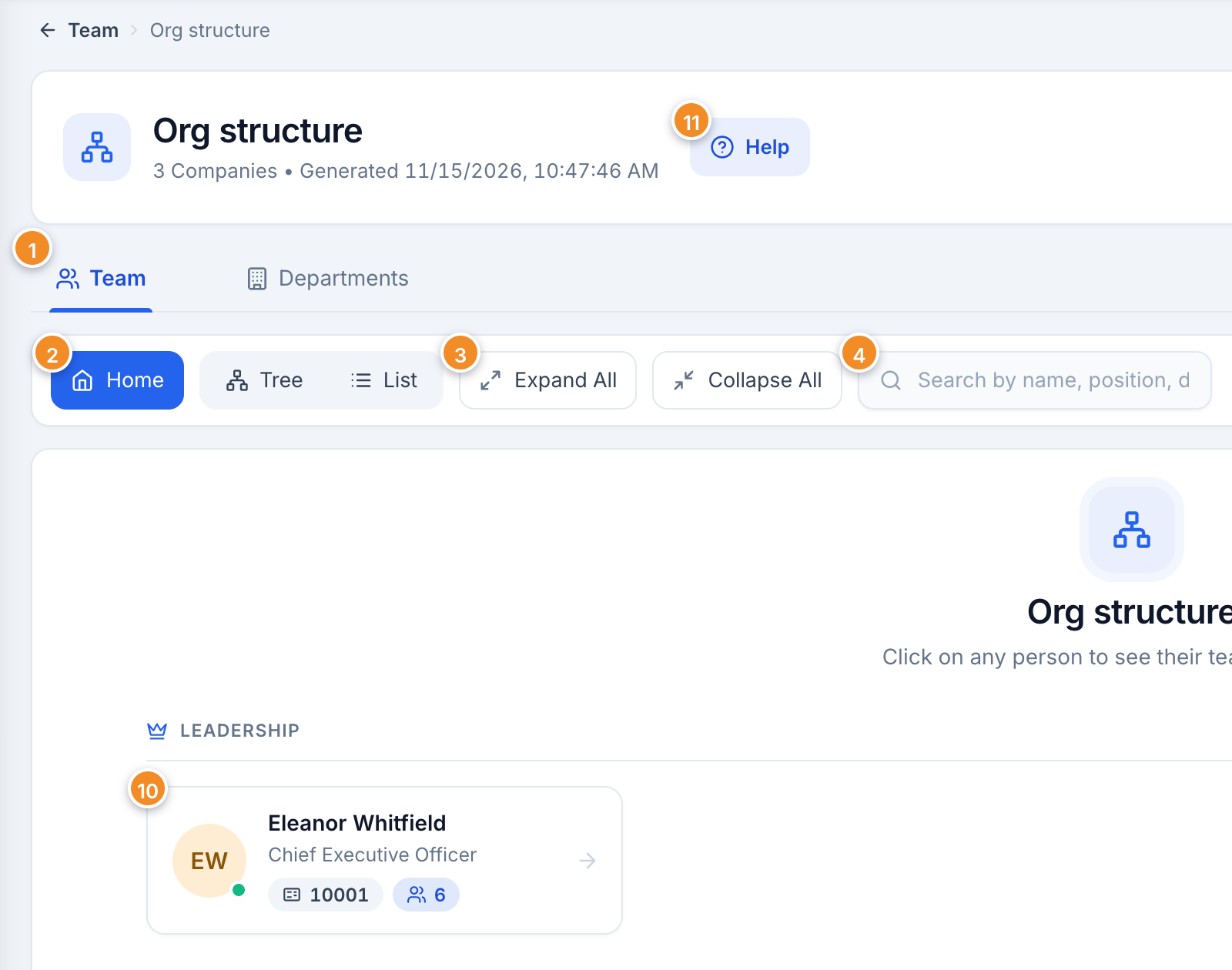
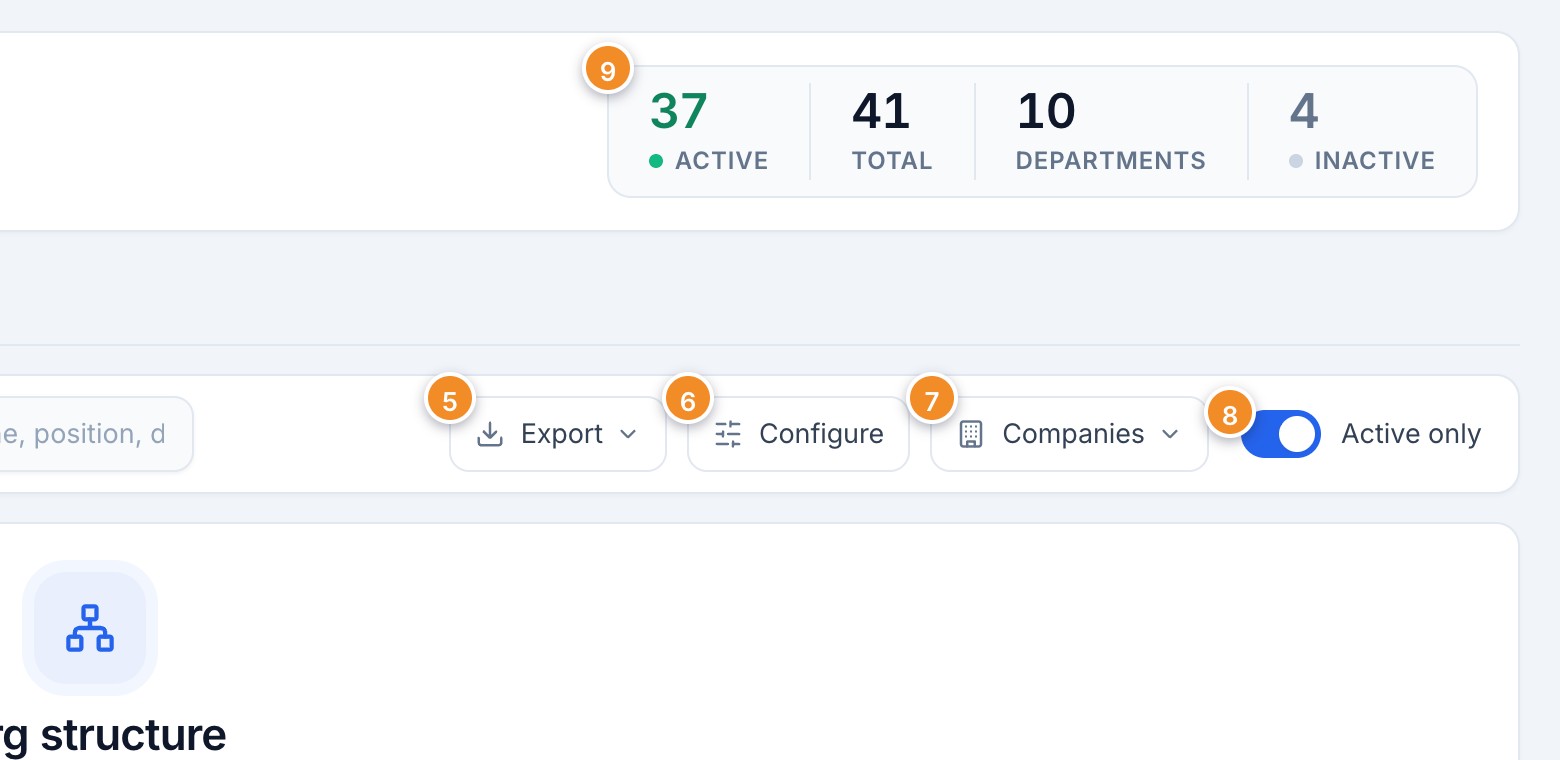
Everything is on one screen. The two pictures show the left and the right side. Find the number in the picture, then read what it does in the table below.
Left side of the screen: numbers 1, 2, 3, 4 and 10 · click the picture to enlargeRight side of the screen: numbers 5, 6, 7, 8 and 9 · click the picture to enlarge
#
What you see
What it does
1
Team / Departments
Two tabs. Team shows people. Departments shows departments (see below).
2
Home · Tree · List
Three ways to look at people. Home is the start page. Tree draws boxes joined by lines. List is a simple table.
3
Expand All / Collapse All
Opens or closes all branches of the tree at once.
4
Search
Type at least 2 letters of a name, a position, a department or an ID.
5
Export
Downloads the data as an Excel file. In the Tree view you can also download a picture (PNG).
Active = active people. Total = all people. Departments = number of departments. Inactive = people marked inactive. The counters follow the Companies filter; the Active only switch does not change them.
10
A person card
On Home, click a card to open that person’s team. In Tree and List, a click shows the person’s info card. The small i in the corner of a card always shows the info card.
11
Help
Opens this guide in a new tab.
Good to know: The grey line under the title, Generated …, is the moment the chart was loaded. If someone changed a record a minute ago, reload the page (key F5) to see it.
I want to…For everyone
Find your wish in the first column and do what the second column says.
I want to…
Do this
Details
Find a colleague
Type 2 letters in the search box and click the name
Type at least 2 letters of the name, the position, the department or the ID. A short list opens under the box (up to 10 people; if there are more, it says +N more, refine your search).
3
Click the person you want. You land on that person’s page: who they are, who they report to, and their direct reports.
Typing “car” shows everyone whose name contains it · click the picture to enlarge
Important: The search looks only at the people who are currently shown. If a person is not found, check Active only and Companies — one of them may be hiding them.
See a person’s teamFor everyone
Click through the company level by level, like opening folders.
1
Click Home. At the top you see the people with no manager, under the title Leadership.
2
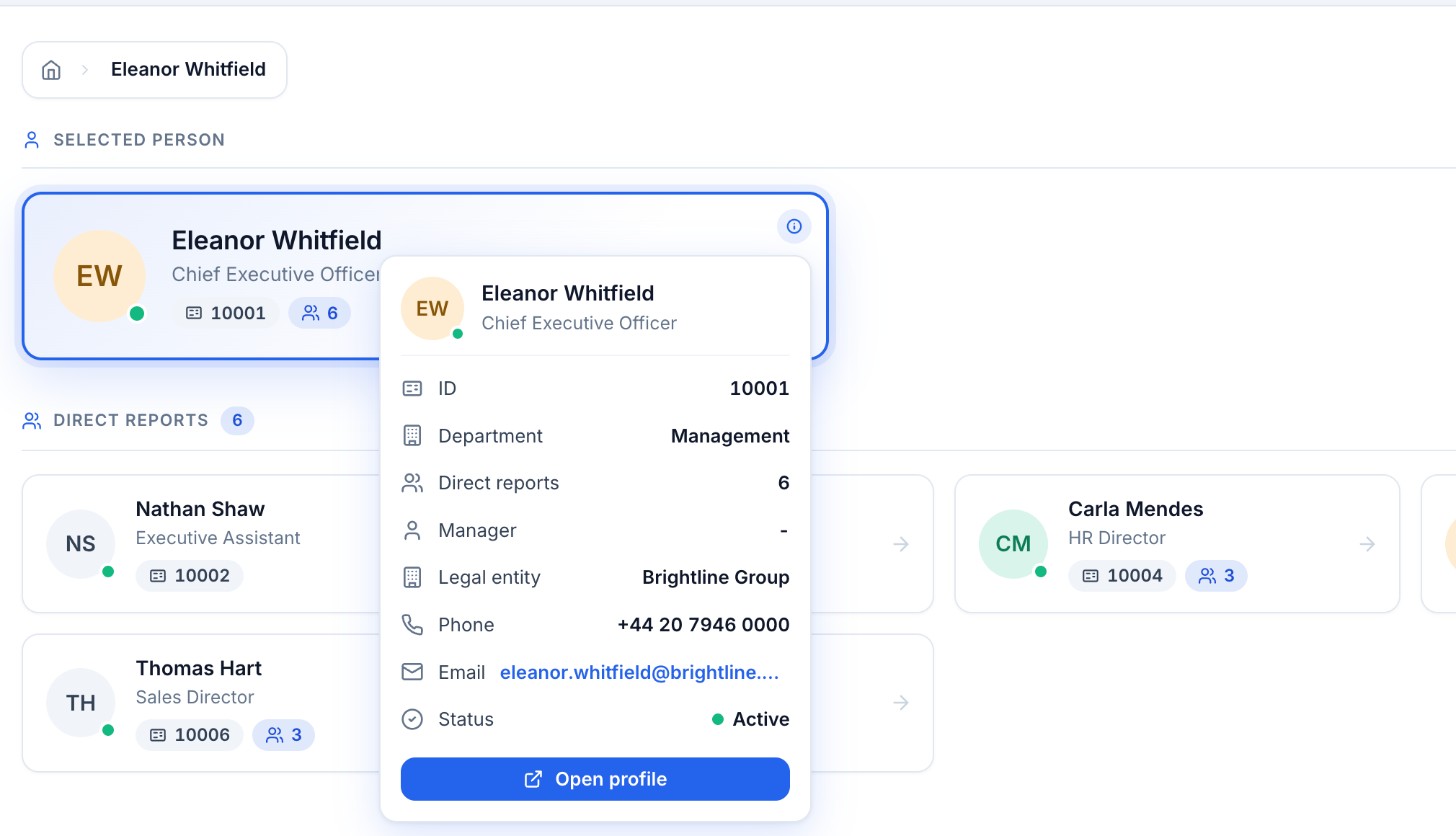
Click a person’s card. Their team opens: the person on top (Selected person), and under them everyone who reports to them (Direct reports).
3
Click any card to go one level deeper.
4
To go back, click a name in the path at the top (for example Eleanor Whitfield). The little house icon takes you back to the start.
5
Click the small i in the corner of a card to see the info card: ID, department, direct reports, manager, legal entity, phone, e-mail and status. Open profile opens the staff record in a panel on the right, so the chart stays open.
The path at the top, the selected person, the direct reports — and the info card that opens with the small i · click the picture to enlarge
Good to know: The small number next to the people icon on a card is how many people report directly to that person. It also counts inactive people, so it can be higher than the number of cards you see (why?).
Tree view — the classic org chartFor everyone
Boxes joined by lines, the boss at the top. Good for seeing the whole structure.
1
Click Tree. You see the top person.
2
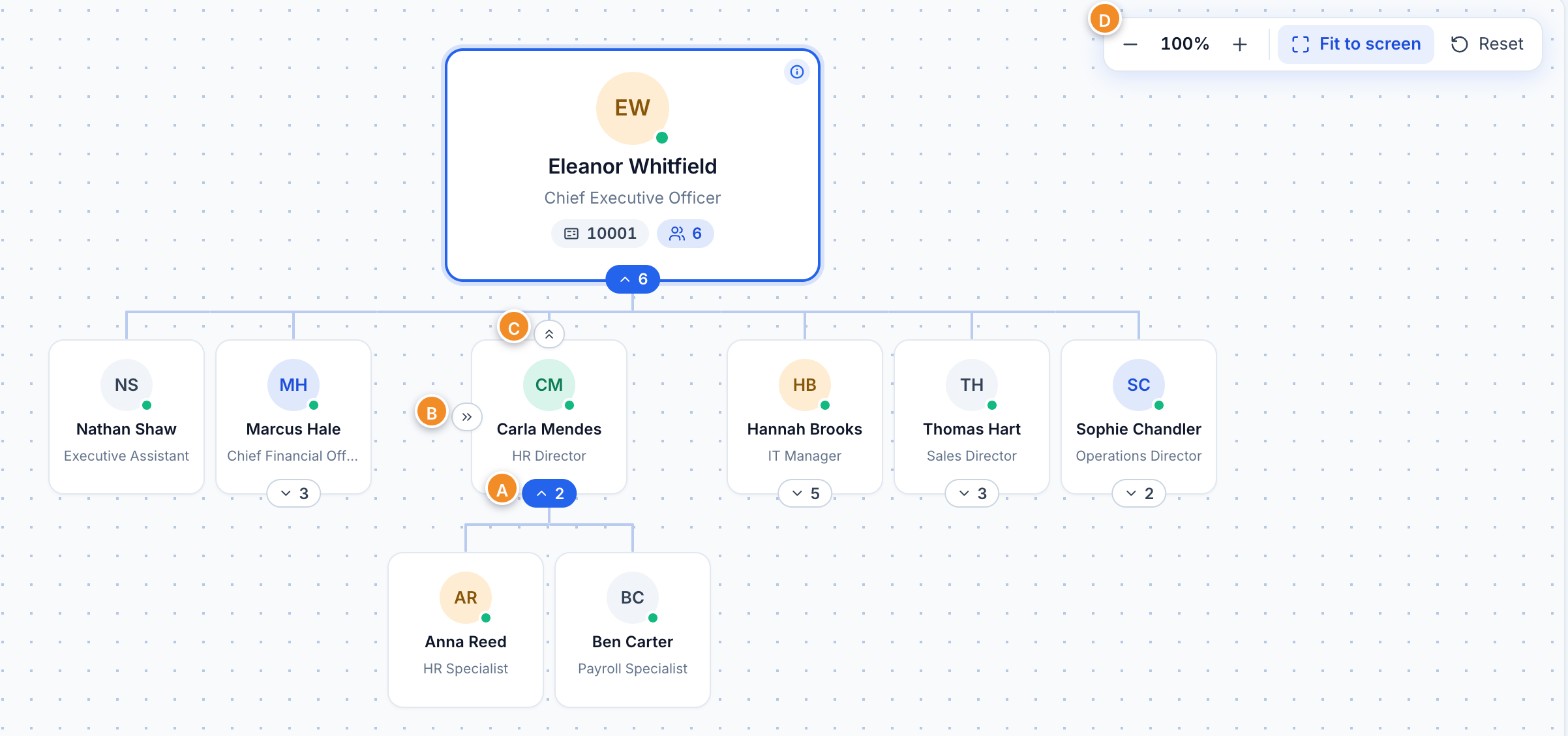
Click the small round button under a card A to open or close that team (the number on it is the size of the team). Or click Expand All to open everything, Collapse All to close everything.
3
Use − and + in the small bar at the top right of the tree D to make the picture smaller or bigger. Fit to screen shows the whole tree at once, Reset brings it back to 100%.
4
Too many people? Click the small »B on the left of an open team: only that person stays visible among colleagues. Click it again (it shows how many are hidden) to bring everybody back. The small double arrow up C above an open team does the same upwards: that person becomes the top of the chart until you click it again.
5
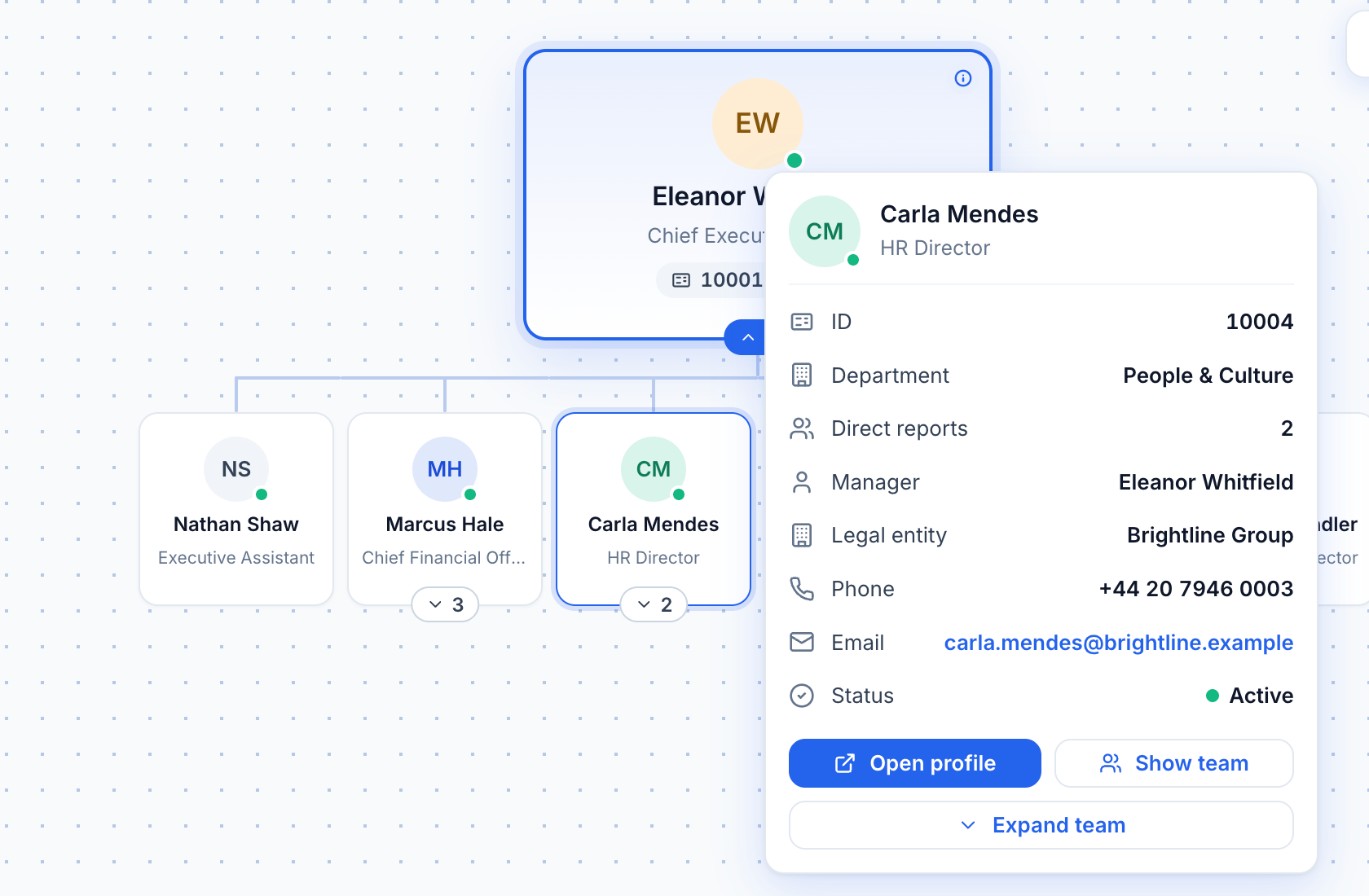
Click a person’s card to see the info card (the same as the small i); you stay in the tree. In the info card, Show team opens that person’s team in the Home layout, and Expand team / Collapse team opens or closes it in the tree. People without a team have only Open profile.
A open / close a team · B show only this person · C show as top of the chart · D zoom · click the picture to enlargeA click on a person in the tree opens the info card beside the card · click the picture to enlarge
Tip: In the Tree view the Export menu also offers a picture (PNG) of what you see on screen. Open the branches you want first, then export. Details: Download.
List view — everybody in a tableFor everyone
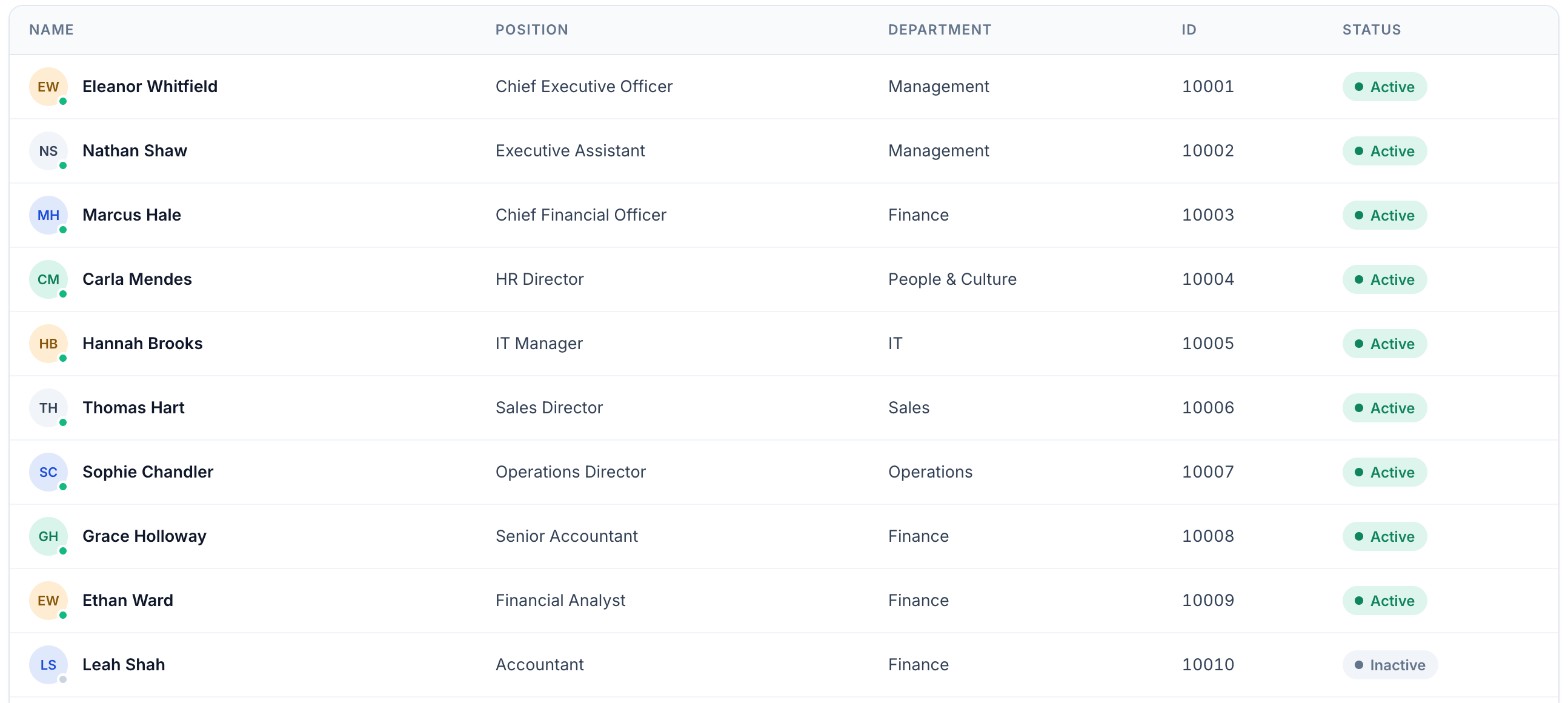
A plain table: name, position, department, ID and status. Good when you simply want to scroll through all people.
1
Click List.
2
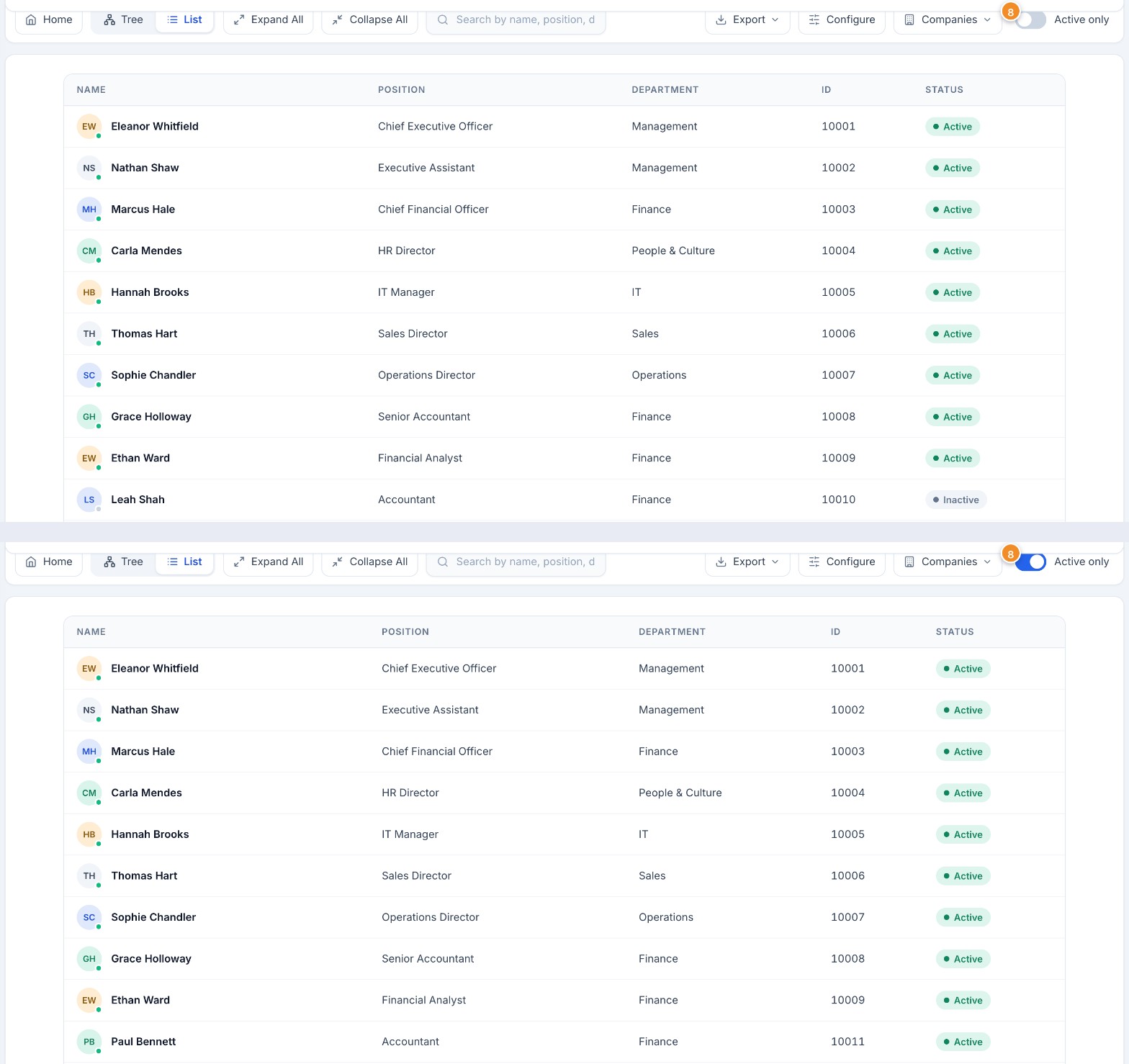
Scroll down. Grey Inactive tags show people who are not active (switch Active only off to see them).
3
Click a row to see the person’s info card. If the person has a team, Show team opens it.
The list: green tag = active, grey tag = inactive · click the picture to enlarge
Show or hide inactive peopleFor everyone
People who have left, or are switched off for another reason, are marked inactive in their staff record.
1
Look at the switch 8 at the right end of the toolbar. On (blue) = inactive people are hidden. This is how the Org Chart opens.
2
Click it to switch off (grey): inactive people appear, with a grey dot and an Inactive tag.
Top: switch off, Leah Shah (inactive) is in the list. Bottom: switch on, she is hidden · click the picture to enlarge
Good to know: The switch also changes the numbers on the Departments tab: department cards show Total and Active people the same way.
Show only one companyFor everyone
If your group has several companies, you can look at them one by one.
1
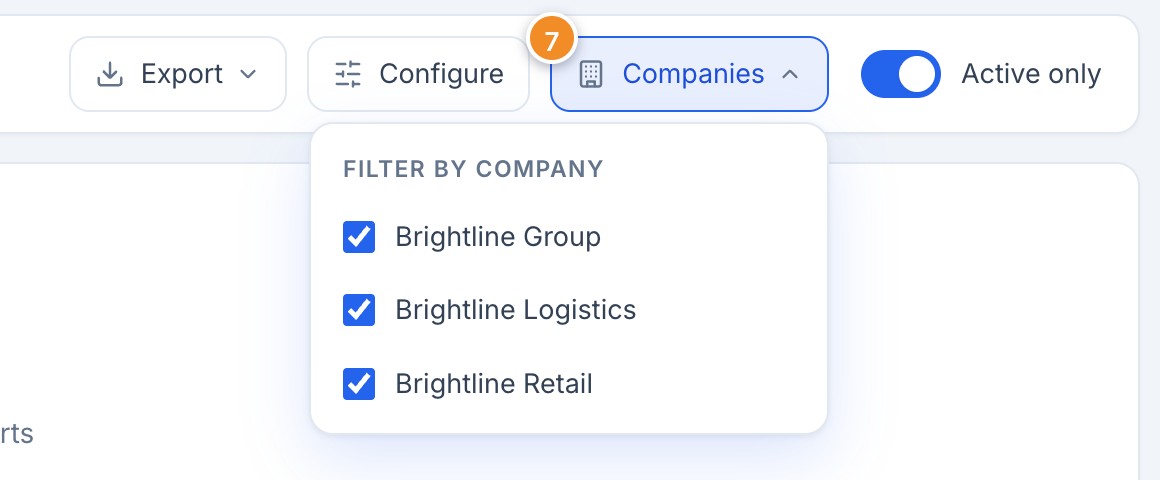
Click Companies7.
2
A list Filter by company opens. All companies are ticked at the start.
3
Untick the companies you do not want to see. The chart and the counters update at once.
The company filter · click the picture to enlarge
Good to know: The filter is not remembered. When you reload the page, all companies are shown again.
DepartmentsFor everyone
The second tab shows the company by department instead of by person.
1
Click the Departments tab (next to Team).
2
Choose Tree (boxes joined by lines, big departments with their sub-departments) or Cards (a tile for every department).
3
In the tree, click the small round button under a department to open or close its sub-departments (the number on it is how many there are), or use Expand All / Collapse All.
Reading a department box
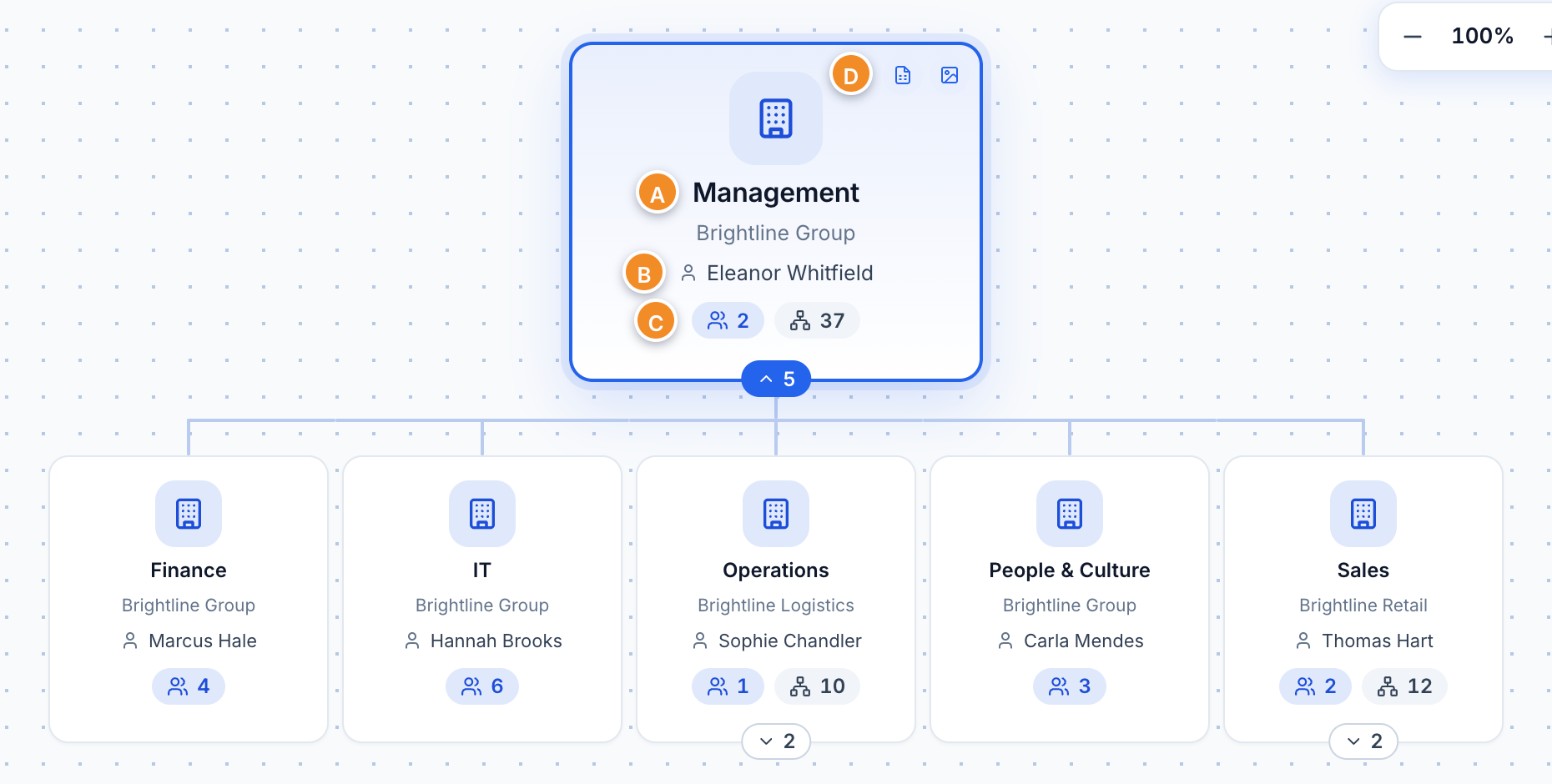
A name and company · B department head · C number of people · D download buttons · click the picture to enlarge
What it shows
A
The department name, and under it the company it belongs to. The arrow opens or closes its sub-departments.
B
The head of the department.
C
Blue number (people icon): people in this department. Grey number (tree icon): people in this department and all its sub-departments. With Active only on, both count active people only.
D
The Excel and PNG buttons download this department only (Download).
The Cards view
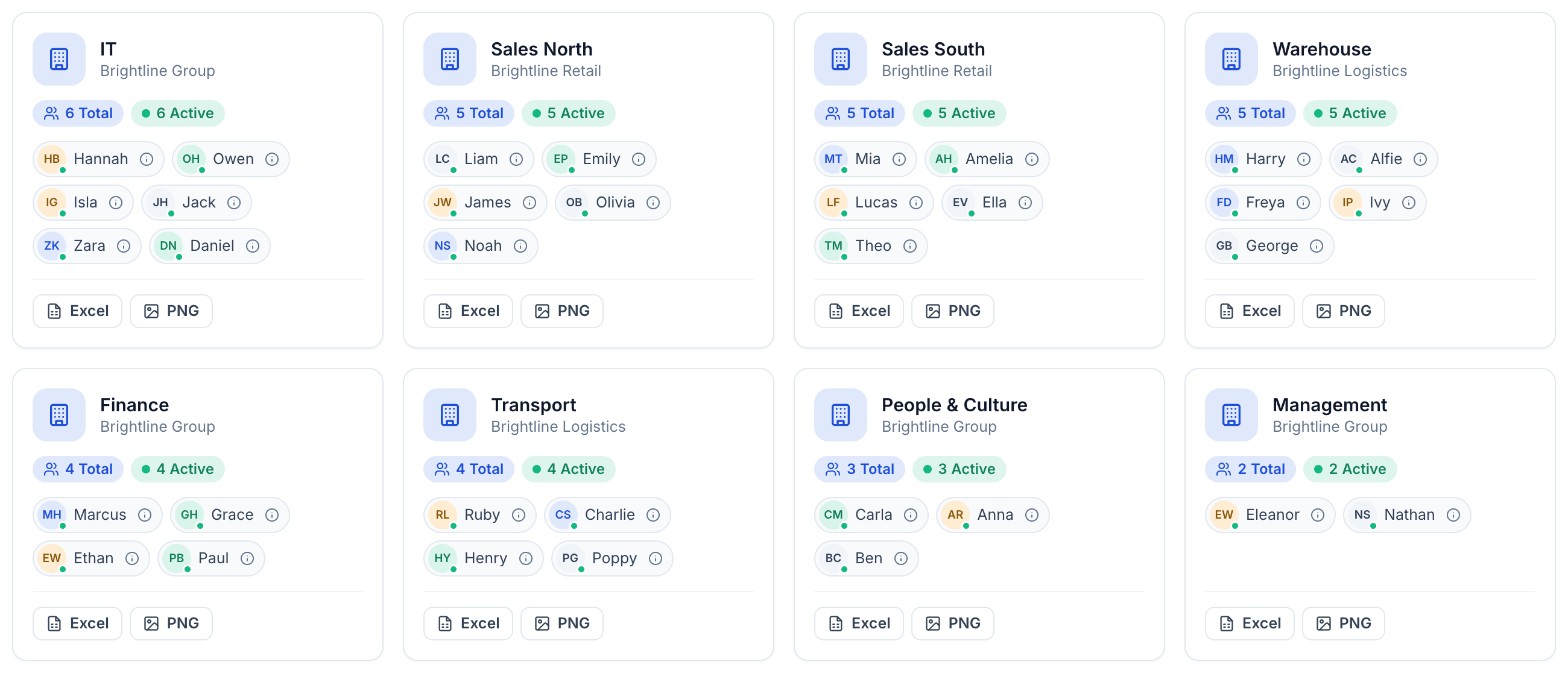
Each tile shows the department, its company, how many people it has (Total) and how many of them are active (Active), and the first names of the people in it. If there are more than 6 people, the tile says +N More. Click a name to open that person’s team; the small i next to a name shows the info card.
Cards view: department, company, Total and Active, and the people · click the picture to enlarge
Download: Excel and pictureFor everyone
Take the data with you.
1
Set what you want to see first: Active only, Companies, and the view (Home, Tree or List).
2
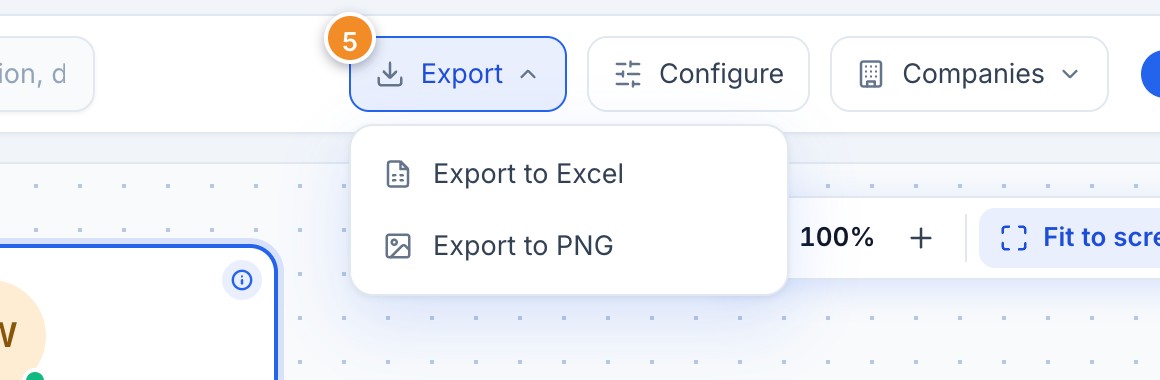
Click Export5.
3
Choose Export to Excel (always) or Export to PNG (only in the Tree view). The file is downloaded by your browser; look in your Downloads folder.
The Export menu in the Tree view · click the picture to enlarge
You choose
You get
Export to Excel
An Excel file named org_chart_<date>.xlsx with two sheets. Staff: name, ID, position, manager, department, company, e-mail, phone, status, number of direct reports. Departments: department, company, manager, active and total people.
Export to PNG
A picture org_chart_<date>.png of the tree as you see it, with a transparent background. Handy for slides and e-mails.
Excel / PNG on a department box
The same, but only for that department. Whether its sub-departments are included is decided in Configure (see below).
Important: A very big chart (more than about 150 people on screen) is too large for a picture. The page then tells you so: use Excel, or pick one company first.
Settings (Configure)For everyone
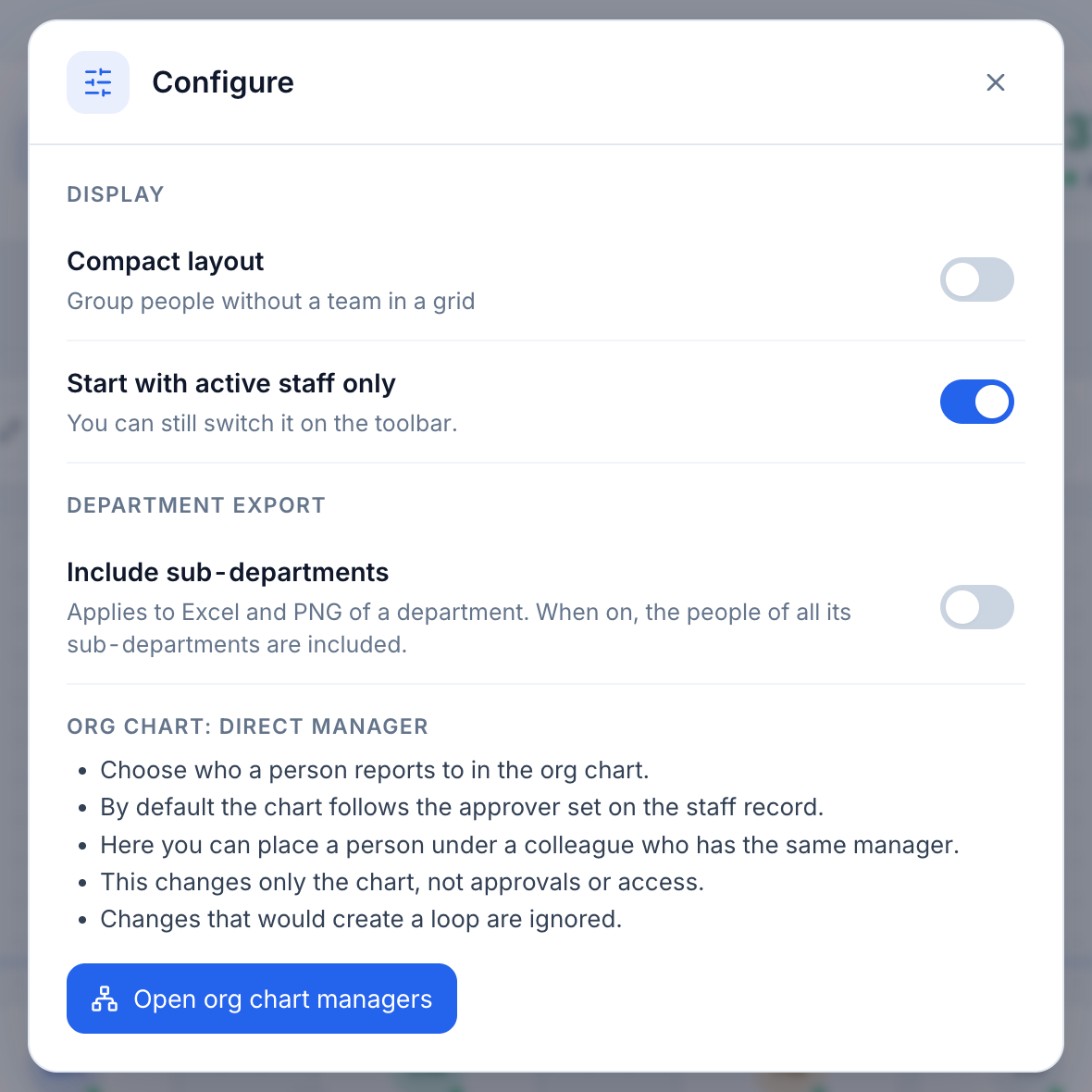
Click Configure6 to open a small window with the settings below. They are remembered in your own browser, so they do not change anything for your colleagues.
The Configure window · click the picture to enlarge
Setting
What it does
Compact layout
People who have no team of their own are grouped in a tidy grid instead of a long row. Makes the tree much shorter. Off by default.
Start with active staff only
Decides whether the Org Chart opens with Active only on or off. On by default. You can still change it with the switch on the toolbar at any time.
Include sub-departments
Used by the Excel and PNG buttons on a department. Off: only the people of that department. On: also the people of all its sub-departments.
Open org chart managers
For administrators only. Opens Org chart: direct manager, the list where a person is placed under another colleague in the chart, in a panel on the right, so the chart stays open (see below).
For administrators: how the chart is builtFor administrators
You do not draw the Org Chart. It builds itself from the staff records. If something looks wrong in the chart, you fix the staff record — and the chart follows.
Where each thing on the chart comes from
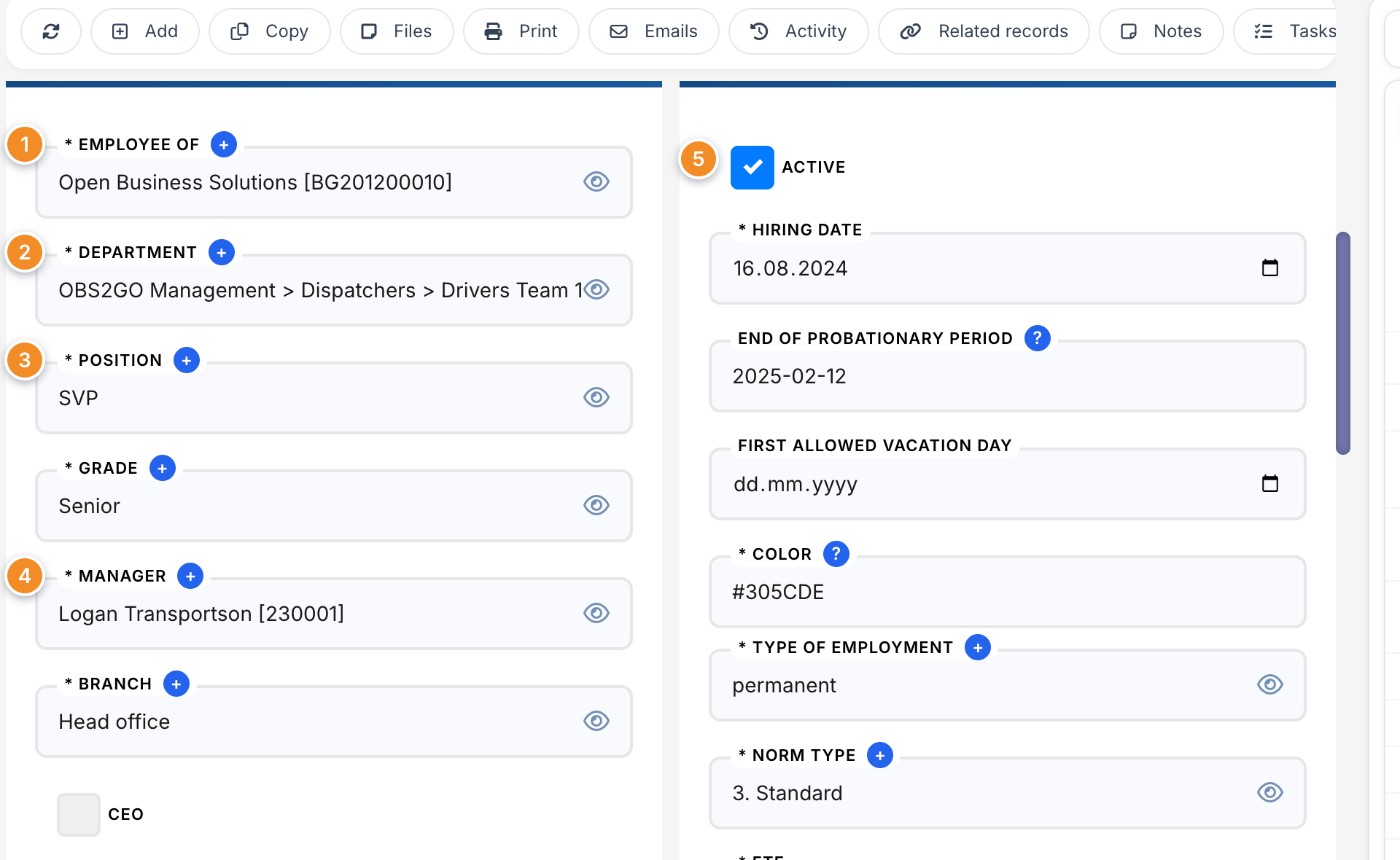
A staff record: the five fields that drive the Org Chart · click the picture to enlarge
#
Field on the staff record
What it controls in the chart
1
Employee of
The company. Used by the Companies filter.
2
Department
The department the person belongs to.
3
Position
The job title shown on the card.
4
Manager
Who the person reports to — this draws the lines. The same field also decides who approves their requests.
5
Active
Unticked = the person is inactive and hidden by Active only.
The department boxes (head of the department, which department sits under which) come from the Departments module. The company names come from Our companies.
Fix the wrong place of a person
1
Open the person’s staff record.
2
Change the Manager field 4.
3
Save. Reload the Org Chart: the person is under the new manager.
Important: The Manager field is the approver as well. Changing it also changes who approves this person’s vacations and requests. If you only want a different place in the chart, use the next section.
Move a person in the chart onlyFor administrators
Sometimes the person who approves is not the person you want to show above them. Example: Anna and Ben both report to Carla. In the chart you want Ben under Anna.
1
In the Org Chart click Configure6, then Open org chart managers. The list opens in a panel on the right. (Or: Menu → Team → Org chart: direct manager.)
2
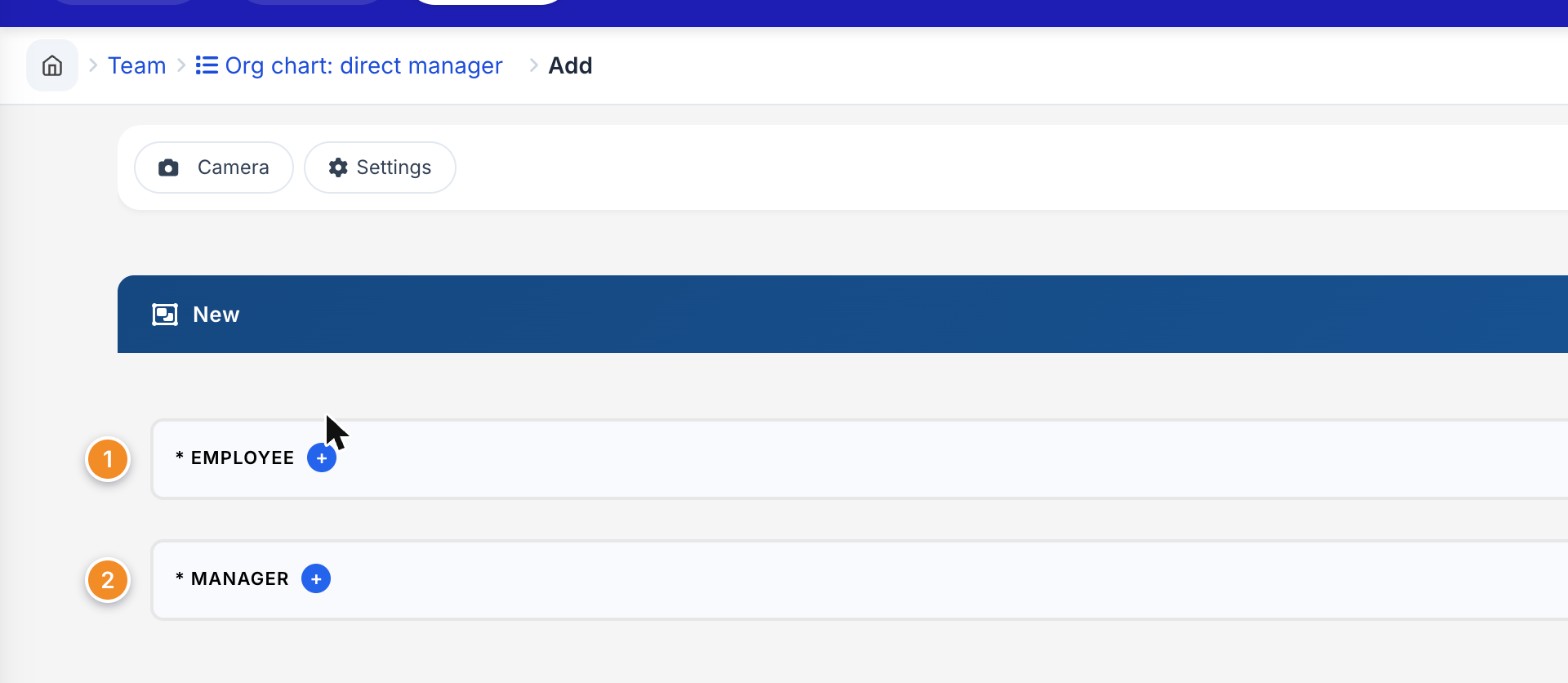
In the panel, click Create. Pick the Employee1 and the Manager2.
3
Click the green Add button in the top right corner. Close the panel with ×: the Org Chart reloads by itself and shows the change.
The form: choose the employee and the manager to show above them · click the picture to enlarge
Rule
What it means
Same manager
The person you choose as manager must have the same Manager on the staff record as the employee (Anna and Ben both report to Carla). Otherwise the line is ignored.
Not yourself
A person cannot be placed under themselves.
No circles
If two changes would make a circle (Anna under Ben and Ben under Anna), the circle is ignored.
Charts only
Approvals and access rights do not change. Only the picture does.
Go back
To return a person to the normal place, delete the line in the list.
Who can open the Org ChartFor administrators
The Org Chart is a module like any other. A user sees it only if their role has access to the module Org chart. Without access the menu entry is missing, or the chart opens empty. Whether the Org Chart is shown in the main menu for everyone is a separate choice of your company; HR can always open it from the staff list (Team, panel on the left, Organization chart).
The button Open org chart managers in the settings window also needs access to the module Org chart: direct manager. People who may only look do not need it.
Important: Everyone who can open the Org Chart sees all people in it — name, position, department, e-mail and phone. Give access only to the roles that should have that overview.
Something is wrong? Quick checksFor everyone
I cannot find “Organization chart” in the menu, or the chart is empty.
Your company may show the Org Chart in the menu only to some people. HR opens it from the staff list (how). If the chart opens empty or is missing there too, your user has no access to the module. Ask your administrator (see Who can open the Org Chart).
A person is missing.
Check, in this order: (1) is Active only on while the person is inactive? (2) is their company unticked in Companies? (3) did you type at least 2 letters? (4) was the person added a minute ago? Reload the page with F5.
The number on a card is bigger than the cards I see.
The number counts everyone who reports to that person, including inactive people. Switch Active only off and you will see them all.
Someone hangs under the wrong manager.
The chart follows the Manager on the staff record. An administrator fixes it there (how), or moves the person in the chart only (how).
A department has no head.
The department record has no manager. An administrator sets it in the Departments module.
Export does not start, or says export failed.
Try once more, or reload the page with F5. Excel and picture export load a small helper file; if your company network blocks it, ask your IT department. The picture is available only in the Tree view.
What does Inactive show?
The number of people marked inactive in their staff record, in the companies you have chosen. They are hidden while Active only is on.
I changed something and the chart did not move.
The chart is loaded once, when you open the page. After a change in a staff record, reload it with F5; the time next to Generated shows when the data was read. A change made in the Org chart: direct manager panel shows as soon as you close the panel.
Still stuck? Write to your OBS2GO contact and add a screenshot of the Org Chart screen.