

Attendence and access
/Unassigned Cards Usage
Unassigned Cards Usage
What This Report Is For
The Unassigned Cards Usage report identifies badge cards that are actively being used but are not linked to any employee in the system.
When someone scans a badge at an access controller, the system records the card number. If that card is not assigned to an employee profile, the event is logged but cannot be attributed to a specific person. This report surfaces those unassigned cards so they can be investigated and corrected.
Why it matters: Unassigned cards create gaps in attendance data. Until a card is linked to an employee, those access events cannot contribute to shift calculations, presence tracking, or safety monitoring.
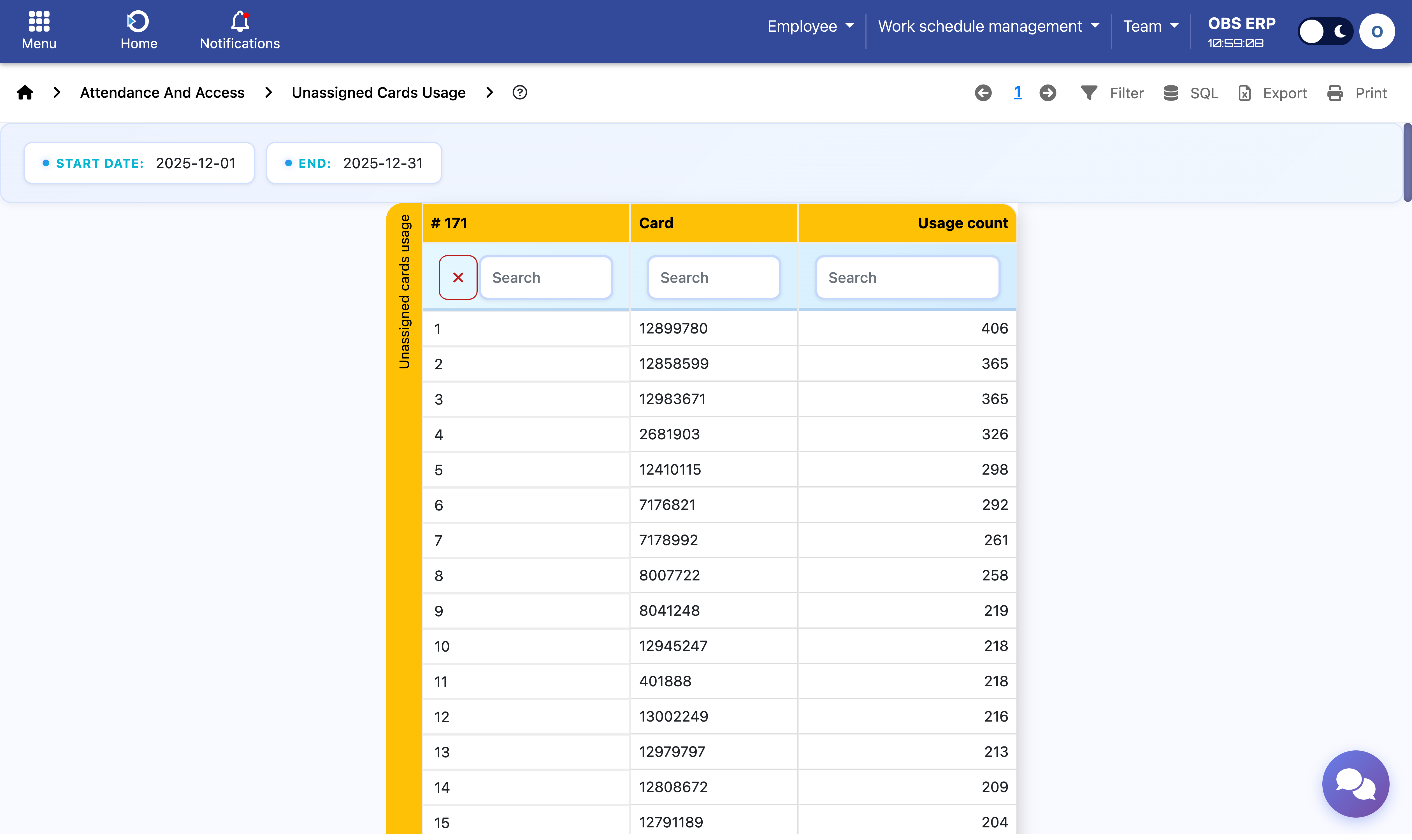
Unassigned Cards Usage report showing card numbers and usage counts
When to Use This Report
Run this report when you need to:
- Identify active but unlinked cards - Find cards being used without employee assignment
- Prioritize corrections by usage - Focus on high-usage cards first
- Investigate data gaps - Understand why certain employees appear to have missing attendance
- Audit card assignments - Verify that all active cards are properly linked
- Support onboarding verification - Ensure new employees' cards are correctly registered
What You See
The report displays a simple table with two columns:
- Card - The badge card number that was scanned
- Usage Count - How many times this card was used during the selected period
Results are sorted by usage count (highest first), making it easy to identify the most active unassigned cards that need immediate attention.
How to Use This Report
Step 1: Select a Date Range
Choose the period you want to analyze. A typical approach is to run the report monthly or weekly to catch unassigned cards early.
Step 2: Review High-Usage Cards
Focus on cards with the highest usage counts. These likely belong to active employees whose profiles need updating.
Step 3: Identify the Card Owner
Work with security or HR to determine who is using each unassigned card. Methods include:
- Checking with security personnel at access points
- Cross-referencing with physical card distribution records
- Contacting department supervisors
Step 4: Update Employee Records
Once the owner is identified, update their employee profile with the correct card number. Future access events will then be properly attributed.
Tip: After assigning a card, historical events for that card remain unassigned. Only new events going forward will link to the employee. If historical correction is needed, contact your system administrator.
Common Scenarios
New Employee with Unregistered Card
A new employee receives a badge but the card number was not entered in their profile during onboarding. The report will show their card with increasing usage counts.
Card Replacement Not Updated
An employee received a replacement card (lost, damaged, expired) but the new card number was not updated in the system. The old card may show zero usage while the new card appears as unassigned.
Visitor or Contractor Cards
Temporary cards issued to visitors or contractors may appear in this report if they are not tracked in the employee database. Depending on your policy, these may be expected or may need separate handling.
Data Entry Error
A card number may have been entered incorrectly in an employee profile (typo, wrong format). The actual card appears as unassigned while the employee shows no access activity.
Who Uses This Report
This report is typically used by:
- HR administrators - To ensure employee profiles are complete and accurate
- Security teams - To identify and investigate unknown card activity
- System administrators - To maintain data quality and integrity
Need Help? If you see a large number of unassigned cards or cannot identify card owners, contact your security department or system administrator for assistance with the investigation process.