
Document Actuality Review
Document Actuality Review
The Document Actuality Review (DAR) module manages the periodic validity check of GMP-controlled documents. When a document is approaching its expiry date, the system initiates a structured review workflow to determine whether the document should remain valid, be updated, or be retired.
The process involves three sequential roles: Author, Department Manager, and QA Manager. Each role must complete their step in order. A rejection at any stage returns the process to the Author for re-evaluation.
Accessing the Module
Navigate to the Document Actuality Reviews page from the main menu. The page displays only the reviews relevant to your assigned role. The system determines your role automatically based on your user account — no manual configuration is required.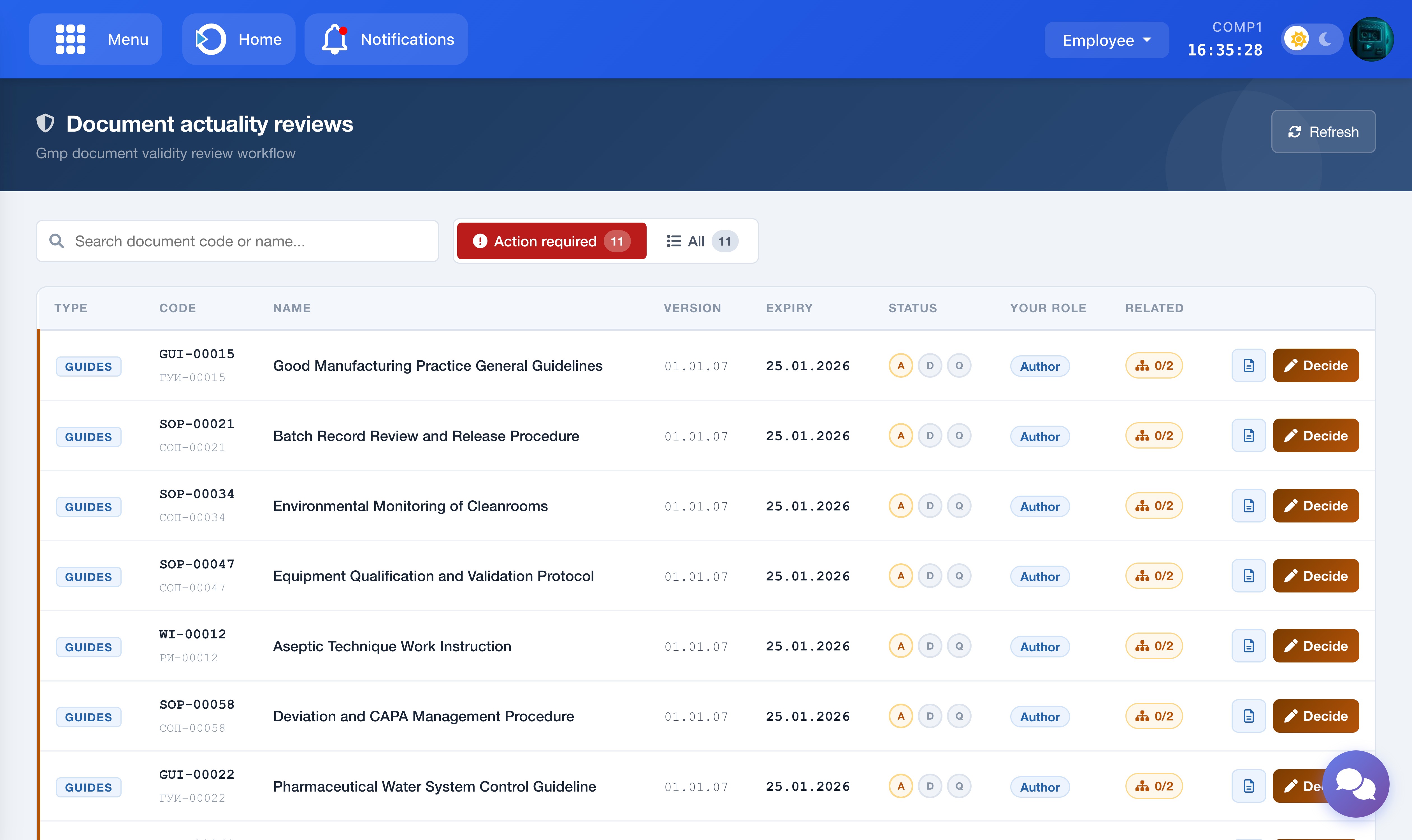
The screenshot shows the Document Actuality Reviews main list with Action Required and All tabs.
The page has two tabs:
- Action Required: Reviews where it is currently your turn to act. These are highlighted and shown first.
- All: All reviews you are involved in, regardless of status — including completed ones. Use this tab to review history.
The Status column shows three dots labelled A / D / Q (Author, Department Manager, QA Manager). A filled dot means that step is complete. An active dot means the review is currently at that step. A grey dot means it is still waiting.
Author — Submitting Your Decision
When it is your turn as Author, the review appears under the Action Required tab. Click Decide to open the review modal.
Main Document Decision
Select one of the three decisions for the main document:
- Document is Valid — no changes needed; the document continues as-is.
- Requires Update — the document needs to be revised. An Update Due Date must be selected.
- Document is Not Valid — the document should be retired. A comment is mandatory.
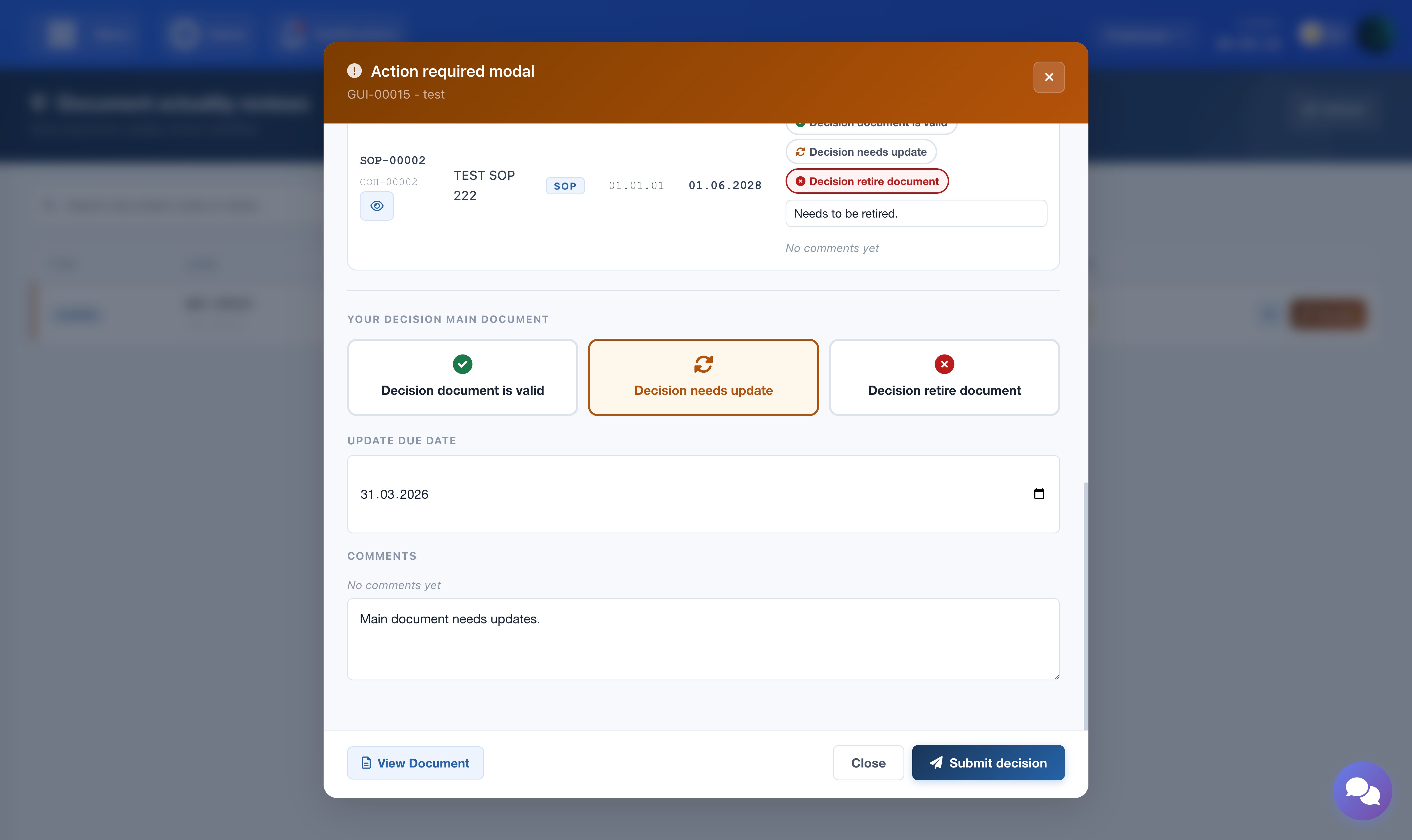
The screenshot shows the review modal — Author step with decision options for the main document.
Related Documents
If the main document has related lower-level documents (e.g. SOPs linked to a Guideline), they appear in a table below. A decision must be assigned to each related document before the form can be submitted. Use the eye icon next to each document code to open and read the document before deciding.
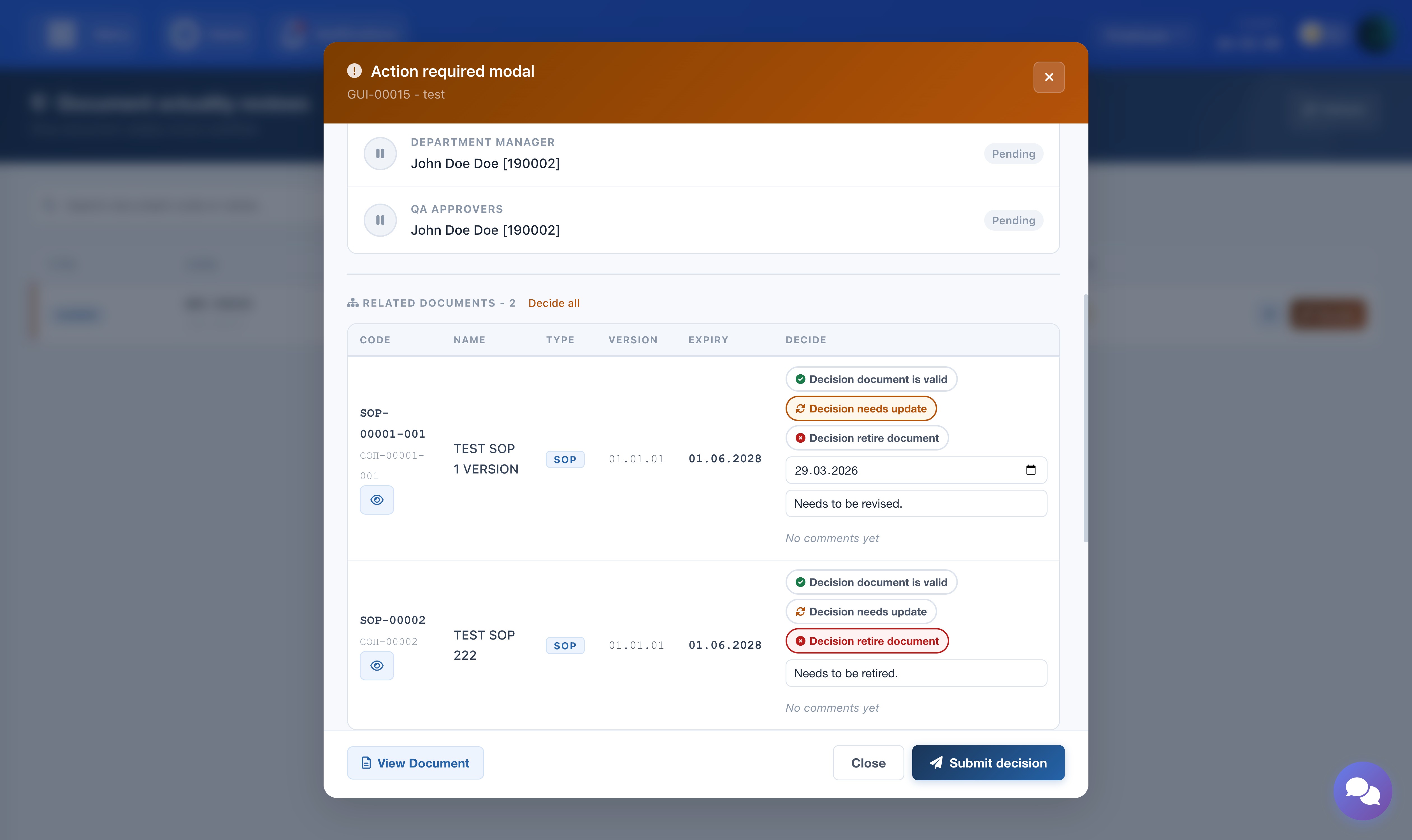
The screenshot shows the related documents table with decision options and the eye icon for viewing each document.
Decision Rules
The Submit Decision button remains disabled until all of the following rules are satisfied:
- All related documents have a decision selected.
- Any Requires Update decision has an Update Due Date set.
- If the Update Due Date is more than 3 months from today, a comment is mandatory.
- Any Not Valid (Retire) decision requires a comment.
These rules apply to both the main document and each related document individually.
Comments
A comment field is available for the main document and for each related document. Any comment submitted becomes part of the permanent audit trail and is visible to all parties in the review chain. Previous comments from earlier cycles are shown above the input field for reference. The comment input is always empty when you open the modal — you are adding a new comment, not editing a previous one.
Submitting
Once all decisions are set and all rules are satisfied, click Submit Decision. The review is forwarded to the Department Manager. Your decision is locked and cannot be changed unless a reviewer rejects and returns the review to you.
Department Manager — Review and Approve
When the Author submits their decision, the review moves to the Department Manager. It appears under the Action Required tab. Open the review to see the full approval progress, the Author's decisions for the main document and all related documents, and the full comment history.
The Department Manager has two options:
- Approve: The review advances to the QA Manager. An optional comment may be left. A notification is sent to the QA Manager informing them that their approval is required.
- Reject: A comment is mandatory. The review is returned to the Author, who must re-evaluate and re-submit. The Author is notified and will see the comment when they re-open the review.
Comments may also be added per related document using the input field next to each row in the related documents table.
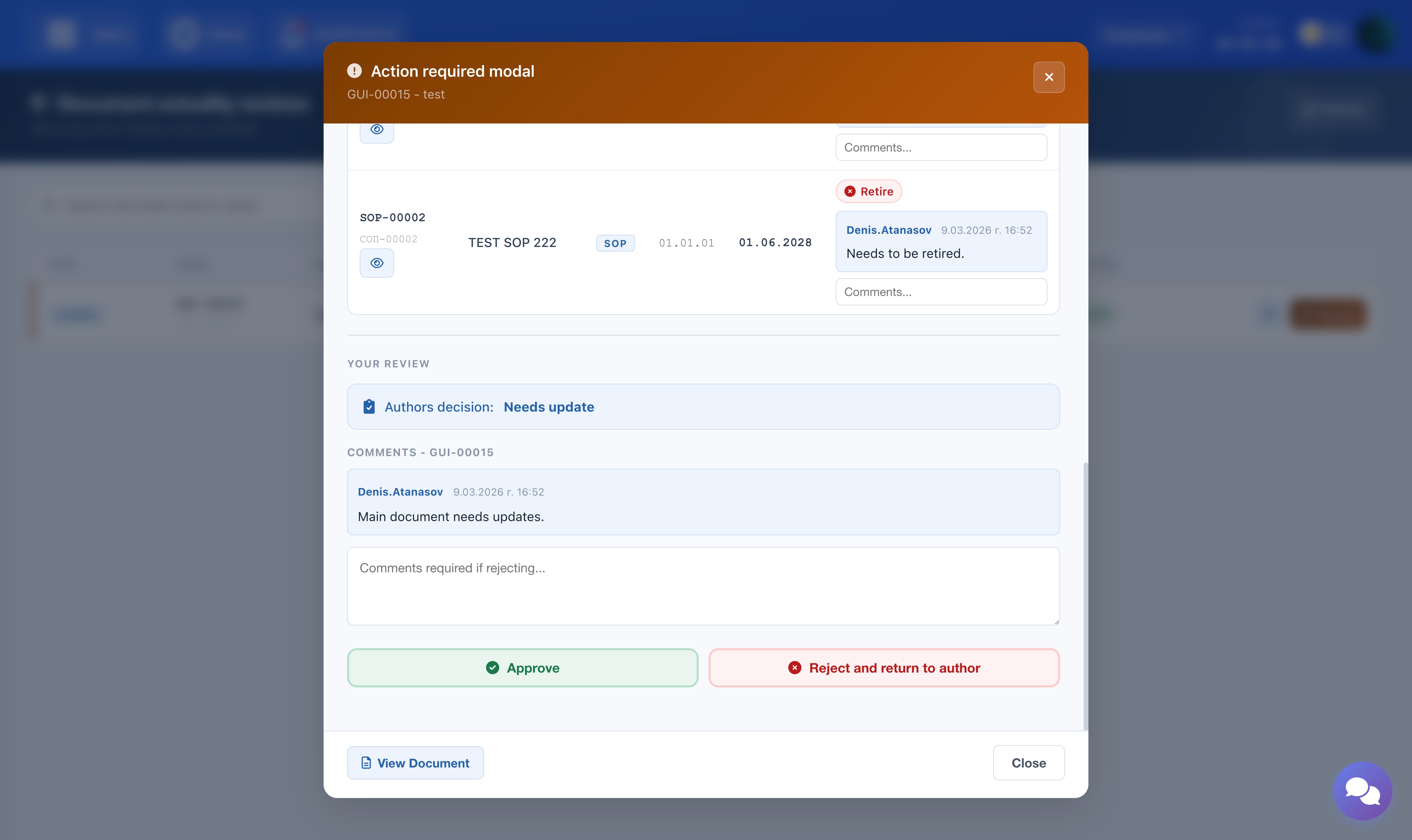
The screenshot shows the review modal — Department Manager step with Approve and Reject buttons.
QA Manager — Final Approval
After the Department Manager approves, the review moves to the QA Manager. It appears under the Action Required tab. The review shows the complete history: the Author's decisions, the Department Manager's comments, and all previous comment threads.
The QA Manager has two options:
- Approve: Final approval. The review is marked as Completed. No further action is required from any party.
- Reject: A comment is mandatory. The review is returned to the Author, who must re-evaluate the entire process from the beginning.
Comments may also be added per related document using the input field next to each row in the related documents table.
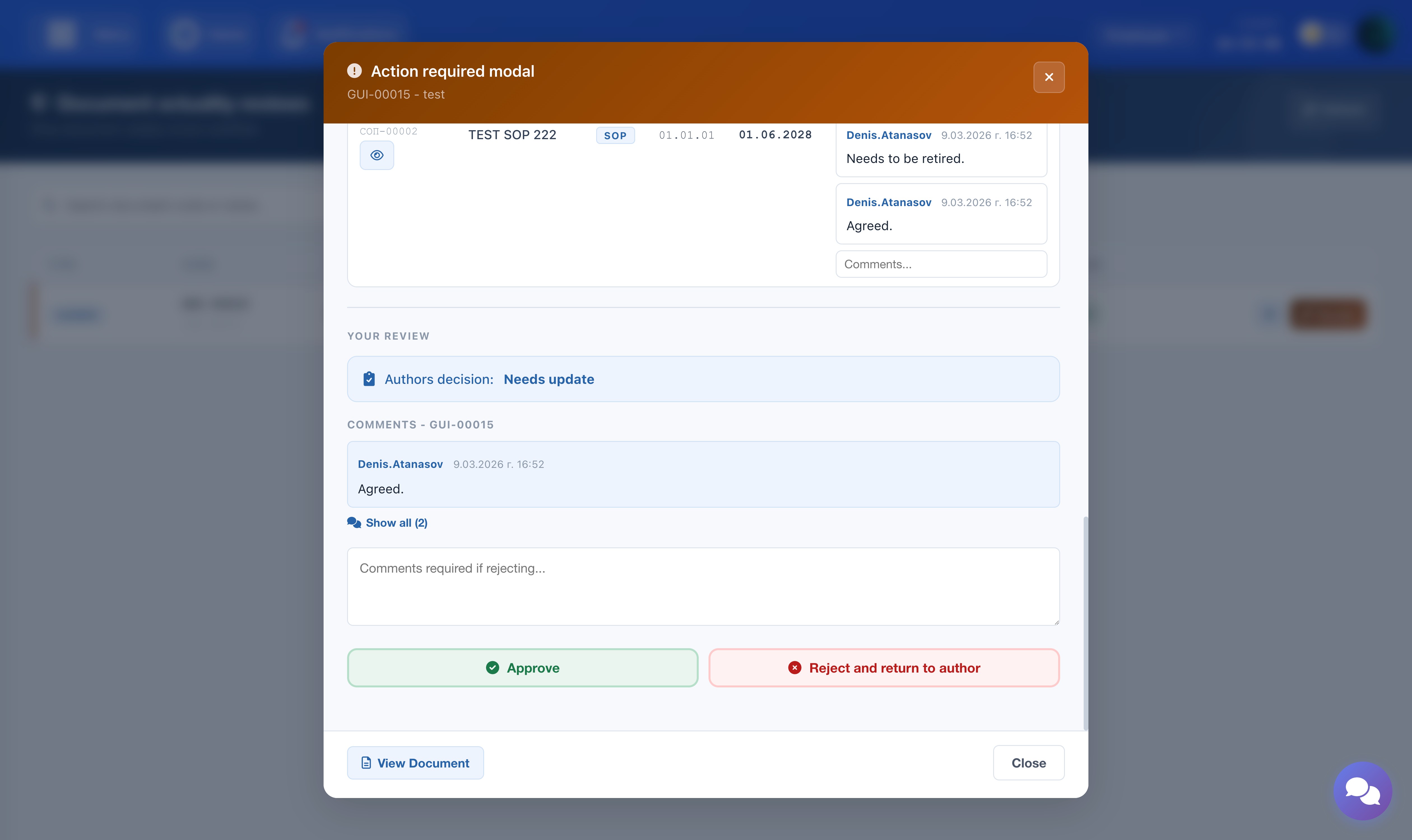
The screenshot shows the review modal — QA Manager step with Approve and Reject buttons.
Rejection and Re-submission
If the review is rejected by the Department Manager or QA Manager, it is returned to the Author step. The review reappears under Action Required for the Author, with the rejecting party's comment visible in the comment history.
The Author must review the comment, re-evaluate their decisions for the main document and all related documents, and re-submit. There is no limit on the number of rejection cycles. All previous comments remain visible in the thread for the full audit trail.
Note: Previous decisions are shown as pre-selected when re-opening the modal. Comment fields are always empty — each submission requires a new comment to be written.
Viewing Documents
At any point in the workflow, the document file can be opened directly from the review modal before making a decision.
- Main document: Use the View Document button in the bottom-left corner of the modal.
- Related documents: Use the eye icon next to each document code in the related documents table.
The document opens in a viewer on top of the review modal. Close the viewer when done to return to the review.
Comment History
Every comment submitted as part of a decision is permanently recorded in the system audit trail. Comments cannot be edited or deleted.
In the review modal, the comment history is displayed above the input field for both the main document and each related document. The most recent comment is shown by default. If there are multiple comments, a Show All button appears — click it to expand the full thread. Each comment is attributed to the user who submitted it, with a date and time stamp.
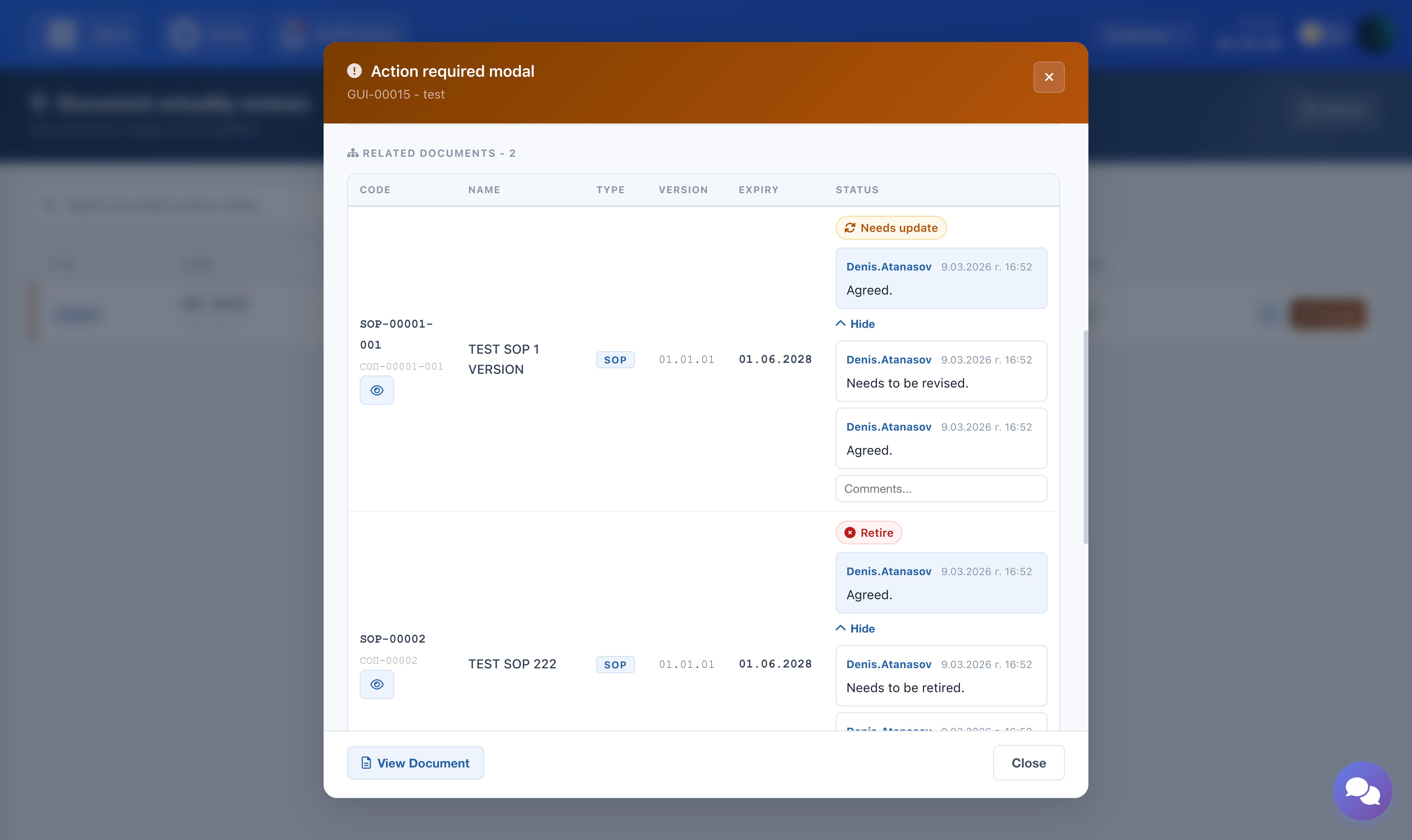
The screenshot shows the comment thread in the review modal with the Show All button expanded.
Completed Reviews
Once the QA Manager approves, the review is marked as Completed and removed from the Action Required tab. It remains permanently visible in the All tab for audit and reference purposes. No further action is required or possible on a completed review.